
Effective February 3, 2026, Razer Synapse 3 will no longer receive updates or support cloud services. After this date, cloud syncing of configurations across PCs using the same Razer ID will be disabled.
Note: Your installed devices will continue to be configurable in Razer Synapse 3. However, if you uninstall these devices completely, you will need to upgrade to Razer Synapse 4 to continue customization.
Download Razer Synapse 4 and migrate your existing Razer Synapse 3 profiles using the Profile Migration Tool to retain access to your configurations. See How to migrate your Razer Synapse 3 Profile to Razer Synapse 4 for instructions.
Applicable Products:
You can view the video below for instructions or review a copy of the video transcript.
See the step-by-step instructions below on how to toggle between PC and Bluetooth modes on Razer Nommo V2 speakers.
Select an option
Toggle to Bluetooth mode on the device
-
Connect your Razer Nommo V2 speaker to any USB Type-A ports on your PC.
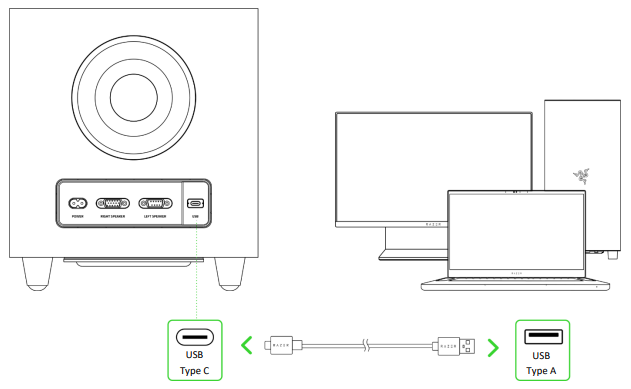
-
Press the power button to power on the gaming speakers.
Note: The status indicator will turn solid green, indicating that the gaming speakers are in PC mode.
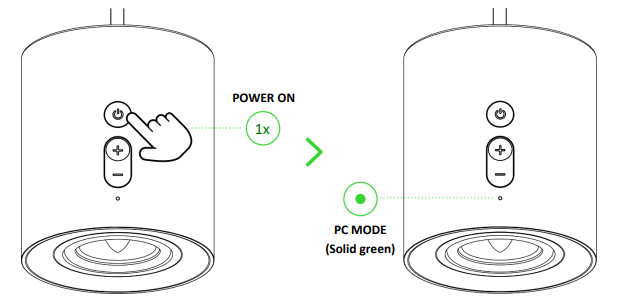
-
Set the Razer Nommo V2 or Razer Nommo V2 X as the default Output device on your PC. The Razer Nommo V2 is now ready for use in PC mode.
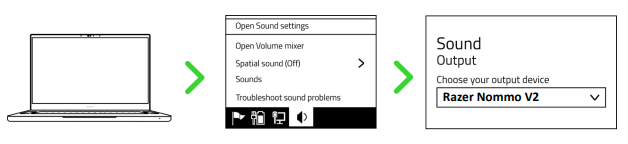
-
While powered on and in PC mode, double-press the power button to switch to Bluetooth mode.
Note: The status indicator will blink in blue, and an audio prompt will be heard to indicate that the gaming speakers are in pairing mode.
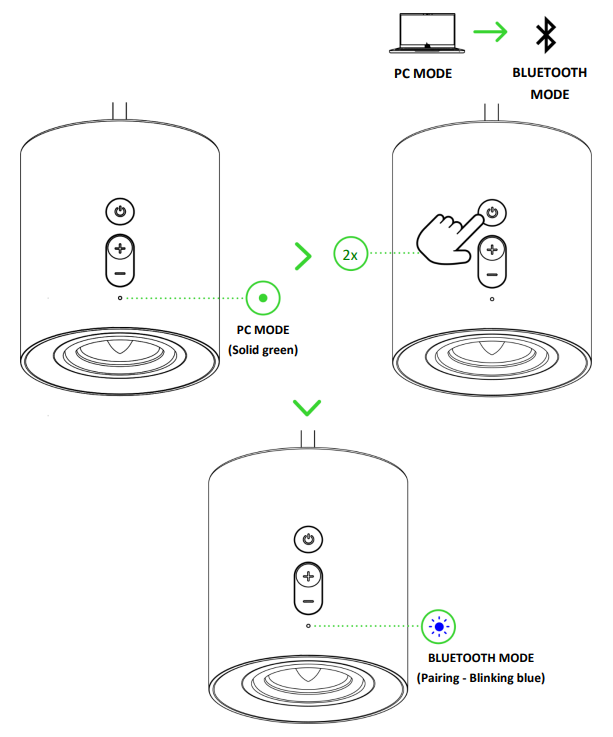
-
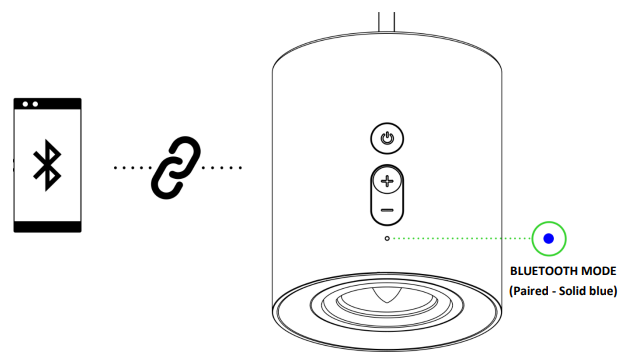
Activate Bluetooth on your device and select "Razer Nommo V2 (BT)" or “Razer Nommo V2 X (BT)” from the available devices. Wait until both devices are connected.
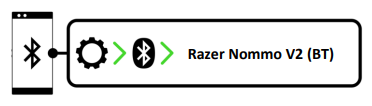
Note: The status indicator will turn solid blue, and an audio prompt will be heard to indicate that the gaming speakers are now connected to your device. The Razer Nommo V2 is now ready for use in Bluetooth mode.
-
While powered on, double-press the Power button to switch between PC mode and Bluetooth mode.
Toggle to Bluetooth mode via Razer Synapse
-
Launch Razer Synapse.
-
On the “Dashboard”, select your Razer Nommo V2 speaker under “Devices”.
-
Switch to Bluetooth mode:
-
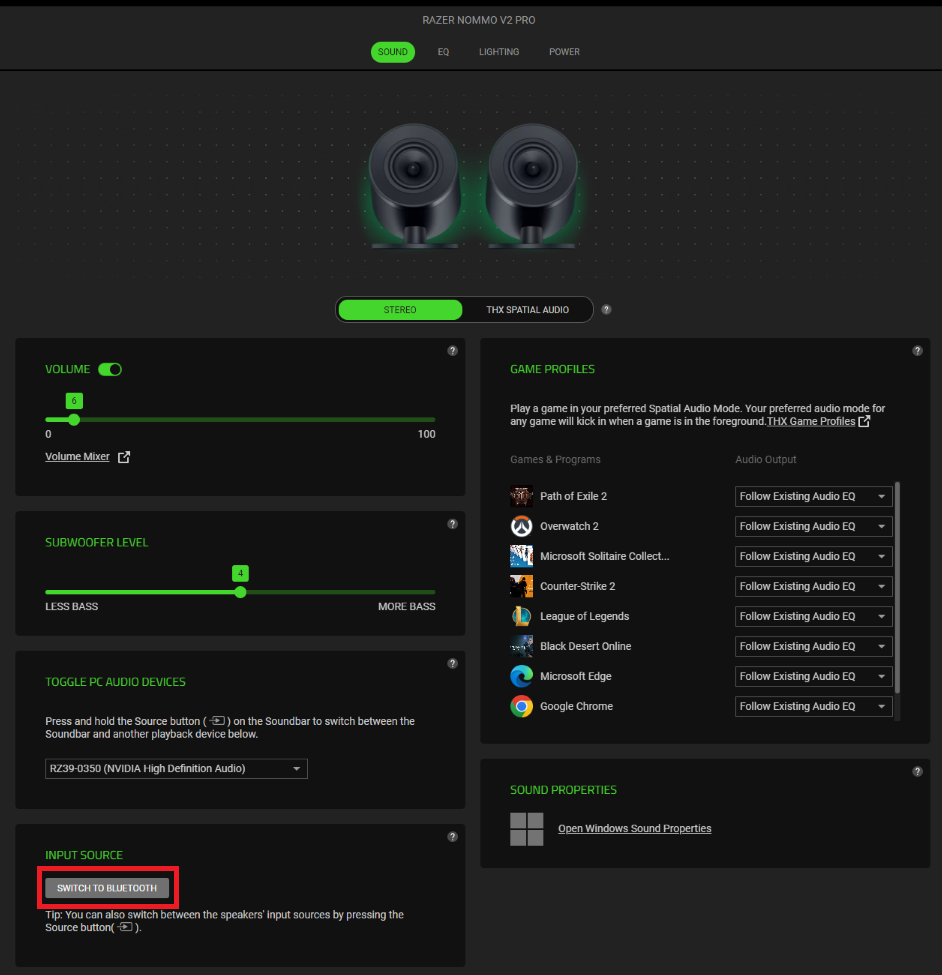
On Razer Synapse 4: On the “SOUND” tab, click on “SWITCH TO BLUETOOTH” under INPUT SOURCE.
-
On Razer Synapse 3: Go to the “AUDIO” tab and click on “SWITCH TO BLUETOOTH” under INPUT SOURCE.
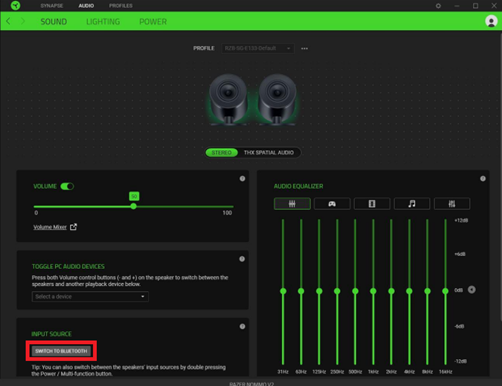
Note: Razer Synapse will not be able to revert to PC mode when the gaming speakers have been set to Bluetooth mode. Double-press the power button to set the gaming speakers to PC mode.
-

