Effective February 3, 2026, Razer Synapse 3 will no longer receive updates or support cloud services. After this date, cloud syncing of configurations across PCs using the same Razer ID will be disabled.
Note: Your installed devices will continue to be configurable in Razer Synapse 3. However, if you uninstall these devices completely, you will need to upgrade to Razer Synapse 4 to continue customization.
Download Razer Synapse 4 and migrate your existing Razer Synapse 3 profiles using the Profile Migration Tool to retain access to your configurations. See How to migrate your Razer Synapse 3 Profile to Razer Synapse 4 for instructions.
After upgrading from Razer Synapse 3 to Razer Synapse 4, you can then migrate your user profiles. This article will guide you through the features within Razer Synapse which can help you move your Razer Synapse personalization and settings from Razer Synapse 3 to Razer Synapse 4.
You can view the video below for instructions or review a copy of the video transcript.
Important:
- Do not uninstall Razer Synapse 3 manually as it may cause issues with the profile migration.
- Ensure you have Razer Synapse 3 installed and perform the upgrade to Razer Synapse 4 via the banner or installer available on the Razer website.
Note: The Razer Synapse migration tool only presents profiles for backup profiles that are present on the local machine.
Migrate your user profile
Migrate user profiles during first-time upgrade from Razer Synapse 3 to Razer Synapse 4
- Upgrade your Razer Synapse. See How to install or upgrade Razer Synapse for more details.
- Launch Razer Synapse 4 and log in with your Razer ID.
You will be prompted to transfer all your connected devices’ Profiles, Macros, and Chroma Effects from Razer Synapse 3 to Razer Synapse 4.

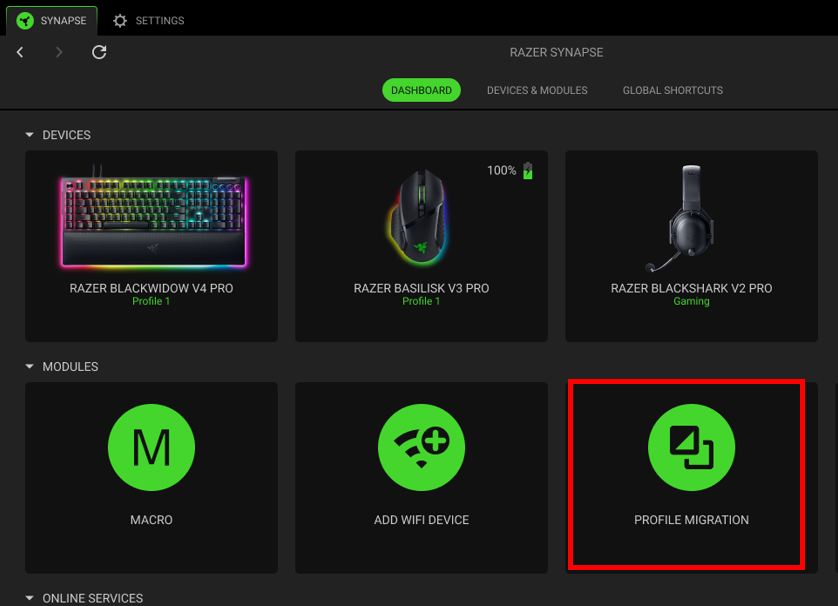
- Click the “PROFILE MIGRATION” tool under the MODULES section of the DASHBOARD.
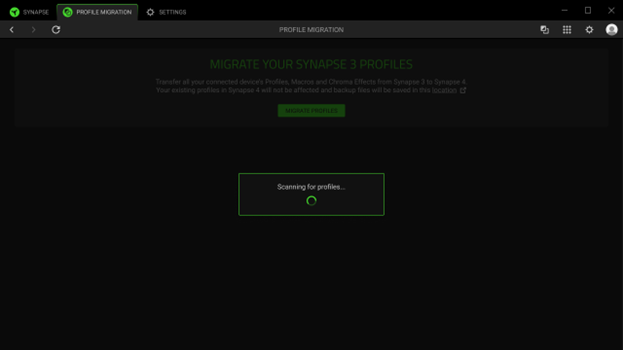
You will be notified that Razer Synapse 4 will start scanning for any Razer Synapse 3 backup profiles.
All located profiles will be shown and are ready for migration.

- Expand each section and choose which profiles to migrate.
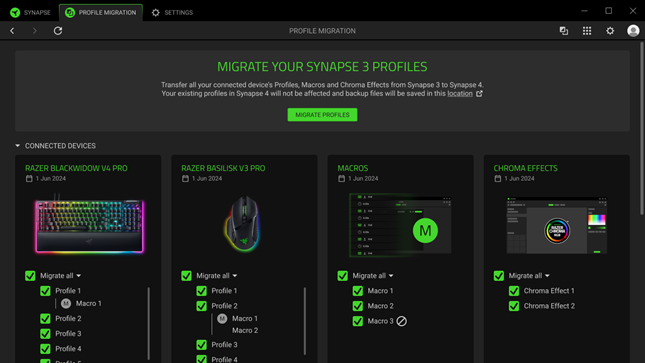
- Click on “MIGRATE PROFILES” to start the migration process.
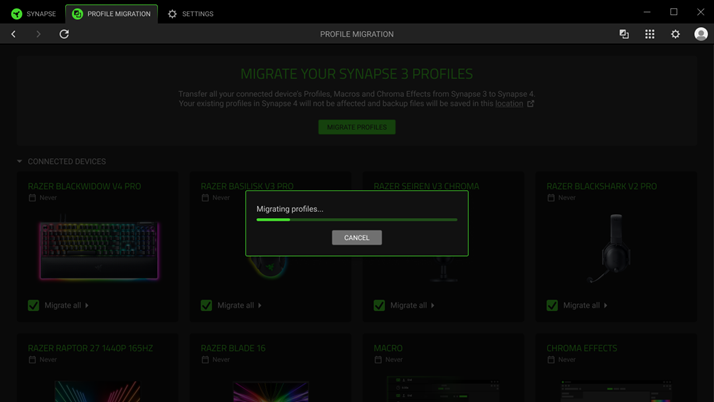
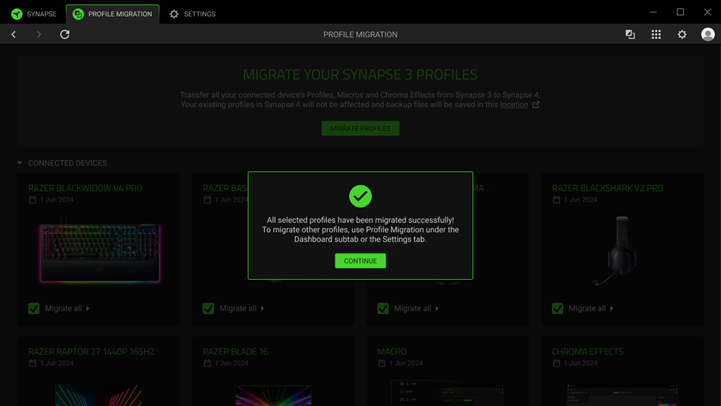
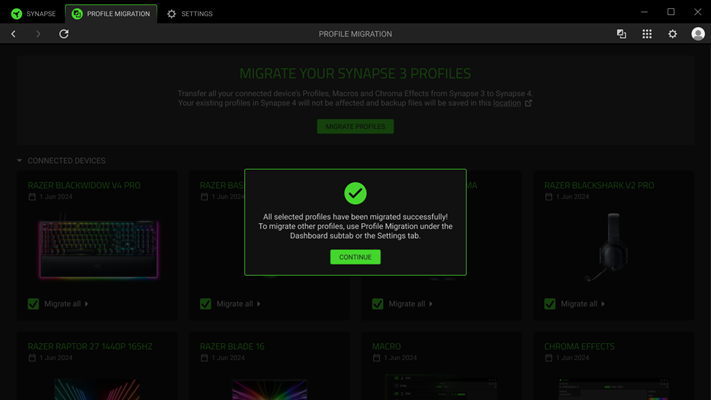
You will be notified that all your selected profiles have been migrated successfully.
Migrate user profiles after using the Razer Synapse 4
If you did not migrate your user profiles during the upgrade process, you can still migrate your Razer Synapse 3 profiles at your preferred time.
- Click the “PROFILE MIGRATION” tool under the MODULES section of the Dashboard.
- Expand each section and choose which profiles to migrate.
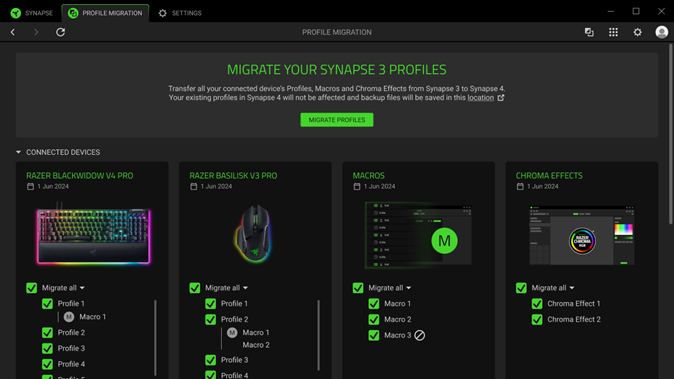
- Click on “MIGRATE PROFILES” to start the migration process.
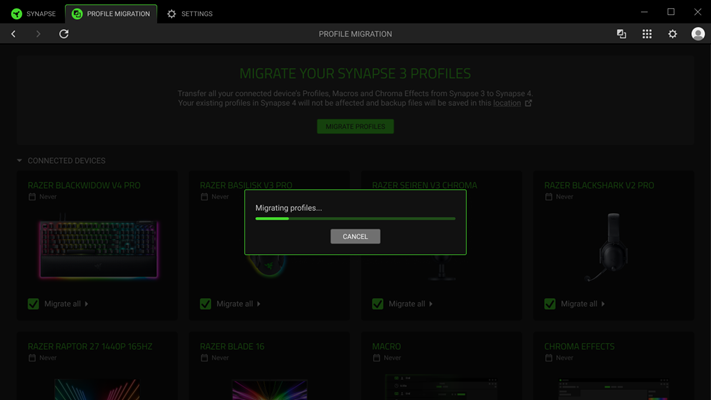
You will be notified that all your selected profiles have been migrated successfully.