
There are two ways to connect your Xbox to the Razer Sila:
- Connect with Universal Plug and Play (UPnP) enabled (recommended)
- Connect without enabling UPnP.
To connect your Xbox with UPnP enabled, follow the steps below:
-
Setup a Static IP address for the console (DHCP Reservation). This ensures that the IP address for the console is always the same.
-
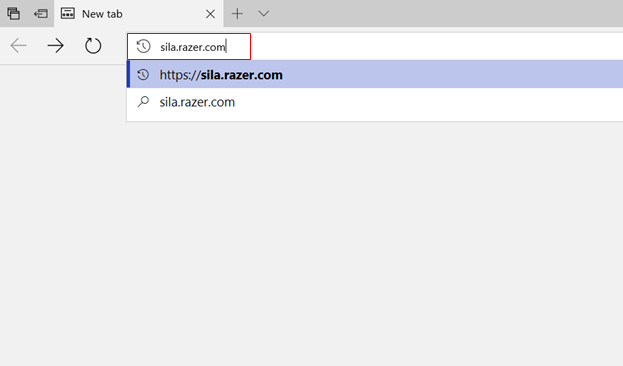
Type Sila.Razer.com or 192.168.8.1 into your web browser.
-
Enter your admin password and login as administrator.

- Select “LAN IP” from the left side of the menu.
-
Select “DHCP/DNS Reservations” and then select your device.
-
-
Select “Firewall / Port Forwarding” from the left side of the menu.

-
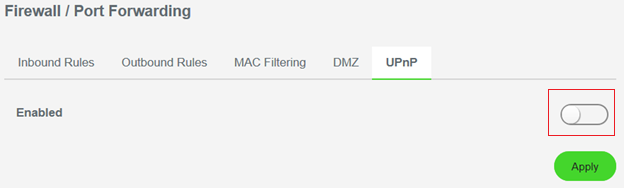
Select "UPnP" from the top menu.

-
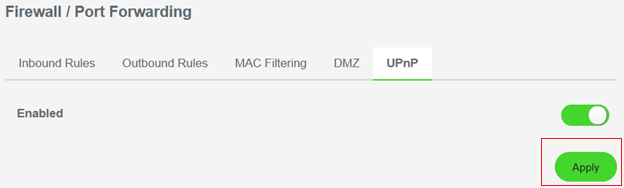
Slide the switch icon to the right to enable UPnP.
-
Click "Apply".
To connect your Xbox without UPnP enabled, follow the steps below:
Port forwarding
-
Setup a Static IP address for the console (DHCP Reservation). This ensures that the IP address for the console is always the same.
-
Type Sila.Razer.com or 192.168.8.1 into your web browser.
-
Select “LAN IP” from the left side of the menu.
-
Select “DHCP/DNS Reservations” and then select your device.
-
-
Enable port 3704 on Razer Sila. See How to set up Port Forwarding in the Razer Sila.
-
Check Xbox NAT Type.
-
On Xbox Home > Settings > Network Settings and NAT type can be seen under ‘Current Network Status’
-
You should see "NAT Type: Open"
-
If you are experiencing NAT errors and multiplayer game issues, check out this guide.
Port forward for a specific game
It is possible to Port Forward for the specific game. See https://portforward.com/games/.
-
Done via the Web UI– Firewall/Port Forwarding/Inbound Rules assign ports and enable. Follow the steps in this guide How to set up Port Forwarding in the Razer Sila
In both options, Enable FasTrack for the best gaming experience.

