End of Support Notice
Razer Synapse 3: Updates and cloud services are no longer supported, effective February 3, 2026.
Razer Synapse 2.0: Cloud‑related features are no longer supported, effective October 28, 2025.
For more details, including a guide on how to migrate profiles, visit the links below.
The keyboard lighting options on Razer Blade laptops can be customized via Razer Synapse 4, Razer Synapse 3 or Razer Synapse 2.0. Check your product manual to know which version is supported by your device.
You can view the video below for instructions.
Configure and change the keyboard backlight color
For Razer Chroma App-supported Razer Blade models
Below are the steps on how to customize a Chroma effect on your Razer Blade keyboard.
- Open the Razer Chroma App.
- Go to the “STUDIO” tab.
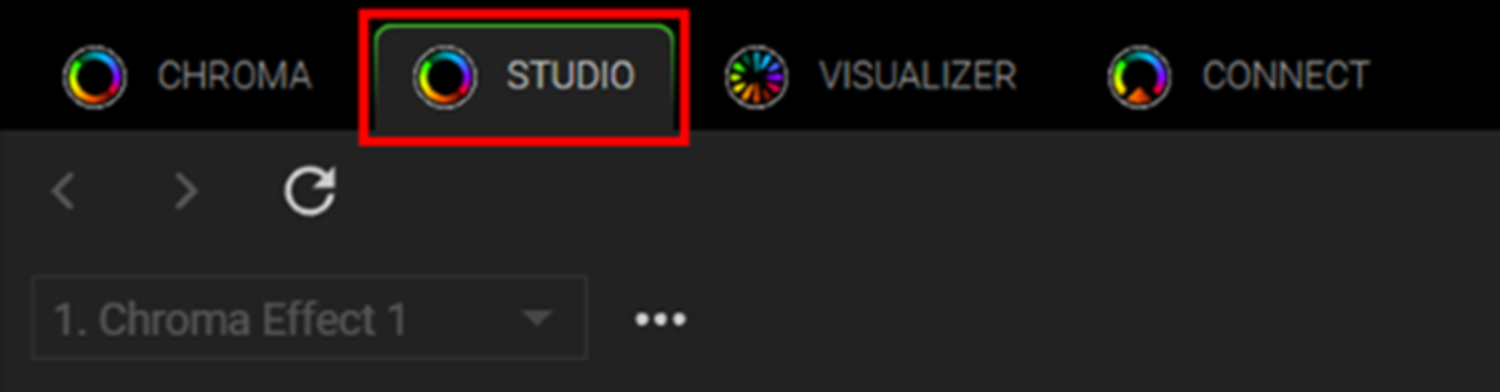
- Select the Chroma effect to modify.
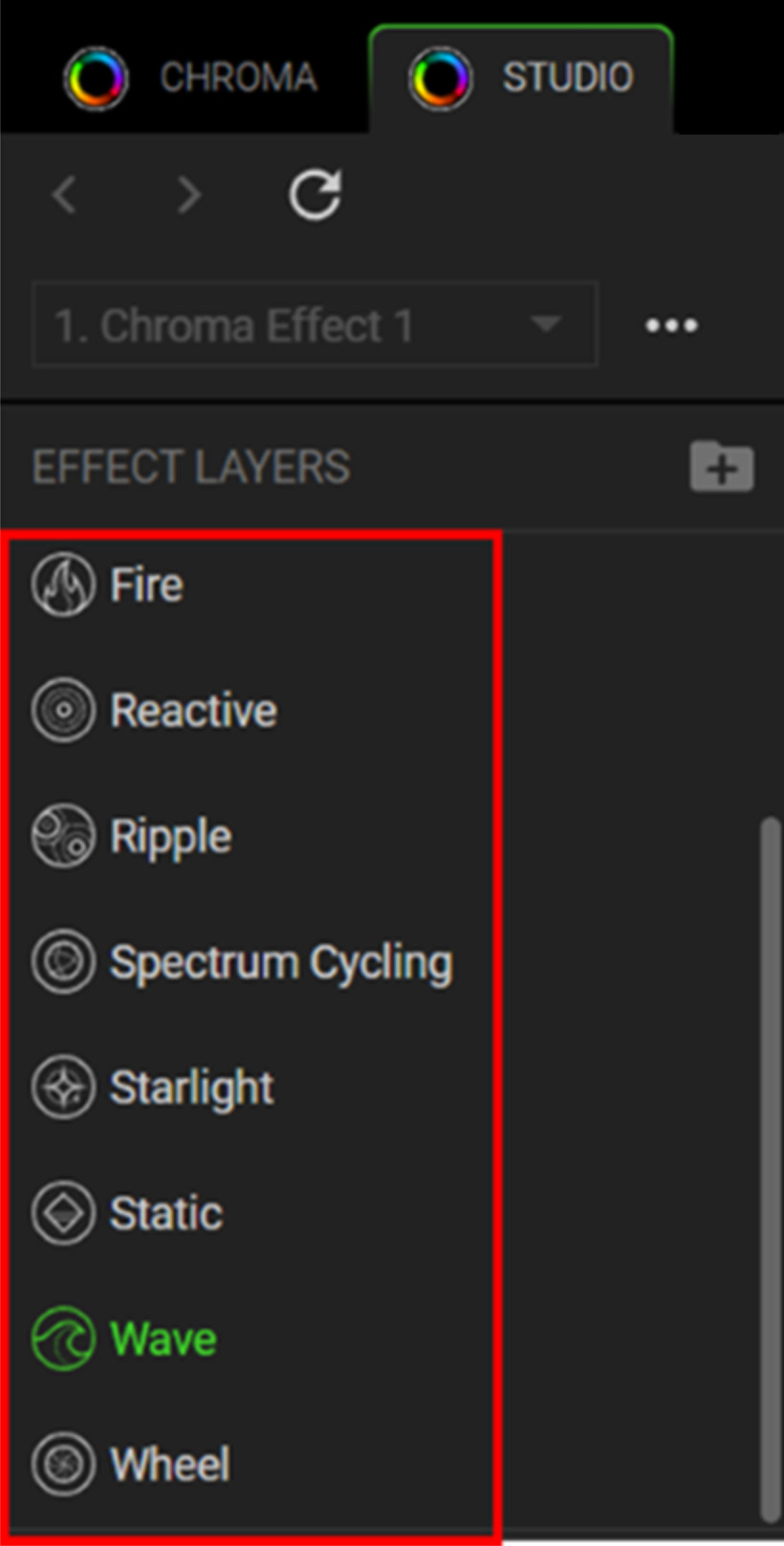
- Select the LEDs to apply your preferred effect.
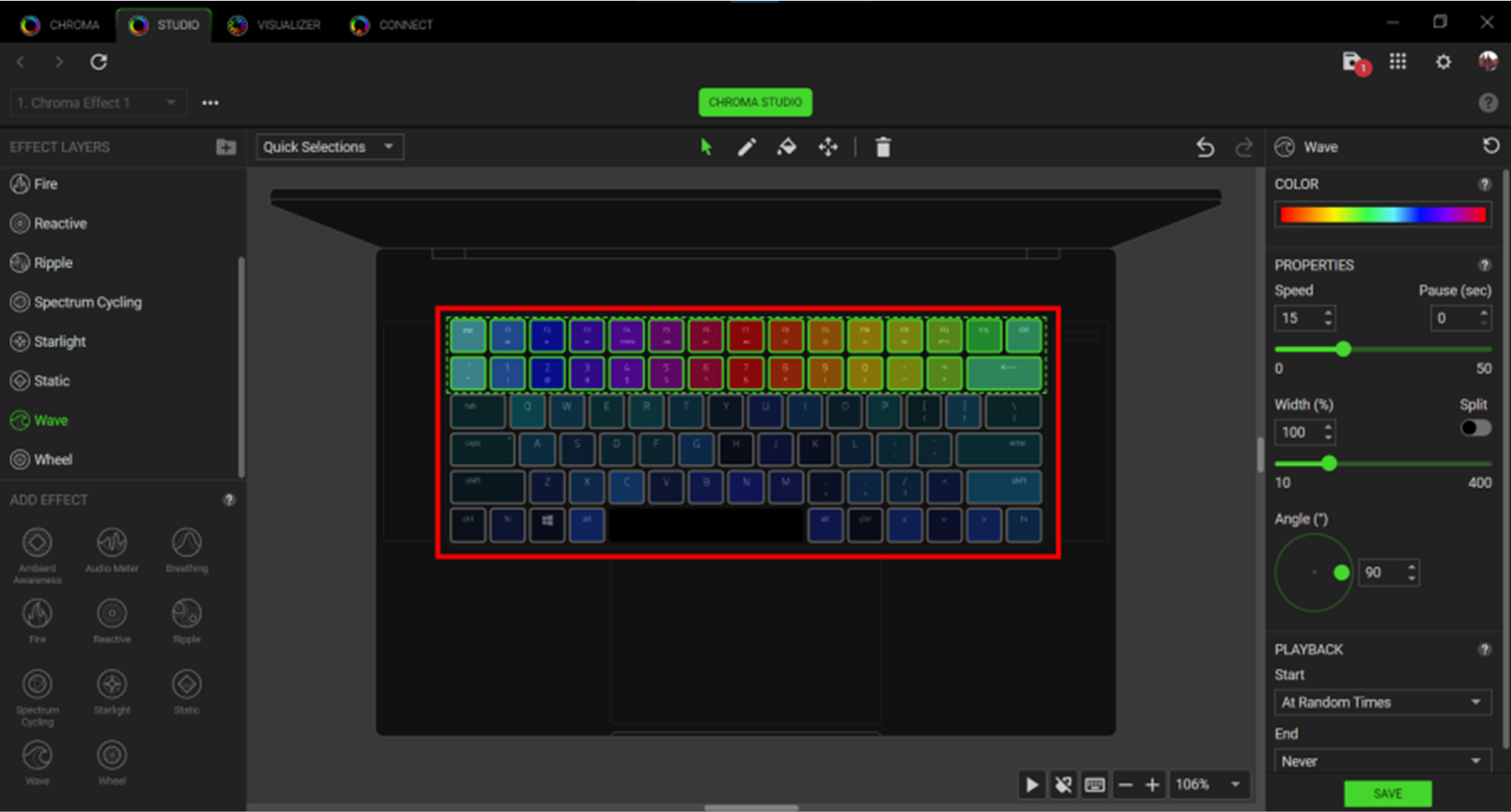
Available Chroma effect customization:
- Color – allows you to select the color and pattern of the LEDs.
- Properties – allows you to edit the duration, speed, width, angle, center point, and more.
- Playback – allows you to set when the effect should start and end.
- Region – allows you to select a specific area on your screen and reflects the selected area’s color on your device.
- Click “SAVE” to apply your changes.
For Razer Synapse 3-supported Razer Blade models
- Open Razer Synapse 3.
- Go to “SYSTEM” > “LIGHTING”.
- Access the preset lighting effects and change the color of the Razer Blade's keyboard via the available options.
- Go to “STUDIO” to access advanced lighting options and create your own lighting effects.

For Synapse 2.0-supported Razer Blade models
- Open Razer Synapse 2.0.
- Click on "Razer Blade".
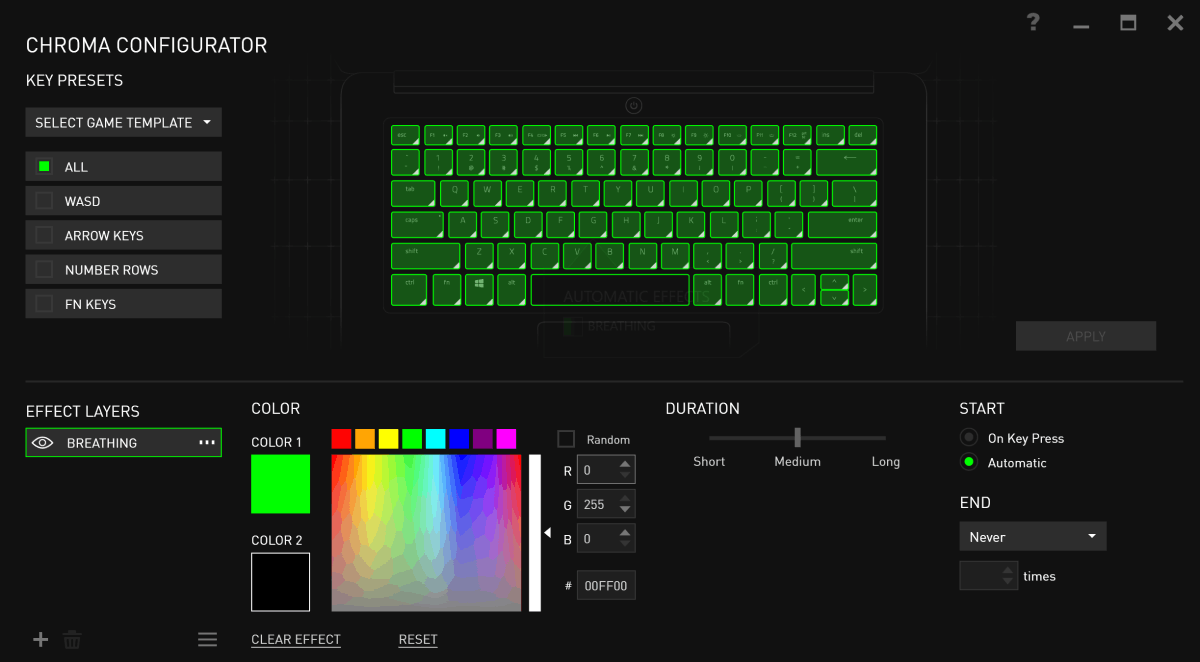
- Go to "LIGHTING” then select “CHROMA CONFIGURATOR".
- Change the lighting effect and color of your Razer Blade's keyboard with the available options.
Switch Off Lighting
To dim or switch off the lighting on your Razer Blade keyboard, continually press Fn + F10 until the lighting completely turns off.
Note: Press Fn + F11 to turn on or adjust the keyboard’s lighting brightness.
To set the Razer Blade keyboard lights to stay on or off when the computer goes into sleep mode, choose a Razer Synapse version and follow the steps below.
For Razer Synapse 4 supported Razer Blade models
-
Launch Razer Synapse 4.
-
Click the Razer Blade tab then click “LIGHTING”.

-
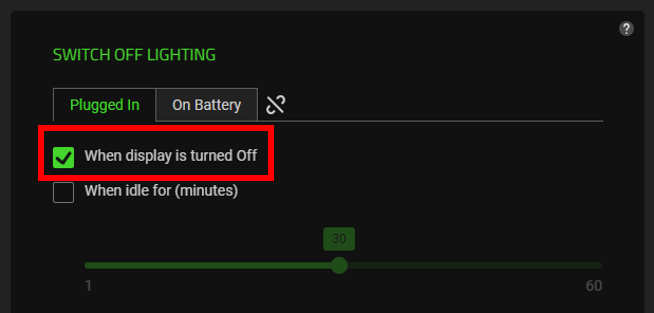
Tick the “When display is turned Off” checkbox under the Plugged In or On Battery section of the SWITCH OFF LIGHTING section.
For Razer Synapse 3-supported devices
-
Open Razer Synapse 3.
-
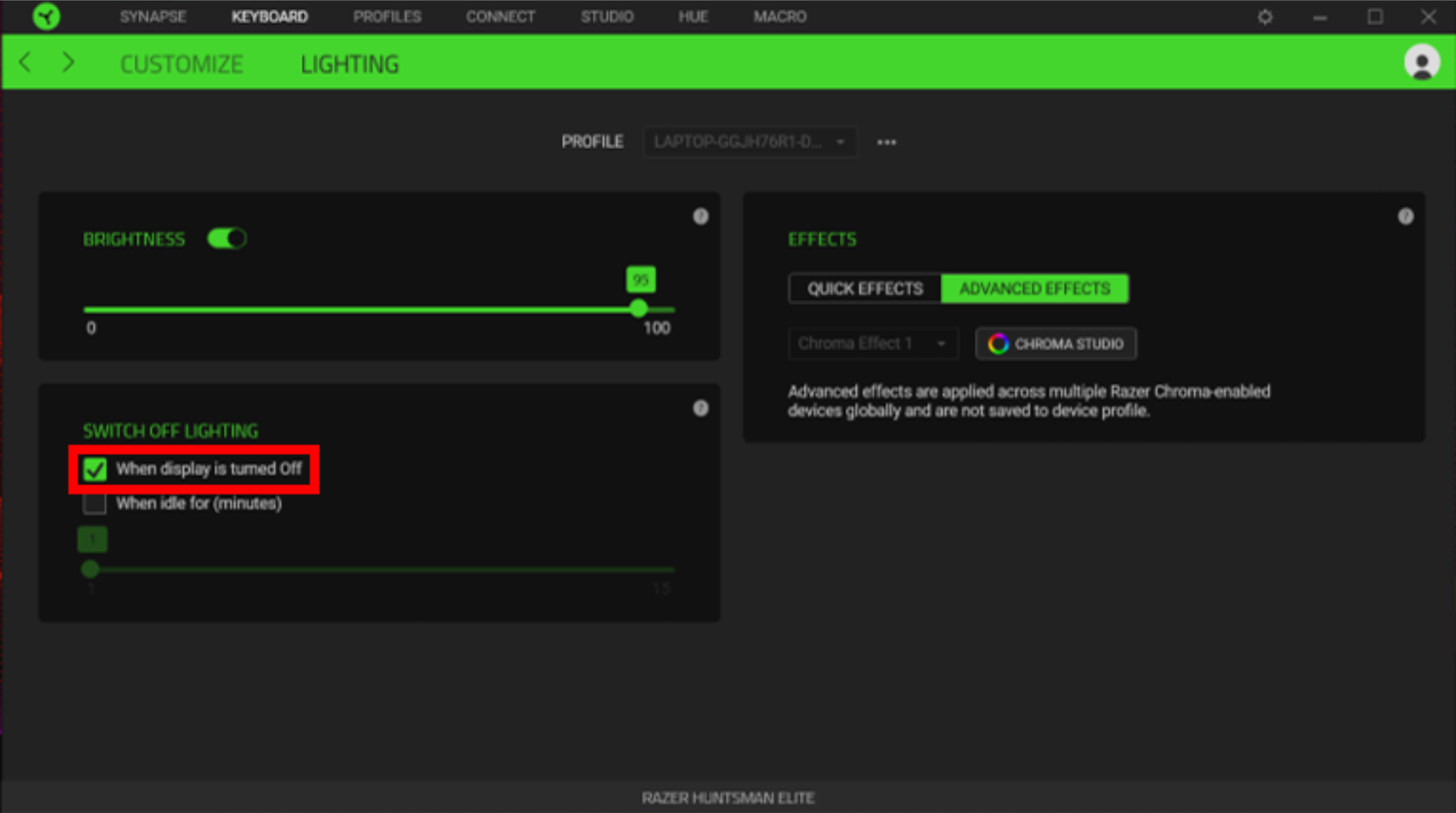
Click “KEYBOARD” > “LIGHTING”.
-
Check “When display is turned off” to keep the lighting turned on or off when the Razer Blade goes to sleep mode.

For Razer Synapse 2.0-supported devices
-
Open Synapse 2.0.
-
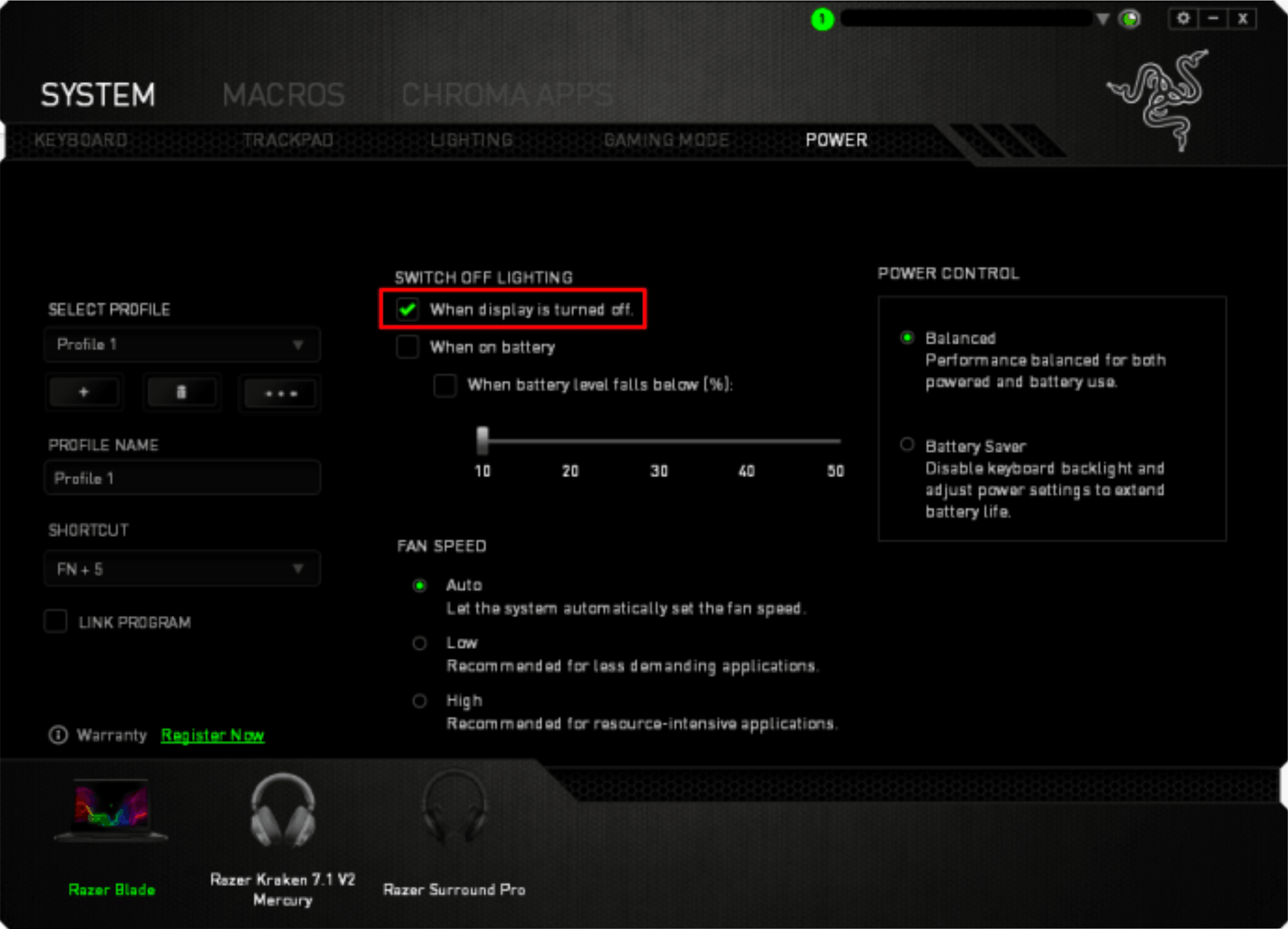
Select “SYSTEM” > “POWER”.
-
Check “When display is turned off” to keep the lighting turned on or off when the Razer Blade goes to sleep mode.