
Razer is aware of the vulnerabilities discovered by external researchers on some of the Intel microprocessors installed in our Razer Blade laptop line. We are closely collaborating with Intel to address potential vulnerabilities before they can even be exploited.
As part of our commitment to customers, Razer's engineers are working with Intel to address these issues with firmware updaters. You may refer to the advisory sections below to see if your specific Razer Blade model is affected and where to get its corresponding updater.
This article also includes NVIDIA security update details, applicable models where specified, and driver download links for Razer Blade laptops.
Note: The advisory sections below contain the installation guides that will walk you through the installation process. Each installation guide also contains the download link to the specific updater. We will be updating this article periodically. If you are unable to locate a fix for your particular Blade system, it is possible that your laptop may not be affected.
Find security updates for your Razer laptop
Update the Razer Blade with Intel ME Firmware Updater to address Intel Security Update:INTEL-SA-00459.
- CVE-2020-24509
- CVE-2020-8704
- CVE-2020-24507
- CVE-2020-24516
- CVE-2020-8703
- CVE-2020-24506
- Razer Blade 17” (2021) | RZ09-0406x
- Razer Blade Pro 17” (2021) | RZ09-0368x
- Razer Blade 15” Advanced (2021) | RZ09-0367x
- Razer Blade 15” Base (2021) | RZ09-0369x
- Razer Blade 15” Base (2021) | RZ09-0410x
- Razer Blade Pro 17” (2020) | RZ09-0329x
- Razer Blade 15” Advanced (2020) | RZ09-0330x
- Razer Blade 15” Base (2020) | RZ09-0328x
- Razer Blade 15” Base (2020) | RZ09-03519
- Razer Blade Stealth 13” (2020) | RZ09-0281x
- Razer Blade Stealth 13” (2020) | RZ09-0327
- Razer Book 13” (2020) | RZ09-03570
- Razer Blade Pro 17” (2019) | RZ09-0287x
- Razer Blade Pro 17” (2019) | RZ09-0314x
- Razer Blade 15” Advanced (2019) | RZ09-0288x
- Razer Blade 15” Advanced (2019) | RZ09-0301x
- Razer Blade 15” Advanced (2019) | RZ09-0313x
- Razer Blade 15” Base (2019) | RZ09-03006
- Razer Blade Stealth 13” Mercury White (2019) | RZ09-03100
- Razer Blade Stealth 13” GTX1650 (2019) | RZ09-0310x
- Razer Blade 15” Advanced (2018) | RZ09-0238x
- Razer Blade 15” Base (2018) | RZ09-02705
-
Install all the latest Microsoft® Windows Operating Systems and Security Updates. See Microsoft® article for more details.
-
Plug your Razer Blade into a wall outlet before proceeding.
-
Save all files and close all programs.
-
Download the Razer Blade model's firmware updater from Intel ME Firmware Updater: INTEL-SA-00459 download links below.
-
Launch the updater file.

-
Click “Yes” to allow the Razer Updater application to launch.

The Blade Updater window will appear with details regarding your current update version and the version your Razer Blade laptop will be updated too.
-
Click "UPDATE" to initiate the update process of your Razer Blade laptop.

Note: During the installation process, you will not have access to other applications. Do not interrupt the installation process.
Once the progress bar reaches 100% completion, your Razer Blade will restart automatically. No further action or steps are required after the progress bar reaches 100%. Your Razer Blade will be updated after the restart.
Intel ME Firmware Updater: INTEL-SA-00459 Download Links
| Razer Blade Advanced Models | ME Firmware Version | Download Link |
|---|---|---|
|
Razer Blade 15" Advanced (2018) | RZ09-02385
Razer Blade 15" Advanced (2018) | RZ09-02386 |
12.0.81.1753 | |
|
Razer Blade 15" Advanced (2019) | RZ09-02886
Razer Blade 15" Advanced (2019) | RZ09-02887 Razer Blade 15" Advanced (2019) | RZ09-02888 |
12.0.81.1753 | |
|
Razer Blade 15" Advanced (2019) | RZ09-03017
Razer Blade 15" Advanced (2019) | RZ09-03018 |
12.0.81.1753 | |
|
Razer Blade 15" Advanced (2019) | RZ09-03137
Razer Blade 15" Advanced (2019) | RZ09-03138 Razer Blade 15" Studio Edition (2019) | RZ09-03135 |
12.0.81.1753 | https://rzr.to/1IpNSp |
|
Razer Blade 15" Advanced (2020) | RZ09-03304
Razer Blade 15" Advanced (2020) | RZ09-03305 Razer Blade 15" Studio Edition (2020) | RZ09-0330Q |
14.1.53.1649 | |
| Razer Blade 15" Advanced (2021) | RZ09-0367B Razer Blade 15" Advanced (2021) | RZ09-0367C |
14.1.53.1649 | |
| Razer Blade Base Models | ||
| Razer Blade 15" Base (2018) | RZ09-02705 | 12.0.81.1753 | |
| Razer Blade 15" Base (2019) | RZ09-03006 | 12.0.81.1753 | |
|
Razer Blade 15" Base (2020) | RZ09-03286
Razer Blade 15" Base (2020) | RZ09-03287 Razer Blade 15" Base (2020) | RZ09-03289 |
14.1.53.1649 | |
| Razer Blade 15" Base (2020) | RZ09-03519 | 14.1.53.1649 | |
| Razer Blade 15" Base (2021) | RZ09-0369A Razer Blade 15" Base (2021) | RZ09-0369B |
14.1.53.1649 | |
| Razer Blade 15" Base (2021) | RZ09-0410 | 15.0.47.2473 | |
| Razer Blade Pro Models | ||
|
Razer Blade Pro 17" (2019) | RZ09-02876
Razer Blade Pro 17" (2019) | RZ09-02877 Razer Blade Pro 17" (2019) | RZ09-02878 |
12.0.81.1753 | |
|
Razer Blade Pro 17" (2019) | RZ09-03146
Razer Blade Pro 17" (2019) | RZ09-03147 Razer Blade Pro 17" (2019) | RZ09-03148 |
12.0.81.1753 | |
|
Razer Blade Pro 17" (2020) | RZ09-03295
Razer Blade Pro 17" (2020) | RZ09-03297 |
14.1.53.1649 | |
|
Razer Blade Pro 17" (2021) | RZ09-0368A
Razer Blade Pro 17" (2021) | RZ09-0368B
Razer Blade Pro 17" (2021) | RZ09-0368C
|
14.1.53.1649 | |
| Razer Blade Models | ||
| Razer Blade 17" (2021) | RZ09-0406x | 15.0.47.2473 | |
| Razer Blade Stealth Models | ||
|
Razer Blade Stealth 13" (2020) | RZ09-02812
Razer Blade Stealth 13" (2020) | RZ09-02810 |
12.0.81.1753 | |
| Razer Blade Stealth 13" Base (2019) | RZ09-03100 | 13.0.47.1763 | |
|
Razer Blade Stealth 13" GTX1650 (2019) | RZ09-03101
Razer Blade Stealth 13" GTX1650 (2019) | RZ09-03102 |
12.0.81.1753 | https://rzr.to/tfjQCo |
| Razer Blade Stealth 13" (2020) | RZ09-0327 | 15.0.49.2573 | |
| Razer Book Models | ||
| Razer Book 13" (2020) | RZ09-03570 | 15.0.49.2573 |
NVIDIA announced a new software security update for NVIDIA GPU Display Driver that protects the system from potential code execution, denial of service, escalation of privileges, and information disclosure.
For more details, see NVIDIA’s Security Bulletin: NVIDIA GPU Display Driver - April 2021 page.
Below is the list of associated Common Vulnerabilities and Exposures or CVE.
CVE IDs
- CVE‑2021‑1074 — Base Score: 7.3; Vector: AV:L/AC:L/PR:L/UI:R/S:U/C:H/I:H/A:H
- CVE‑2021‑1075 — Base Score: 7.3; Vector: AV:L/AC:L/PR:L/UI:N/S:C/C:N/I:L/A:H
- CVE‑2021‑1076 — Base Score: 6.6; Vector: AV:L/AC:L/PR:L/UI:N/S:U/C:L/I:L/A:H
- CVE‑2021‑1077 — Base Score: 6.6; Vector: AV:L/AC:L/PR:L/UI:N/S:U/C:L/I:L/A:H
- CVE‑2021‑1078 — Base Score: 5.5; Vector: AV:L/AC:L/PR:L/UI:N/S:U/C:N/I:N/A:H
To mitigate potential security vulnerabilities on your Razer Blade laptop, download and install the NVIDIA graphics driver version 466.77.
INTEL-SA-00391
This is a guide on how to update the Razer Blade with Intel ME Firmware Updater to address Intel Security Update: INTEL-SA-00391.
- CVE-2020-8753
- CVE-2020-12297
- CVE-2020-12304
- CVE-2020-8745
- CVE-2020-8744
- CVE-2020-8705
- CVE-2020-8750
- CVE-2020-12303
- CVE-2020-12354
- CVE-2020-8757
- CVE-2020-8756
- CVE-2020-8760
- CVE-2020-12355
- CVE-2020-8751
- CVE-2020-8761
- CVE-2020-8747
- CVE-2020-8755
- CVE-2020-12356
- CVE-2020-8746
- CVE-2020-8749
- Razer Blade Stealth 13” GTX1650 (2019) | RZ09-03101
- Razer Blade Stealth 13” (2020) | RZ09-03102
- Razer Blade Stealth 13” (2019) | RZ09-0281x
- Razer Blade 15” Advanced (2018) | RZ09-0238x
- Razer Blade 15” Advanced (2019) | RZ09-0288x
- Razer Blade 15” Advanced (2019) | RZ09-0301x
- Razer Blade 15” Advanced (2019) | RZ09-0313x
- Razer Blade 15” Studio Edition (2019) | RZ09-03135
- Razer Blade 15” Advanced (2020) | RZ09-0330x
- Razer Blade 15” Studio Edition (2020) | RZ09-0330Q
- Razer Blade 15” Advanced (2021) | RZ09-0367x
- Razer Blade 15” Base (2018) | RZ09-02705
- Razer Blade 15” Base (2019) | RZ09-03006
- Razer Blade 15” Base (2020) | RZ09-0328x
- Razer Blade 15” Base (2020) | RZ09-03519
- Razer Blade 15” Base (2021) | RZ09-0369x
- Razer Blade Pro 17” (2019) | RZ09-0287x
- Razer Blade Pro 17” (2019) | RZ09-0314x
- Razer Blade Pro 17” (2020) | RZ09-0329x
- Razer Blade Pro 17” (2021) | RZ09-0368x
-
Please ensure you have installed all the latest Microsoft® Windows Operating Systems and Security Updates. To help verify that your OS is up to date, please refer to this Microsoft® article.
-
Ensure your Blade is plugged into a wall outlet and not running on battery alone before proceeding.
-
Save all files and close all programs.
-
Download the latest Razer Blade model's firmware updater from the Downloads section below.
-
The Razer Updater will automatically download to your default download destination (this should be the Downloads folder unless this has been manually changed).
Note: Be advised that during the update process of your Razer Blade laptop, you will not be able to interact or save progress within other open applications. As such, it is strongly advised that you save your progress and close all other applications or programs prior to launching the Razer Updater and updating the system.
-
Click on the updater file located in your chosen download location to begin the update process.
-
The User Account Control window may pop up to confirm changes that will be made by the application. Click “Yes” to allow the Razer Updater application to launch.
-
The Blade Updater window will appear with details regarding your current update version and the version your Razer Blade laptop will be updated too.
-
Click "UPDATE" to initiate the update process of your Razer Blade laptop. You may lose control of your mouse and keyboard during the updating process. You will also not be able to proceed if you already have the latest software installed.
-
A progress bar will appear indicating the status and progression of the installation process. During the installation process, you will not have access to other applications. This update may take 15 minutes or longer to complete. Do not interrupt the installation process.
-
Once the progress bar reaches 100% completion, your Razer Blade laptop will restart automatically. No further action or steps are required after the progress bar reaches 100%. Once your Blade has restarted your system will be updated.
Intel ME Firmware Update v14.0.48.1605 Download Links
| For model numbers with prefixes | Download firmware updater |
|---|---|
| RZ09-03102 | https://rzr.to/UgmKIt |
| RZ09-03101 | https://rzr.to/Wz84HQ |
| RZ09-02812, RZ09-02810 |
https://rzr.to/CsthqT |
| RZ09-02383, RZ09-02384, RZ09-02385, RZ09-02386 |
https://rzr.to/C2vBGW |
| RZ09-02886, RZ09-02887, RZ09-02888 |
https://rzr.to/IGir1O |
| RZ09-03017, RZ09-03018 |
https://rzr.to/wpf0iy |
| RZ09-03137, RZ09-03138, RZ09-03135 |
https://rzr.to/RVovf6 |
| RZ09-03304, RZ09-03305, RZ09-0330Q |
https://rzr.to/ZvfHR |
| RZ09-0367B, RZ09-0367C |
https://rzr.to/5DeKO |
| RZ09-02705 | https://rzr.to/72B9iA |
| RZ09-03006 | https://rzr.to/0mr9e7 |
| RZ09-03286, RZ09-03287, RZ09-03289 |
https://rzr.to/eo4VG |
| RZ09-03519 | https://rzr.to/4ihml |
| RZ09-0369A, RZ09-0369B |
https://rzr.to/ynTwt |
| RZ09-02876, RZ09-02877, RZ09-02878 |
https://rzr.to/THQRpG |
| RZ09-03146, RZ09-03147, RZ09-03148 |
https://rzr.to/ETmOi7 |
| RZ09-03295, RZ09-03296 |
https://rzr.to/9qius |
| RZ09-0368A, RZ09-0368B, RZ09-0368C |
https://rzr.to/U9FfX |
- CVE-2020-0504
- CVE-2020-0516
- CVE-2020-0519
- CVE-2020-0520
- CVE-2020-0505
- CVE-2020-0501
- CVE-2020-0565
- CVE-2020-0514
- CVE-2020-0515
- CVE-2020-0508
- CVE-2020-0511
- CVE-2020-0503
- CVE-2020-0567
- CVE-2020-0502
- CVE-2020-0507
- CVE-2020-0517
- CVE-2020-0506
- 15.33.49.5100
- 15.36.38.5117
- 15.40.44.5107
- 15.45.29.5103
- 26.20.100.7584
Release Date:
June 20, 2019
Intel Security Advisory:
INTEL-SA-00213
- CVE-2019-0089
- CVE-2019-0090
- CVE-2019-0086
- CVE-2019-0091
- CVE-2019-0092
- CVE-2019-0093
- CVE-2019-0094
- CVE-2019-0096
- CVE-2019-0097
- CVE-2019-0098
- CVE-2019-0099
- CVE-2019-0153
- CVE-2019-0170
- Razer Blade Pro 17” (2019) | RZ09-0314x
- Razer Blade Pro 17” (2019) | RZ09-0287x
- Razer Blade Pro 17” Full HD - GTX1060 (2017) | RZ09-02202
- Razer Blade Pro 17” (2017) | RZ09-01663
- Razer Blade Pro 17” (2016) | RZ09-01662
- Razer Blade 15” Advanced (2019) | RZ09-0301x
- Razer Blade 15” Advanced (2019) | RZ09-0288x
- Razer Blade 15” Advanced (2018) | RZ09-0238x
- Razer Blade 15” Base (2019) | RZ09-03006
- Razer Blade 15” Base (2018) | RZ09-02705
- Razer Blade 14” Intel 6700HQ (2016) | RZ09-01952
- Razer Blade 14” GTX970M (2016) | RZ09-01652
- Razer Blade Stealth 13” (2019) | RZ09-0281x
- Razer Blade Stealth 13” Intel 8550U (2017) | RZ09-0239x
- Razer Blade Stealth 13” Intel 7500U (2017) | RZ09-0196x
- Razer Blade Stealth 12.5” Intel 7500U (2016) | RZ09-01962
- Razer Blade Stealth 12.5” Intel 6500U (2016) | RZ09-01682
-
Please ensure you have installed all the latest Microsoft® Windows Operating Systems and Security Updates. To help verify that your OS is up to date, please refer to this Microsoft® article.
-
Ensure your Blade is plugged into a wall outlet and not running on battery alone before proceeding.
-
Please save any open documents on your computer and close all other programs before attempting this update
-
Download the latest Razer Blade model's firmware updater from the Downloads section below.
-
The Razer Updater will automatically download to your default download destination (this should be the Downloads folder unless this has been manually changed).
Note: Be advised that during the update process of your Razer Blade laptop, you will not be able to interact or save progress within other open applications. As such, it is strongly advised that you save your progress and close all other applications or programs prior to launching the Razer Updater and updating the system.
-
Click on the updater file located in your chosen download location to begin the update process.
-
The User Account Control window may pop up to confirm changes that will be made by the application. Click “Yes” to allow the Razer Updater application to launch.
-
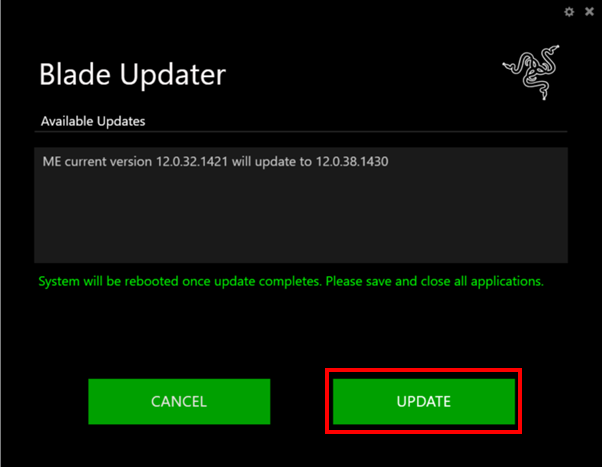
The Blade Updater window will appear with details regarding your current update version and the version your Razer Blade laptop will be updated too.
-
Click "UPDATE" to initiate the update process of your Razer Blade laptop. You may lose control of your mouse and keyboard during the updating process. You will also not be able to proceed if you already have the latest software installed.
-
A progress bar will appear indicating the status and progression of the installation process. During the installation process, you will not have access to other applications. This update may take 15 minutes or longer to complete. Do not interrupt the installation process.
-
Once the progress bar reaches 100% completion, your Razer Blade laptop will restart automatically. No further action or steps are required after the progress bar reaches 100%. Once your Blade has restarted your system will be updated.
Intel ME Firmware Update 12.38.1430
| Model numbers with prefixes | Download firmware updater |
|---|---|
RZ09-02810 Razer Blade Stealth 13 (2019) RZ09-02812 Razer Blade Stealth 13 (2019) | https://rzr.to/GgCRl |
RZ09-03006 Razer Blade 15 Base (2019) RZ09-03009 Razer Blade 15 Base - GTX1660 (2019) | https://rzr.to/IxOCn |
RZ09-03017 Razer Blade 15 Advanced (2019) RZ09-03018 Razer Blade 15 Advanced (2019) | https://rzr.to/nRGKB |
RZ09-02876 Razer Blade Pro 17 (2019) RZ09-02877 Razer Blade Pro 17 (2019) RZ09-02878 Razer Blade Pro 17 (2019) | https://rzr.to/DkqNg |
RZ09-02385 Razer Blade 15 Advanced (2018) RZ09-02386 Razer Blade 15 Advanced (2018) | https://rzr.to/SjGBU |
RZ09-02886 Razer Blade 15 Advanced (2019) RZ09-02887 Razer Blade 15 Advanced (2019) RZ09-02888 Razer Blade 15 Advanced (2019) | https://rzr.to/dwTWh |
RZ09-02705 Razer Blade 15 Base (2018) | https://rzr.to/gwEjF |
RZ09-01682 Razer Blade Stealth 12.5 - Intel 6500U (2016) RZ09-01962 Razer Blade Stealth 12.5 - Intel 7500U (2016) RZ09-01963 Razer Blade Stealth 13 - Intel 7500U (2017) RZ09-01964 Razer Blade Stealth 13 - Intel 7500U (2017) RZ09-02393 Razer Blade Stealth 13 - Intel 8550U (2017) RZ09-02394 Razer Blade Stealth 13 - Intel 8550U (2017) RZ09-01652 Razer Blade 14 - GTX970M (2016) RZ09-01952 Razer Blade 14 - Intel 6700HQ - GTX1060 (2016) RZ09-01953 Razer Blade 14 - Intel 7700HQ - GTX1060 (2017) RZ09-01662 Razer Blade Pro 17 (2016) RZ09-01663 Razer Blade Pro 17 (2017) RZ09-02202 Razer Blade Pro 17 - Full HD - GTX 1060 (2017) | https://rzr.to/tPlWq |
This is a guide on how to update the Razer Blade with BIOS Firmware Updater. This update will help mitigate the associated effects of INTEL-SA-00213 also known as Microarchitectural Data Sampling (MDS), Zombieload, RIDL, or Fallout vulnerability. According to Intel, this vulnerability may allow malicious users to locally execute code on a system to infer the values of protected data otherwise protected by architectural mechanisms.
Important: Microsoft released a standalone Intel Microcode update for Windows 10, version 1903, and Windows Server 2019, version 1903 on Jan 31, 2020. This update also includes Intel Microcode updates that were already released for the operating systems stated above. It is recommended to apply this latest update from Microsoft.
Source:
- Razer Blade 15” Advanced (2019) | RZ09-0301x
- Razer Blade 15” Advanced (2018) | RZ09-0238x
- Razer Blade 15” Advanced (2019) | RZ09-0288x
- Razer Blade 15” Base (2018) | RZ09-02705
- Razer Blade Stealth 13” (2019) | RZ09-0281x
- Razer Blade Stealth 12.5” Intel 6500U (2016) | RZ09-01682
- Razer Blade Stealth 12.5” Intel 7500U (2016) | RZ09-01962
- Razer Blade Stealth 13” Intel 7500U (2017) | RZ09-0196x
- Razer Blade Stealth 13” Intel 8550U (2017) | RZ09-0239x
- Razer Blade 14” GTX970M (2016) | RZ09-01652
- Razer Blade 14” Intel 6700HQ (2016) | RZ09-01952
- Razer Blade 14” - Intel 7700HQ - GTX1060 (2017) | RZ09-01953
- Razer Blade Pro 17” Full HD - GTX1060 (2017) | RZ09-02202
-
Please ensure you have installed all the latest Microsoft® Windows Operating Systems and Security Updates. To help verify that your OS is up to date, please refer to this Microsoft® article.
-
Ensure your Blade is plugged into a wall outlet and not running on battery alone before proceeding.
-
Please save any open documents on your computer and close all other programs before attempting this update
-
Download the latest Razer Blade model's firmware updater from the Downloads section below.
-
The Razer Updater will automatically download to your default download destination (this should be the Downloads folder unless this has been manually changed).
Note: Be advised that during the update process of your Razer Blade laptop, you will not be able to interact or save progress within other open applications. As such, it is strongly advised that you save your progress and close all other applications or programs prior to launching the Razer Updater and updating the system.
-
Click on the updater file located in your chosen download location to begin the update process.
-
The User Account Control window may pop up to confirm changes that will be made by the application. Click “Yes” to allow the Razer Updater application to launch.
-
The Blade Updater window will appear with details regarding your current update version and the version your Razer Blade laptop will be updated too.
-
Click "UPDATE" to initiate the update process of your Razer Blade laptop. You may lose control of your mouse and keyboard during the updating process. You will also not be able to proceed if you already have the latest software installed.

-
A progress bar will appear indicating the status and progression of the installation process. During the installation process, you will not have access to other applications. This update may take 15 minutes or longer to complete. Do not interrupt the installation process.
-
Once the progress bar reaches 100% completion, your Razer Blade laptop will restart automatically. No further action or steps are required after the progress bar reaches 100%. Once your Blade has restarted your system will be updated.
Intel ME BIOS Update
| Model Numbers | Firmware Updater |
|---|---|
| RZ09-02385 Razer Blade 15 Advanced (2018) RZ09-02386 Razer Blade 15 Advanced (2018) |
https://rzr.to/PjeVa |
|
RZ09-03017 Razer Blade 15 Advanced (2019)
RZ09-03018 Razer Blade 15 Advanced (2019)
|
https://rzr.to/BHfCJ |
|
RZ09-02886 Razer Blade 15 Advanced (2019)
RZ09-02887 Razer Blade 15 Advanced (2019)
RZ09-02888 Razer Blade 15 Advanced (2019)
|
https://rzr.to/MzpEF |
| RZ09-02705 Razer Blade 15 Base (2019) | https://rzr.to/wdlTO |
|
RZ09-02810 Razer Blade Stealth 13 (2019)
RZ09-02812 Razer Blade Stealth 13 (2019)
|
https://rzr.to/hRAvG |
| RZ09-01682 Razer Blade Stealth 12.5 - Intel 6500U (2016) | https://rzr.to/xQHxx |
| RZ09-1962 Razer Blade Stealth 12.5 - Intel 7500U (2016) | https://rzr.to/eGyJi |
|
RZ09-01963 Razer Blade Stealth 13 - Intel 7500U (2017)
RZ09-01964 Razer Blade Stealth 13 - Intel 7500U (2017)
|
https://rzr.to/rHJi |
|
RZ09-02393 Razer Blade Stealth 13 - Intel 8550U (2017)
RZ09-02394 Razer Blade Stealth 13 - Intel 8550U (2017)
|
https://rzr.to/BDIBX |
| RZ09-01652 Razer Blade 14 - GTX970M (2016) | https://rzr.to/onEmh |
| RZ09-01952 Razer Blade 14 - Intel 6700U - GTX1060 (2016) | https://rzr.to/LsauG |
| RZ09-01953 Razer Blade 14 - Intel 7700Q - GTX1060 (2017 | https://rzr.to/Vlkzg |
| RZ09-02202 Razer Blade Pro 17 - FHD - GTX1060 (2017) | https://rzr.to/vLYde |
Release Date:
April 29, 2019
Intel Security Advisory:
N.A. The updater disables the Intel ME Manufacturing Mode. For more information, see Intel ME Firmware FAQs
- CVE-2018-4251
- Razer Blade Stealth 12.5” - Intel 6500U (2016) | RZ09-01682
- Razer Blade Stealth 12.5” - Intel 7500U (2016) | RZ09-01962
- Razer Blade Stealth 13” - Intel 7500U (2017) | RZ09-01963
- Razer Blade Stealth 13” - Intel 7500U (2017) | RZ09-01964
- Razer Blade Stealth 13” - Intel 8550U (2017) | RZ09-02393
- Razer Blade Stealth 13” - Intel 8550U (2017) | RZ09-02394
- Razer Blade Stealth 13” (2019) | RZ09-02810
- Razer Blade Stealth 13” (2019) | RZ09-02812
- Razer Blade 14” (2012) | RZ09-01020
- Razer Blade 14” (2013) | RZ09-0102x
- Razer Blade 14” (2013) | RZ09-01021
- Razer Blade 14” (2014) | RZ09-01161
- Razer Blade 14” (2015) | RZ09-01301
- Razer Blade 14” (2015) | RZ09-01302
- Razer Blade 14” - Intel 6700HQ - GTX1060 (2016) | RZ09-01952
- Razer Blade 14” - Intel 7700HQ - GTX1060 (2017) | RZ09-01953
- Razer Blade 15” Advanced (2018) | RZ09-02385
- Razer Blade 15” Advanced (2018) | RZ09-02386
- Razer Blade 15” Advanced (2019) | RZ09-02886
- Razer Blade 15” Advanced (2019) | RZ09-02887
- Razer Blade 15” Advanced (2019) | RZ09-02888
- Razer Blade 15” Base (2018) | RZ09-02705
- Razer Blade 17” (2012) | RZ09-00830
- Razer Blade Pro 17” (2013) | RZ09-00990
- Razer Blade Pro 17” (2013) | RZ09-00991
- Razer Blade Pro 17” (2014) | RZ09-01171E1
- Razer Blade Pro 17” (2015) | RZ09-01171E5
- Razer Blade Pro 17” (2016) | RZ09-01662
- Razer Blade Pro 17” (2017) | RZ09-01663
- Razer Blade Pro 17” - Full HD – GTX1060 (2017) | RZ09-02202
Release Date:
December 2018
Intel Security Advisory:
INTEL-SA-00086
This is a guide on how to update the Razer Blade with Intel ME Firmware Updater to address Intel Security Update: INTEL-SA-00086. The update addresses the findings of an in-depth comprehensive review done by external researchers on the Intel® Management Engine (Intel® ME) Firmware, known as the INTEL-SA-00086 exploit. This vulnerability allowed potential attackers to gain physical, and in some cases, remote access to your device and execute arbitrary code without the user or operating system’s consent.
- CVE-2017-5705
- CVE-2017-5708
- CVE-2017-5711
- CVE-2017-5712
- Razer Blade Pro 17” (2016) | RZ09-01662
- Razer Blade Pro 17” (2017) | RZ09-01663
- Razer Blade Pro 17” FHD (2017) | RZ09-02202
- Razer Blade 14” - Intel 7700HQ - GTX1060 (2017) | RZ09-01953
- Razer Blade 14” - Intel 6700HQ - GTX1060 (2016) | RZ09-01952
- Razer Blade 14” - GTX970M (2016) | RZ09-01652
- Razer Blade Stealth 13” - Intel 8550U (2017) | RZ09-02393
- Razer Blade Stealth 13” - Intel 8550U (2017) | RZ09-02394
- Razer Blade Stealth 13” - Intel 7500U (2017) | RZ09-01963
- Razer Blade Stealth 13” - Intel 7500U (2017) | RZ09-01964
- Razer Blade Stealth 12.5” - Intel 7500U (2016) | RZ09-01962
- Razer Blade Stealth 12.5” - Intel 6500U (2016) | RZ09-01682
-
Ensure Windows is up to date. See How to get the latest software and driver updates from Windows.
If you just updated Windows, please install the "Optional updates" under Settings > Windows Update > Advanced options.
-
Ensure your Blade is plugged into a wall outlet and not running on battery alone before proceeding.
-
Please save any open documents on your computer and close all other programs before attempting this update
-
Download the latest firmware updater.
-
The Razer Updater will automatically download to your default download destination (this should be the Downloads folder unless this has been manually changed).
Note: Be advised that during the update process of your Razer Blade laptop, you will not be able to interact or save progress within other open applications. As such, it is strongly advised that you save your progress and close all other applications or programs prior to launching the Razer Updater and updating the system.
-
Click on the updater file located in your chosen download location to begin the update process.
-
The User Account Control window may pop up to confirm changes that will be made by the application. Click “Yes” to allow the Razer Updater application to launch.
-
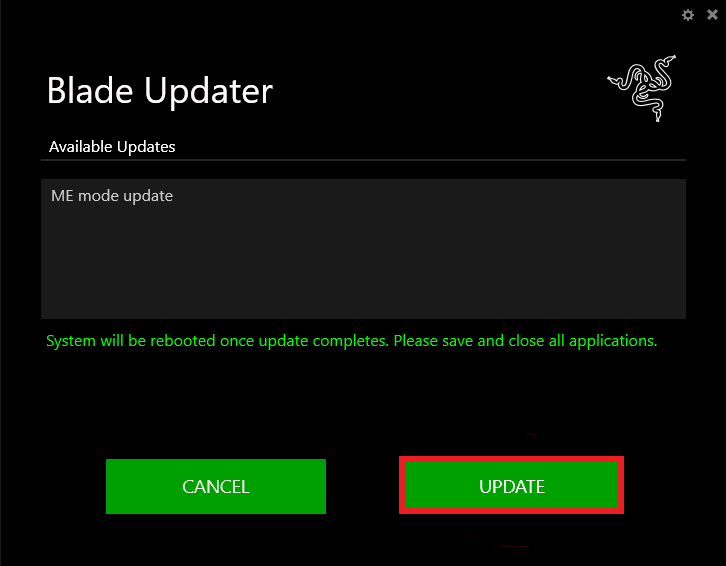
The Blade Updater window will appear with details regarding your current update version and the version your Razer Blade laptop will be updated too.
-
Click "UPDATE" to initiate the update process of your Razer Blade laptop. You may lose control of your mouse and keyboard during the updating process. You will also not be able to proceed if you already have the latest software installed.
-
A progress bar will appear indicating the status and progression of the installation process. During the installation process, you will not have access to other applications. This update may take 15 minutes or longer to complete. Do not interrupt the installation process.
-
Once the progress bar reaches 100% completion, your Razer Blade laptop will restart automatically. No further action or steps are required after the progress bar reaches 100%. Once your Blade has restarted your system will be updated.
-
After installing the Firmware Update, download and run this updater to disable the Intel ME Manufacturing Mode.
Note: Ensure you update the Intel ME Firmware first before attempting to disable the Intel Manufacturing Mode. Otherwise, the updater tool will get stuck partway through the update.
Intel ME Firmware Update v11.8.50.3425
Release Date:
September 11, 2018
Intel Security Advisory:
INTEL-SA-00125
This is a guide on how to update the Razer Blade with Intel ME Firmware Updater. The update addresses the findings of an in-depth comprehensive review done by external researchers on the Intel® Management Engine (Intel® ME) Firmware, who discovered what is now known as the INTEL-SA-00125. This vulnerability may allow an unauthenticated user to potentially modify or disclose information via physical access to the Intel® ME chipset, even when your device is not powered on.
To solve this, Razer has released firmware updates specific to individual models. Make sure that you download the correct firmware specific to the model number located at the bottom of your device.
- CVE-2018-3655
- Razer Blade 14” - GTX970M (2016) | RZ09-01652
- Razer Blade 14” - Intel 6700HQ - GTX1060 (2016) | RZ09-01952
- Razer Blade 14” - Intel 7700HQ - GTX1060(2017) | RZ09-01953
- Razer Blade Stealth 12.5” - Intel 6500U (2016) | RZ09-01682
- Razer Blade Stealth 12.5” - Intel 7500U (2016) | RZ09-01962
- Razer Blade Stealth 13” - Intel 7500U (2017) | RZ09-01963
- Razer Blade Stealth 13” - Intel 7500U (2017) | RZ09-01964
- Razer Blade Stealth 13” - Intel 8550U (2017) | RZ09-02393
- Razer Blade Stealth 13” - Intel 8550U (2017) | RZ09-02394
- Razer Blade Stealth 13” Intel 8550U (2017) | RZ09-0239x
- Razer Blade Pro 17” (2016) | RZ09-01662
- Razer Blade Pro 17” (2017) | RZ09-01663
- Razer Blade Pro 17” FHD (2017) | RZ09-02202
-
Ensure Windows is up to date. See How to get the latest software and driver updates from Windows.
If you just updated Windows, please install the "Optional updates" under Settings > Windows Update > Advanced options.
-
Ensure your Blade is plugged into a wall outlet and not running on battery alone before proceeding.
-
Please save any open documents on your computer and close all other programs before attempting this update
-
Download the latest firmware updater
-
The Razer Updater will automatically download to your default download destination (this should be the Downloads folder unless this has been manually changed).
Note: Be advised that during the update process of your Razer Blade laptop, you will not be able to interact or save progress within other open applications. As such, it is strongly advised that you save your progress and close all other applications or programs prior to launching the Razer Updater and updating the system.
-
Click on the updater file located in your chosen download location to begin the update process.
-
The User Account Control window may pop up to confirm changes that will be made by the application. Click “Yes” to allow the Razer Updater application to launch.
-
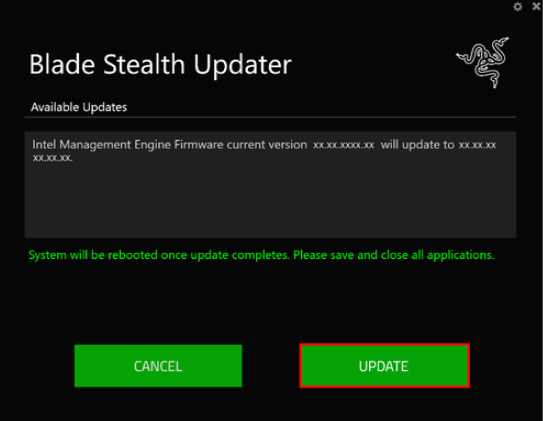
The Blade Updater window will appear with details regarding your current update version and the version your Razer Blade laptop will be updated too.
-
Click "UPDATE" to initiate the update process of your Razer Blade laptop. You may lose control of your mouse and keyboard during the updating process. You will also not be able to proceed if you already have the latest software installed.
-
A progress bar will appear indicating the status and progression of the installation process. During the installation process, you will not have access to other applications. This update may take 15 minutes or longer to complete. Do not interrupt the installation process.
-
Once the progress bar reaches 100% completion, your Razer Blade laptop will restart automatically. No further action or steps are required after the progress bar reaches 100%. Once your Blade has restarted your system will be updated.
Intel ME Firmware Update v11.8.60.3590
Release Date:
April 02, 2018
Intel Security Advisory:
INTEL-SA-00088
This is a guide on how to apply the update to help mitigate the associated effects of Meltdown and Spectre vulnerabilities Intel Security Advisory: INTEL-SA-00088.
- CVE-2017-5753
- CVE-2017-5754
- Razer Blade Pro 17” (2016) | RZ09-01662
- Razer Blade Pro 17” (2017) | RZ09-01663
- Razer Blade Pro 17” - Full HD – GTX 1060 (2017) | RZ09-02202
- Razer Blade Stealth 12.5” - Intel 6500U (2016) | RZ09-01682
- Razer Blade Stealth 12.5” - Intel 7500U (2016) | RZ09-01962
- Razer Blade Stealth 13” - Intel 7500U (2017) | RZ09-01963
- Razer Blade Stealth 13” - Intel 7500U(2017) | RZ09-01964
- Razer Blade Stealth 13” - Intel 8550U (2017) | RZ09-02393
- Razer Blade Stealth 13” - Intel 8550U (2017) | RZ09-02394
- Razer Blade 14” - GTX970M (2016) | RZ09-01652
- Razer Blade 14” - Intel 6700HQ - GTX1060 (2016) | RZ09-01952
- Razer Blade 14” - Intel 7700HQ - GTX1060 (2017) | RZ09-01953
-
Please ensure you have installed all the latest Microsoft® Windows Operating Systems and Security Updates. To help verify that your OS is up to date, please refer to this Microsoft® article.
-
Ensure your Blade is plugged into a wall outlet and not running on battery alone before proceeding.
-
Please save any open documents on your computer and close all other programs before attempting this update
-
Download the latest firmware updater.
-
The Razer Updater will automatically download to your default download destination (this should be the Downloads folder unless this has been manually changed).
Note: Be advised that during the update process of your Razer Blade laptop, you will not be able to interact or save progress within other open applications. As such, it is strongly advised that you save your progress and close all other applications or programs prior to launching the Razer Updater and updating the system.
-
Click on the updater file located in your chosen download location to begin the update process.
-
The User Account Control window may pop up to confirm changes that will be made by the application. Click “Yes” to allow the Razer Updater application to launch.
-
The Blade Updater window will appear with details regarding your current update version and the version your Razer Blade laptop will be updated too.
-
Click "UPDATE" to initiate the update process of your Razer Blade laptop. You may lose control of your mouse and keyboard during the updating process. You will also not be able to proceed if you already have the latest software installed.
-
A progress bar will appear indicating the status and progression of the installation process. During the installation process, you will not have access to other applications. This update may take 15 minutes or longer to complete. Do not interrupt the installation process.
-
Once the progress bar reaches 100% completion, your Razer Blade laptop will restart automatically. No further action or steps are required after the progress bar reaches 100%. Once your Blade has restarted your system will be updated.
Intel Firmware Update TSB 3042-00 download links
| Razer Blade Model | Download Link |
|---|---|
| Razer Blade Pro 17 (2016) | RZ09-01662 | https://rzr.to/ZzZRm |
| Razer Blade Pro 17 (2017) | RZ09-01663 | https://rzr.to/iRHFx |
| Razer Blade Pro 17 - Full HD – GTX 1060 (2017) | RZ09-02202 | https://rzr.to/wqkNp |
| Razer Blade Stealth 12.5 - Intel 6500U (2016) | RZ09-01682 | https://rzr.to/BEDXa |
| Razer Blade Stealth 12.5 - Intel 7500U (2016) | RZ09-01962 | https://rzr.to/DADsV |
| Razer Blade Stealth 13 - Intel 7500U (2017) | RZ09-01963 | https://rzr.to/FDeUr |
| Razer Blade Stealth 13 - Intel 7500U(2017) | RZ09-01964 | https://rzr.to/FDeUr |
| Razer Blade Stealth 13 - Intel 8550U (2017) | RZ09-02393 | https://rzr.to/oAzBE |
| Razer Blade Stealth 13 - Intel 8550U (2017) | RZ09-02394 | https://rzr.to/oAzBE |
| Razer Blade 14 - GTX970M (2016) | RZ09-01652 | https://rzr.to/dLexD |
| Razer Blade 14 - Intel 6700HQ - GTX1060 (2016) | RZ09-01952 | https://rzr.to/gGhut |
| Razer Blade 14 - Intel 7700HQ - GTX1060 (2017) | RZ09-01953 | https://rzr.to/uXGxl |
Follow the detailed instructions in the Step-by-step Process section above to run the updater on your device.
Release Date:
February 13, 2018
Intel Security Advisory:
INTEL-SA-00104
This is a guide on how to apply the update to how to update the Trusted Platform Module (TPM).
According to Infineon, the TPM is a specialized chip that can securely store critical data such as passwords, certificates, and encryption keys. The update will log events and allow the generation of software-based keys to address the INTEL-SA-00104 vulnerability. This vulnerability weakens key strength which makes it easier for attackers to defeat various cryptographic protection mechanisms via targeted attacks (“CVE-2017-15361 Detail”, 2018). For more detailed information refer to the following websites:- CVE-2017-15361
- Razer Blade 14” (2015) | RZ09-01301
- Razer Blade 14” (2015) | RZ09-01302
- Razer Blade 14” - Intel 7700HQ - GTX1060 (2017) | RZ09-01953
- Razer Blade Stealth 12.5” Intel 7500U (2016) | RZ09-01962
- Razer Blade Pro 17” (2016) | RZ09-01662
- Razer Blade Pro 17” (2017) | RZ09-01663
-
Ensure Windows is up to date. See How to get the latest software and driver updates from Windows.
If you just updated Windows, please install the "Optional updates" under Settings > Windows Update > Advanced options.
-
Ensure your Blade is plugged into a wall outlet and not running on battery alone before proceeding.
-
Please save any open documents on your computer and close all other programs before attempting this update
Note: To run the TPM Updater, you will need to go to your Razer Blade BIOS Utility and temporally disable the current TPM platform. You will also need to re-enable it once you are done running the TPM Updater. By default, the Razer Blade’s TPM is enabled in your BIOS Utility – in case you may have disabled it on your own beforehand, you may skip step 1.
The TPM Updater will not allow you to continue until TPM is disabled in the BIOS Utility.
-
Disabling the TPM in your Razer Blade BIOS Utility.
-
Restart the laptop.
-
Tap the F1 key repeatedly once the “Razer logo” appears on the screen.
-
The BIOS Utility will launch.
-
From the main BIOS screen, go to “Advanced” tab.
-
Select “Trusted Computing” as shown below:

-
Under “Trusted Computing”, select “Security Device Support”, as shown below:

-
Under “Security Device Support” press the enter key once, select “Disable” and press the enter key again to confirm:

-
Once successfully disabled, “Security Device Support” should now show “Disable”.
-
Press the F4 key to save and exit.

-
The system should automatically restart.
-
Now that the TPM has been disabled, your system is ready to run the TPM Updater.
-
-
Running the TPM Updater.
- Download the latest TPM firmware updater.
-
Double click on the executable file “RazerUpdater v1.06.6_TPM” to run the updater.
-
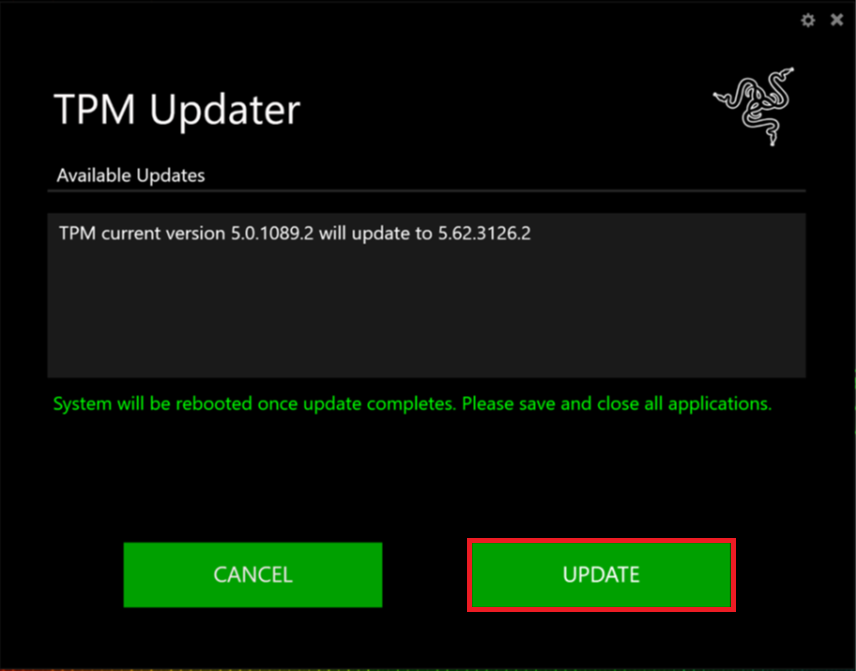
The TPM Updater will launch and display the current version of the TPM and the version it will update to.
-
Click on the “Update” button to proceed.
-
The green bar will show you the status as the system is updating.
-
The system should automatically restart.
-
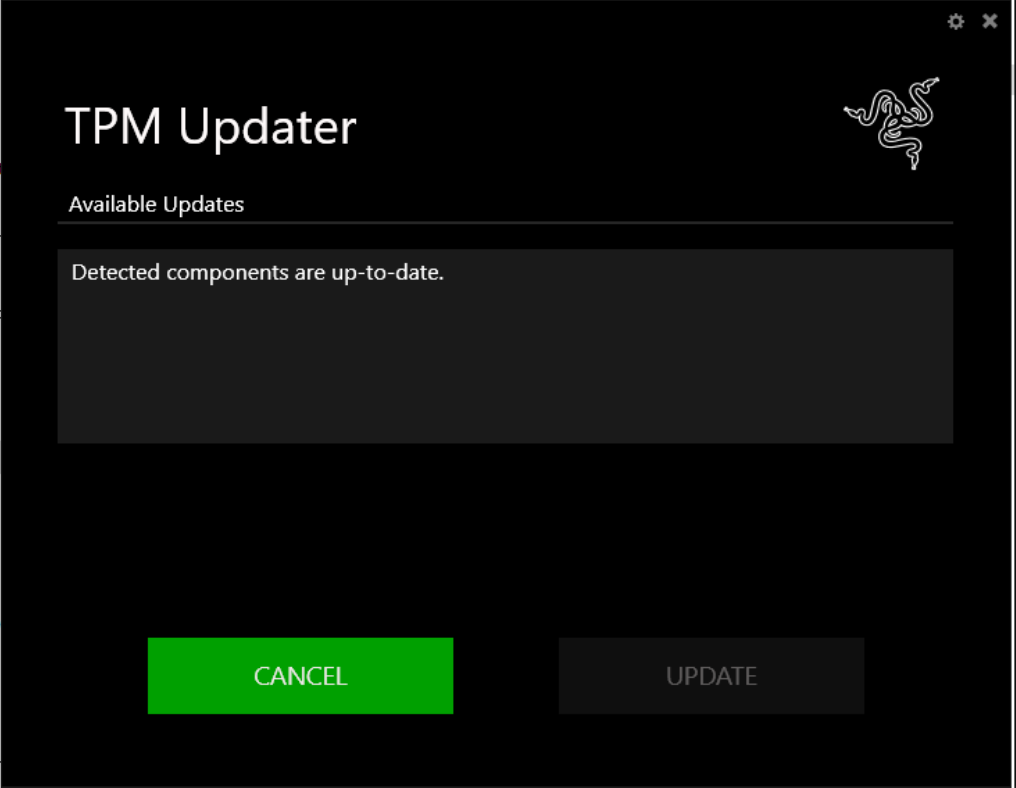
Log in back into your system and run the TPM Updater again.
-
The TPM Updater will launch and you should see the prompt below indicating the successful update, as shown below:
-
Re-enabling the TPM in BIOS Utility
Now that your system has been updated, be sure to go back to your Razer Blade BIOS Utility and re-enable the TPM, failure to do so may put your computer at risk.
-
Repeat step 1 - but this time, change the “Security Device Support” setting by selecting the “Enable” option.
-
Be sure to select “Save and Exit” to save the changes.
-

