
Effective February 3, 2026, Razer Synapse 3 will no longer receive updates or support cloud services. After this date, cloud syncing of configurations across PCs using the same Razer ID will be disabled.
Note: Your installed devices will continue to be configurable in Razer Synapse 3. However, if you uninstall these devices completely, you will need to upgrade to Razer Synapse 4 to continue customization.
Download Razer Synapse 4 and migrate your existing Razer Synapse 3 profiles using the Profile Migration Tool to retain access to your configurations. See How to migrate your Razer Synapse 3 Profile to Razer Synapse 4 for instructions.
The Razer mouse has the capability to launch programs or websites with just a click of a button by mapping the function through Razer Synapse. If you have a program or website that you always go to daily, you can launch it in one click.
See the step-by-step instructions below on how to launch programs with a Razer mouse.
Choose an option
Razer Synapse 4
Launch Razer Synapse 4.
Select your mouse from the DASHBOARD.
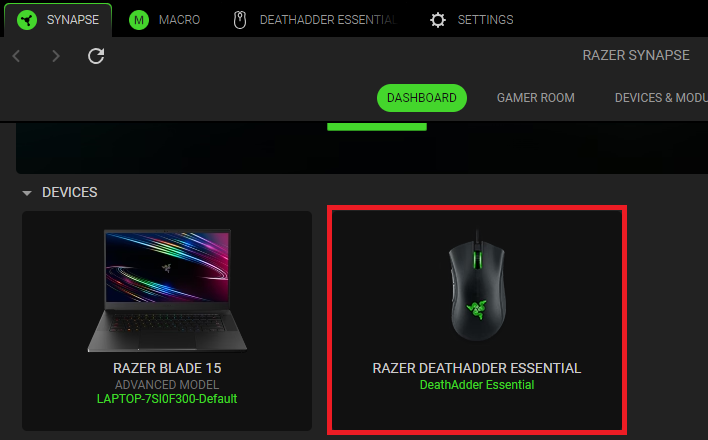
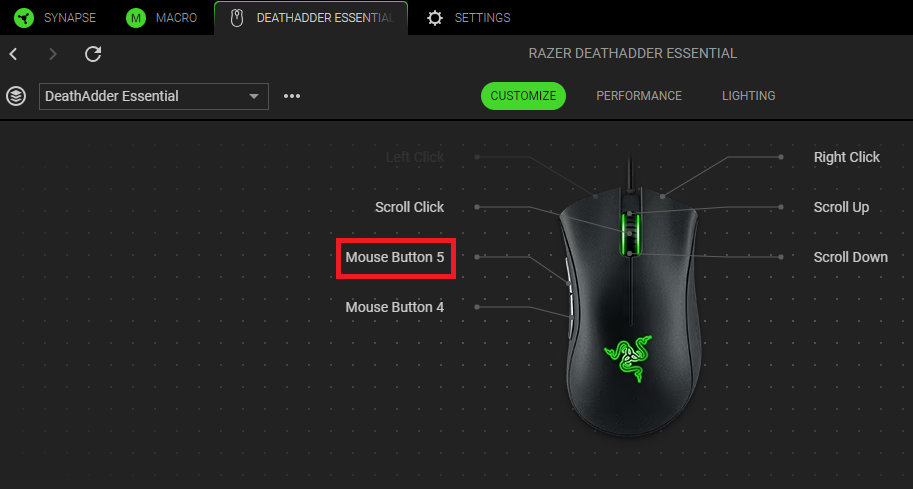
Select a button you want to customize.
Click “LAUNCH”.
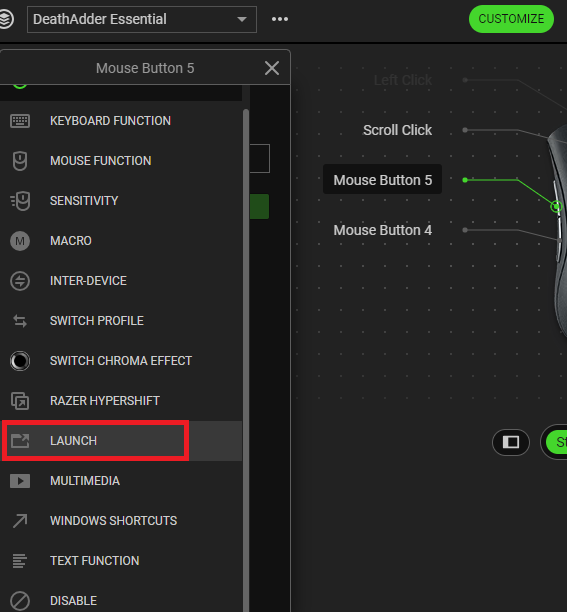
Open the dropdown box and select which control option you wish to program.
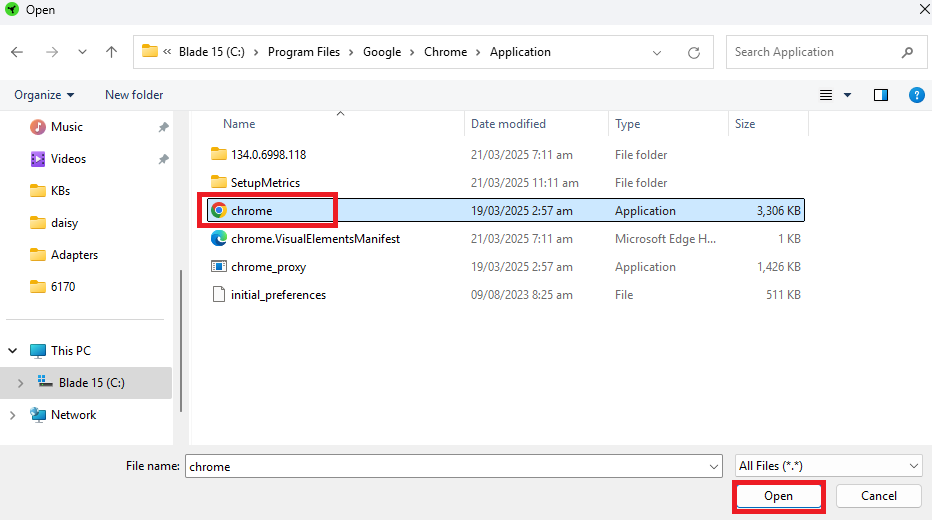
If you are programming to launch a program, click the “LAUNCH PROGRAM” radio button and browse to select the program.
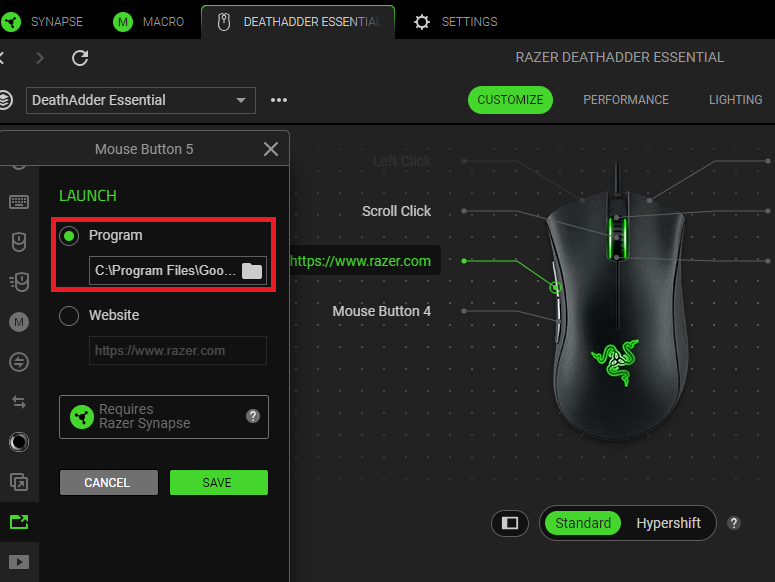
If you are programming to launch a website, click the “Website” radio button and type the URL in the text field provided.
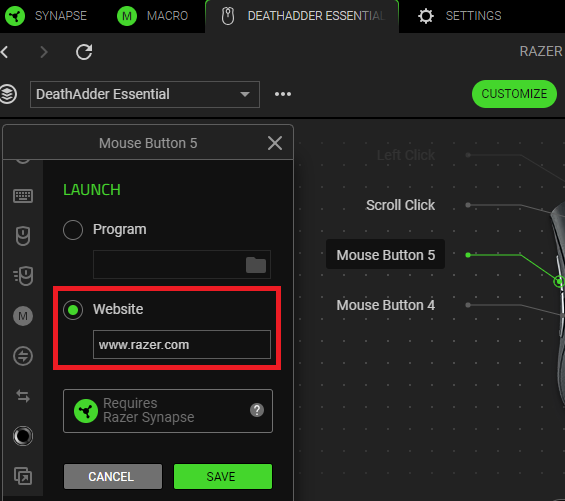
Click “SAVE” to complete the process.
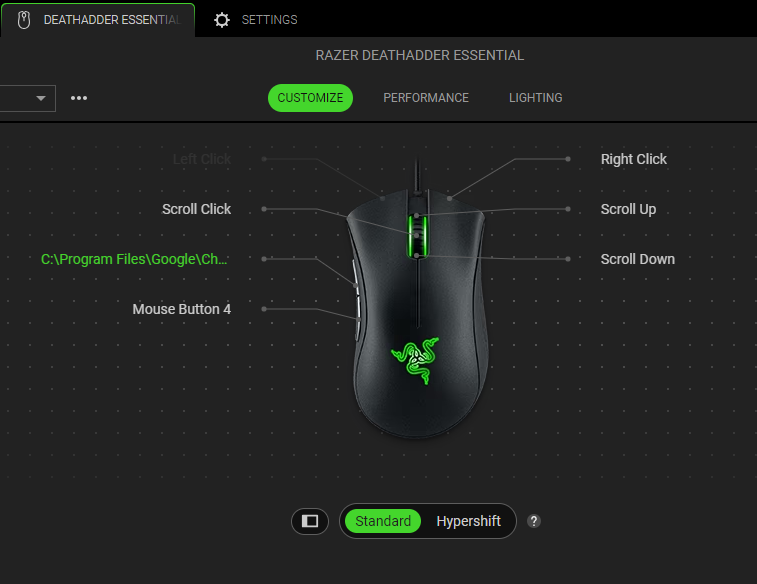
If you assigned a button to launch a program, the executable file's program location will be assigned on the device layout.
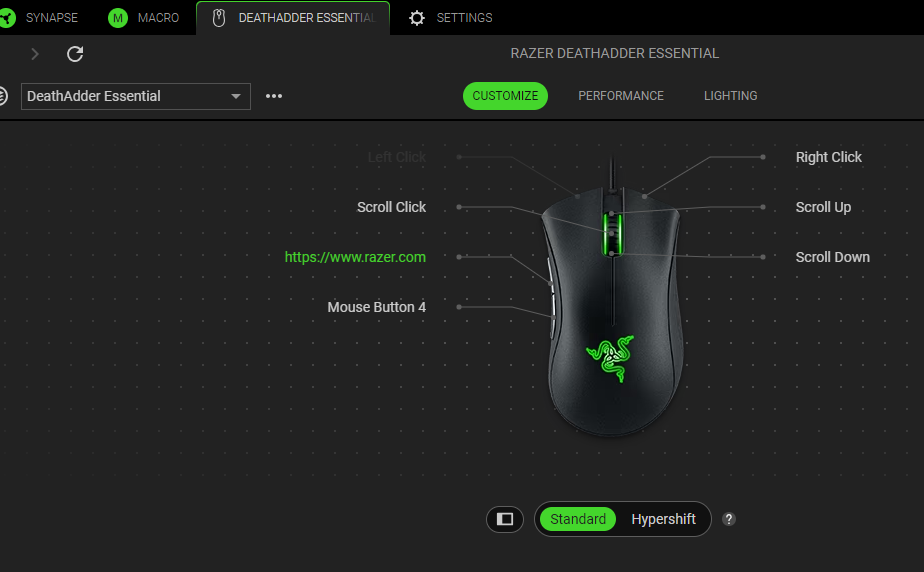
If you programmed a website, the button will be named after it on the device layout.
Razer Synapse 3
Open Razer Synapse 3 and click on your mouse.

Once you’re on the mouse window, go to the “CUSTOMIZE” Tab.
Select the button you wish to program with the “LAUNCH PROGRAM” feature and click on it.

Customization options will appear on the left side of the window. Click on “LAUNCH PROGRAM”.

Open the dropdown box and select which control option you wish to program.
If you are programming to launch a program, click on the “LAUNCH PROGRAM” radio button and browse to select the program.

If you are programming to launch a website, click on the “LAUNCH WEBSITE” radio button and type the URL on the text field provided.

After selecting the desired control, click “SAVE” to complete the process.
If you assigned a button to launch a program, it will be named after the assigned program on the device layout.

If you programmed a website, the button will be named after it on the device layout.


