
Effective February 3, 2026, Razer Synapse 3 will no longer receive updates or support cloud services. After this date, cloud syncing of configurations across PCs using the same Razer ID will be disabled.
Note: Your installed devices will continue to be configurable in Razer Synapse 3. However, if you uninstall these devices completely, you will need to upgrade to Razer Synapse 4 to continue customization.
Download Razer Synapse 4 and migrate your existing Razer Synapse 3 profiles using the Profile Migration Tool to retain access to your configurations. See How to migrate your Razer Synapse 3 Profile to Razer Synapse 4 for instructions.
Configure the sensitivity level of your mouse in two ways.
Select preferred method
Sensitivity Stages
Razer Synapse 4
-
Open Razer Synapse 4.
-
Select your mouse from the “DASHBOARD”.
-
Go to the "PERFORMANCE" tab.
-
Toggle "Sensitivity Stages" on.

-
Select the DPI stage you want to apply.

If you prefer a specific DPI level, key in the specific DPI value you want to apply or use the slider.

Note: If you prefer different DPI levels for horizontal (X) and vertical movement (Y), proceed to the next step.
-
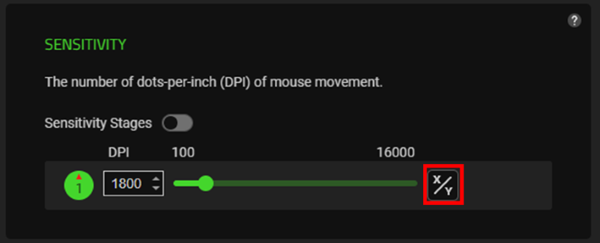
Hover on the slider and click the “x/y” icon.

-
Move each slider or input your preferred DPI levels.

Razer Synapse 3
-
Open Razer Synapse and click on your mouse.

-
Go to "PERFORMANCE" tab.

-
Toggle "Sensitivity Stages" on.

-
Select the number of sensitivity stages you prefer.

-
Select the stage you want to apply.

Note: If you prefer a specific DPI level, proceed to the next step.
-
Key in the specific DPI stage you want to apply.

Sensitivity Sliders
Razer Synapse 4
-
Open Razer Synapse 4.
-
Select your mouse from the “DASHBOARD”.
-
Go to the "PERFORMANCE" tab.
-
Click and drag the sensitivity slider to your preferred DPI level. Alternatively, key in the specific DPI value you want to apply.

Note: If you prefer different DPI levels for horizontal (X) and vertical movement (Y), proceed to the next step.
-
Hover on the slider and click the “x/y” icon.
-
Move each slider or input your preferred DPI levels.

Razer Synapse 3
-
Open Razer Synapse and click on your mouse.
-
Go to "PERFORMANCE" tab.
-
Click and drag the sensitivity slider up to youu preferred DPI level.

Note: If you prefer different DPI levels for and horizontal (X) and vertical movement (Y), proceed to the next step.
-
Click "Enable X-Y" to enables X and Y sliders.

-
Move each slider to reach your preferred DPI levels.


