
Effective February 3, 2026, Razer Synapse 3 will no longer receive updates or support cloud services. After this date, cloud syncing of configurations across PCs using the same Razer ID will be disabled.
Note: Your installed devices will continue to be configurable in Razer Synapse 3. However, if you uninstall these devices completely, you will need to upgrade to Razer Synapse 4 to continue customization.
Download Razer Synapse 4 and migrate your existing Razer Synapse 3 profiles using the Profile Migration Tool to retain access to your configurations. See How to migrate your Razer Synapse 3 Profile to Razer Synapse 4 for instructions.
Razer mice come with the Cycle Up/Down Sensitivity Stages, a feature that allows you to cycle up or down the dots-per-inch (DPI) stages via your mouse.
- Cycle Up Sensitivity Stages allows you to cycle up sensitivity stages. Once you reach the maximum DPI, you will go to the lowest DPI in the next press.
- Cycle Down Sensitivity Stages allows you to cycle down sensitivity stages. Once you reach the lowest DPI, you will go to the highest DPI in the next press.
Choose an option
Razer Synapse 4
-
Launch Razer Synapse 4.
-
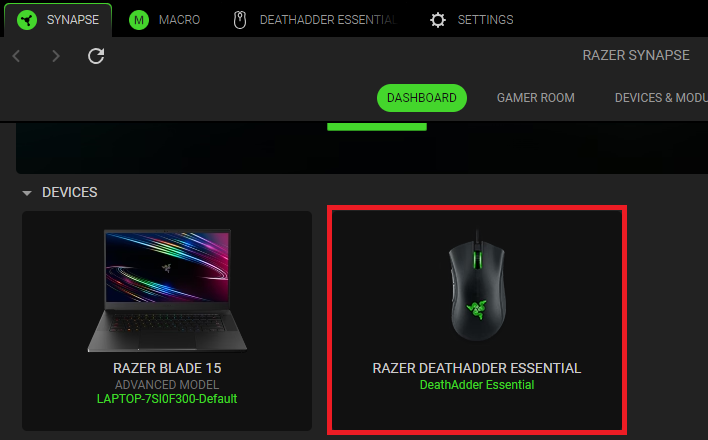
Select your mouse from the DASHBOARD.
-
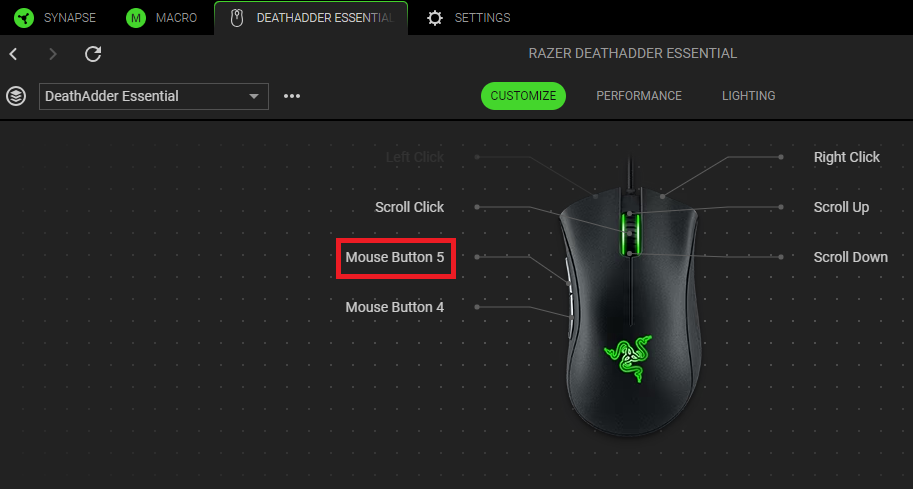
Select a button you want to customize.
-
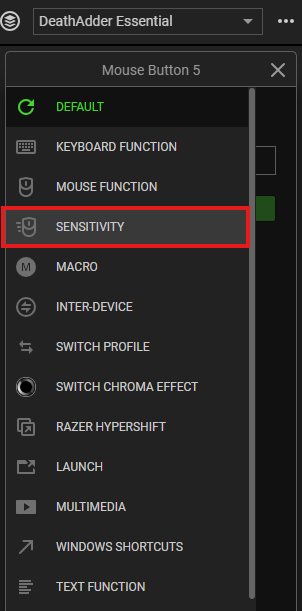
Click “SENSITIVITY”.
-
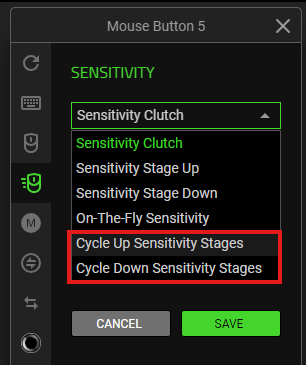
Choose either “Cycle Up Sensitivity Stages” or “Cycle Down Sensitivity Stages” from the SENSITIVITY dropdown list.
-
Click “SAVE” to complete the process.
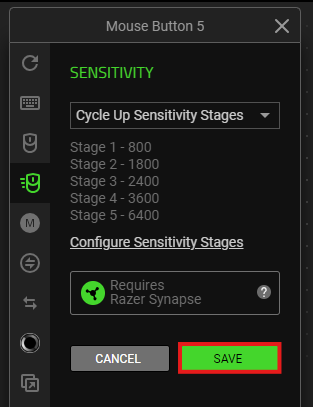
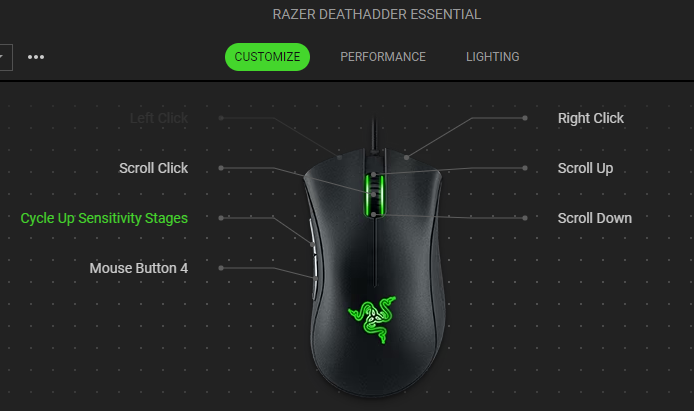
The device layout of your mouse now reflects the changes made.
Razer Synapse 3
- Open Razer Synapse and click on your mouse.

- Click on the button you wish to program.

- Click on “SENSITIVITY” to reveal the options.

- Select “Cycle Up/Down Sensitivity Stages”.

- Save your settings. Your changes should be reflected on the device layout of the mouse.


