End of Support Notice
Razer Synapse 3: Updates and cloud services are no longer supported, effective February 3, 2026.
Razer Synapse 2.0: Cloud‑related features are no longer supported, effective October 28, 2025.
For more details, including a guide on how to migrate profiles, visit the links below.
Properly logging in and out of your account may help mitigate issues and protect it from illegal access especially when you are using a public computer. This article guides you on how to properly log in and out of Razer Synapse.
Select Razer Synapse version
Razer Synapse 4
Logging in:
-
Open Razer Synapse 4.
-
Click "LOG IN".

-
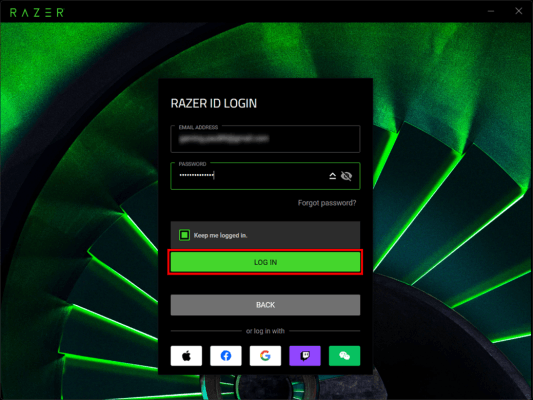
Enter your Razer ID credentials and click "LOG IN".
Note: Checking "Keep me logged in" allows you to stay signed in without needing to log in again each time you open Razer Synapse.
Logging out:
-
Open Razer Synapse 4.
-
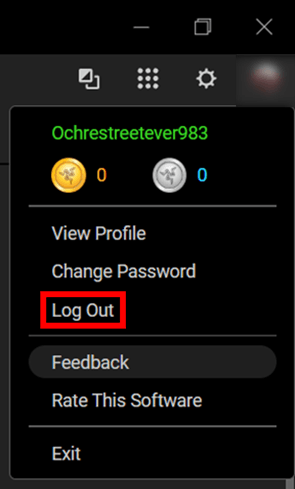
Click the profile icon in the top-right corner.
-
Click "Log Out".
Note: Logging out will reset all your Razer products to their default settings.
Razer Synapse 3
Logging in:
-
Open Razer Synapse 3.
-
Click "LOG IN".
-
Enter your Razer ID credentials and click "LOG IN".
Note: Checking "This is my computer, remember me" allows you to stay signed in without needing to log in again each time you open Razer Synapse.

Logging out:
-
Open Razer Synapse 3.
-
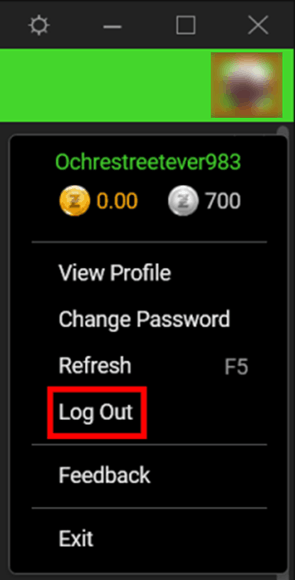
Click the profile icon in the top-right corner.
-
Click "Log Out".
Note: Logging out will reset all your Razer products to their default settings.
Razer Synapse 2.0
Logging in:
-
Open Razer Synapse 2.0.
-
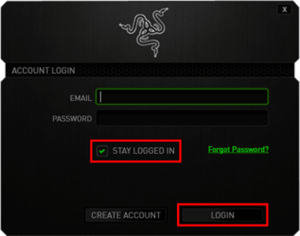
Enter your credentials and click "LOGIN".
Note: Checking "STAY LOGGED IN" allows you to stay signed in without needing to log in again each time you open Razer Synapse.
Logging out:
-
Open Razer Synapse 2.0.
-
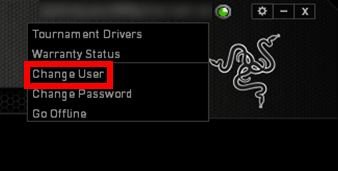
Click the drop-down arrow on the top-right corner beside your account name.
-
Click "Change User".
Note: Logging out will reset all your Razer products to their default settings.