
End of Support Notice
Razer Synapse 3: Updates and cloud services are no longer supported, effective February 3, 2026.
Razer Synapse 2.0: Cloud‑related features are no longer supported, effective October 28, 2025.
For more details, including a guide on how to migrate profiles, visit the links below.
Select your mouse issue
Mouse moves erratically when adjusting the polling rate
Disable the Enhance Pointer Precision feature on your computer to resolve this issue.
Windows 11
-
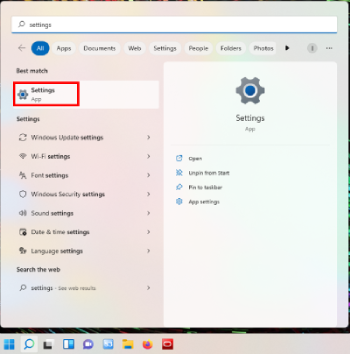
Launch the Settings App on your computer.
-
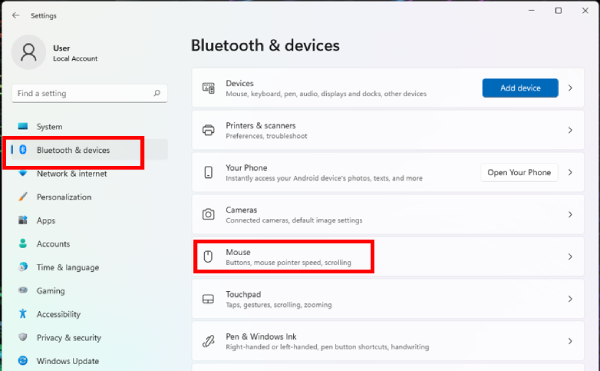
Click “Bluetooth & devices” > “Mouse”.
-
Click “Additional mouse settings”.

-
Uncheck the “Enhance pointer precision” checkbox then click “OK”.

Windows 10
-
Go to “Settings” > “Devices”.
 2.
2. -
Click “Mouse” > “Additional mouse options”.

-
Uncheck the “Enhance pointer precision” checkbox then click “OK”.

Mouse cursor moves erratically or does not track properly
Below are the steps to troubleshoot your Razer mouse with erratic mouse cursor movements.
-
Ensure the device is plugged in directly to a PC and not a USB hub.
Note: For a wireless connection, a clear line of sight from the Razer mouse to the dongle is a must.
-
Make sure the firmware on your Razer mouse is up to date. See Software and Firmware Updates for Razer Peripherals for any available firmware updates for your device.
Note: If your device is not listed, then it does not have firmware or software available for download.
-
Clean your Razer mouse and mouse sensor.
You can view the video below for instructions or review a copy of the video transcript.
- Unplug all connections.
- Wipe the body of your mouse using a lint-free microfiber cloth.
- Clean the mouse sensor using a handheld blower or a can of compressed air.
NOTE: Do not use any liquids as this may cause permanent damage to the sensor.
- Avoid storing the mouse in direct sunlight.
-
Test the mouse on a different surface. Make sure to avoid surfaces that are rough, shiny or glossy such as glass or similar materials.
-
Test the Razer mouse with a different system without Razer Synapse if applicable.
-
Reset your Razer mouse's Surface Calibration. See How to use the Surface Calibration in Razer Razer Synapse 2.0, Razer Synapse 3 or Razer Synapse 4.
-
Check if any software is causing the issue.
-
Exit all apps by going to your System Tray.
-
Locate Razer Synapse.
-
Right-click and select “Exit All Apps”.

-
-
Ensure Windows is up to date. See How to get the latest software and driver updates from Windows.
If you just updated Windows, please install the "Optional updates" under Settings > Windows Update > Advanced options.
-
Perform a clean reinstall of Razer Synapse to rule out any installation or update bug causing the issue.
-
Uninstall the drivers of your Razer mouse if the issue persists.
Your Razer mouse with erratic mouse cursor movements should now be fixed.
Mouse does not track on a multi-colored mouse pad
To resolve this issue, do either of the following:
- Switch off the calibration feature
- Switch to a non-multicolored mouse pad

