
Effective February 3, 2026, Razer Synapse 3 will no longer receive updates or support cloud services. After this date, cloud syncing of configurations across PCs using the same Razer ID will be disabled.
Note: Your installed devices will continue to be configurable in Razer Synapse 3. However, if you uninstall these devices completely, you will need to upgrade to Razer Synapse 4 to continue customization.
Download Razer Synapse 4 and migrate your existing Razer Synapse 3 profiles using the Profile Migration Tool to retain access to your configurations. See How to migrate your Razer Synapse 3 Profile to Razer Synapse 4 for instructions.
Razer wireless mice consume battery power. Battery consumption depends on how you use your mouse, whether for work or gaming, but the good thing with Razer mice is that there are options on Razer Synapse that allow you to adjust the power settings to save battery power.
Razer Synapse has two battery features:
-
Wireless Power Saving – This allows you to set how many minutes of idle time the mouse needs to enter sleep mode.
-
Low Power Mode – This mode is enabled when the battery level reaches below the set percentage (%).
Note: These modes are enabled by default.
See the step-by-step instructions below on how to adjust power or battery preferences on your Razer mouse.
Choose an option
Razer Synapse 4
Set Wireless Power Saving
-
Launch Razer Synapse 4.
-
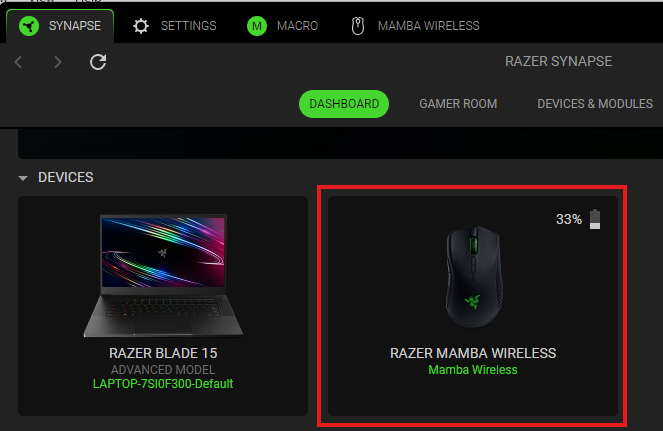
Select your mouse from the DASHBOARD.
-
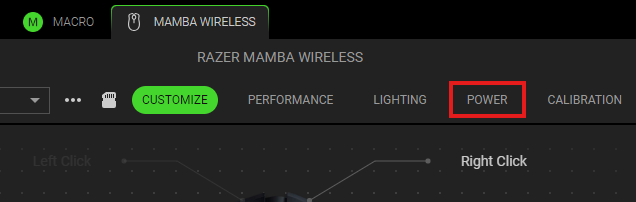
Click on the “POWER” tab.
-
Use the slider to adjust how you want your mouse to be left idle before it goes to sleep mode.
Note: The setting can be adjusted anywhere between 1 and 15 minutes.
The wireless power saving setting on your mouse is now adjusted.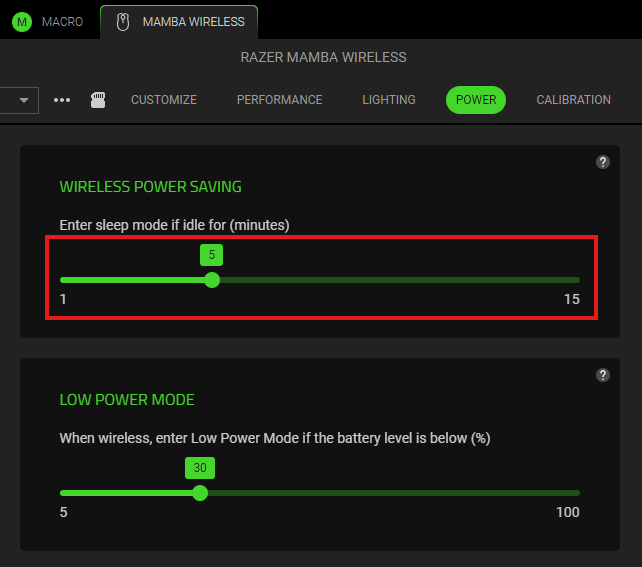
When the mouse enters sleep mode after the specified time, it will automatically disconnect and disappear from the Razer Synapse Dashboard.
Set Low Power Mode
-
Launch Razer Synapse 4.
-
Select your mouse from the DASHBOARD.
-
Click on the “POWER” tab.
-
Use the slider to choose the amount of battery power you want to trigger the Low Power Mode.
Note: The setting can be adjusted anywhere between 5% and 100%.
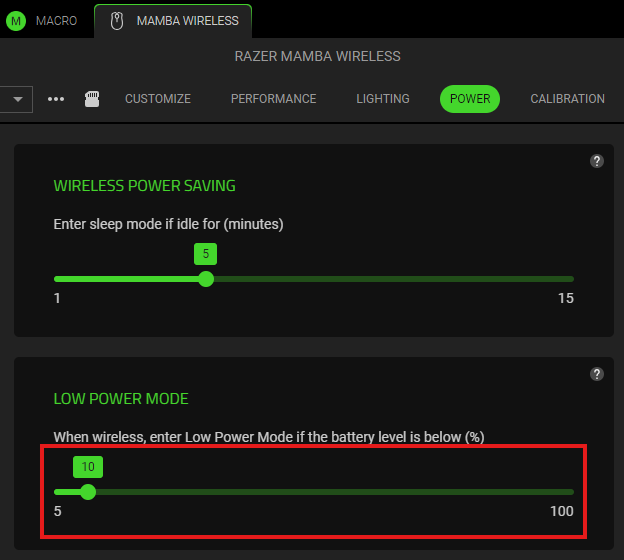
The Low Power Mode setting on your mouse is now adjusted.
Razer Synapse 3
Set Wireless Power Saving
-
Open Razer Synapse and select your mouse from the list of devices.

-
Go to the “POWER” tab under the “MOUSE” tab. On the left side of the Power page is the setting for “WIRELESS POWER SAVING”.

-
Wireless power-saving ranges from 1 to 15 minutes. Use the slider to adjust how long you want your mouse to be left idle before it goes to sleep mode.

-
Once done, test if the changes in the settings are applied. When the mouse goes to sleep mode, it will automatically disconnect from Razer Synapse and will disappear from the Razer Synapse home page.
Set Low Power Mode
-
The "LOW POWER MODE” setting is on the right side of the POWER tab.

-
"LOW POWER MODE” setting ranges from 5% to 100%. Use the slider to choose the amount of battery power you want to trigger the Low Power Mode.


