
Tips to help you get started
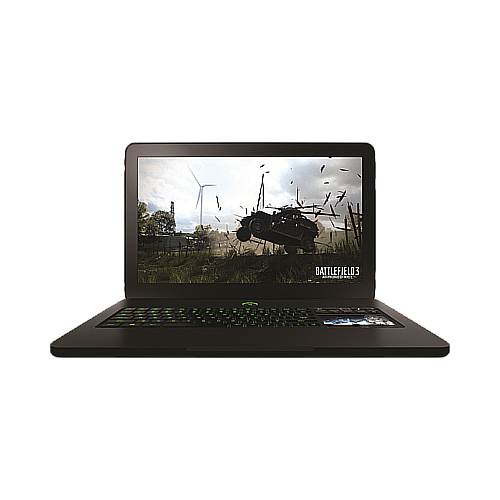
Designed to be portable, have incredible performance, and user-friendly interface, the Razer Blade 17" (2011) | RZ09-00710 is a revolution in PC gaming. Thin and light with desktop performance notebook. The Razer Blade is equipped with an ultra-fast Intel Core i7 processor and a high-performance NVIDIA GeForce graphics processor for gaming on the go. The Razer Blade also features the cutting-edge Switchblade User Interface with ten dynamic adaptive tactile keys integrated with a vibrant multi-touch LCD panel.
Device Layout

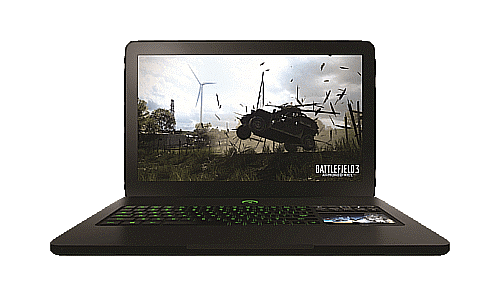
- Webcam indicator light
- Webcam
- Microphone
- 17.3" FHD display
- Stereo speakers incorporating Dolby® Home Theatre v4 technology
- Power button
- Keyboard
- Dynamic adaptive tactile keys
- Multi-touch LCD track-panel
- Switchblade home key
- Trackpad buttons
- Front LED power indicator
- Power port
- Ethernet (RJ-45) port
- HDMI 1.4 port
- USB 3.0
- USB 2.0
- Earphone + microphone port
- Air vent
- Kensington security slot
Full Technical Specifications
| Category | Specification |
|---|---|
|
Display |
17.3 in LED Backlit Display (1920x1080) |
|
Graphics |
NVIDIA GeForce® GT 555M with NVIDIA® Optimus™ Technology 2GB Dedicated GDDR5 Video Memory |
|
Processor |
2.8GHz Intel® Core™ i7 Processor |
|
Memory |
8GB 1333 MHz DDR3 Memory |
|
Storage |
320GB 7200 rpm SATA HDD |
|
Communication |
RJ45 Gigabit Ethernet Port |
|
Wireless Network 802.11 b/g/n Compatible |
|
|
Bluetooth 3.0 |
|
|
Input & Output |
USB 3.0 port x3 |
|
Audio |
HDMI 1.4a audio and video output |
|
3.5mm microphone and headphone combo port. Built-in stereo speakers |
|
|
Dolby® Home Theater® v4 |
|
|
Additional Features |
Razer Switchblade User Interface (SBUI) |
|
Built-in HD Webcam |
|
|
Razer™ Synapse 2.0-enabled |
|
|
Backlit anti-ghosting keyboard |
|
|
Kensington Security Slot |
|
|
Power & Battery |
Compact 150 W Power Adapter |
|
Integrated 60 Wh Battery |
|
|
Approx. Size |
Width: 16.8 in / 427 mm Depth: 10.9 in / 277 mm Height: 0.88 in / 22.4 mm |
|
Approx. Weight |
6.97 lbs |
Setting Up
How do I get the latest software and driver updates from Windows?
Ensure that you have the latest software, drivers, and security updates for your system. See the answer below for more details.

How do I successfully install the BIOS Firmware Updater?
Check your Blade's model number and verify you are using the correct firmware updater for your device. See the answer below for more details.
How do I perform a hard reset on the Razer Blade to allow it to power up?
-
Check for a loose or misaligned power adapter.
-
Verify the power source.
You can view the video below for instructions or review a copy of the video transcript.
See the answer below for more details.
How do I set up the audio on my Razer Blade for optimal performance?
-
Right-click the “Sound” icon on your System Tray at the bottom right side of your desktop.
-
Select “Troubleshoot sound problems”.
-
Follow the onscreen instructions.
See the answer below for more details:
How do I enable and set up the camera on my Razer Blade?
Ensure that you have the latest software, drivers, and security updates for your system.
You can view the video below for instructions or review a copy of the video transcript.
See the answer below for more details.
How do I set up the sleep or hibernate mode correctly?
- Make sure your Blade’s BIOS and Embedded Controllers (EC) are updated to the latest version.
- Disable hibernation.
- Disable Fast Startup feature.
- Change power settings.
You can view the video below for instructions or review a copy of the video transcript.
See the answers below for more details.
How do I create and use a system recovery stick for my Razer Blade?
Create a system recovery stick to restore the Razer Blade to its original state to resolve persistent software issues.
You can view the video below for instructions or review a copy of the video transcript.
See the answer below for more details.
How do I upgrade the storage on my Razer Blade?
Check the technical specifications of your Razer Blade for its supported upgrades as this will vary on different models.
You can view the video below for instructions or review a copy of the video transcript.
See the answer below for more details.
How do I reset the Razer Blade to its factory default settings?
This process will remove all data, files, settings, games, and applications. Back up all your data to an external drive before proceeding. See the answer below for more details.
How To
How do I prevent the Secure Boot Violation message on Razer Blade?
-
Prepare an empty USB thumb drive.
-
Access the BIOS and disable Secure Boot.
-
Power on the laptop and plug in the USB drive.
-
Run Command Prompt and copy the recovery application to the USB drive.
-
Restart the laptop and enable Secure Boot in the BIOS.
-
Restart the device again, press F12, then select boot from the USB drive.
-
Follow the on screen instructions.
See the answer below for more details.
How do I keep my Razer Blade at optimal temperature while gaming?
Improve your gaming experience by following these tips:
-
Clean air vents.
-
Game in a cool environment.
-
Adjust fan speed.
-
Close background programs.
-
Update Windows and drivers.
You can view the video below for instructions or review a copy of the video transcript.
See the answer below for more details.
How do I maintain the health of my Razer Blade battery?
Immediately stop using your Razer Blade and replace the battery. Razer Blade batteries should be replaced by an authorized Razer Repair Center.
See the answers below for more details.
How do I replace the battery on my Razer Blade?
Razer Blade batteries should only be replaced by an authorized Razer Repair Center. Do not purchase a battery from another vendor as they are at risk of causing battery pack thermal runaway that results in a fire in the system, surrounding furniture, or harm to the user handling the Safety Hazard system.
See the answer below for more details.
How do I get my Razer device to work with a specific program or game?
- Test the device in another application.
- If the Razer device works properly in another application, make the necessary adjustments within the specific program.
How do I enable and use the microphone on my Razer Blade?
Enable the microphone in the Windows 11 Privacy settings.
You can view the video below for instructions or review a copy of the video transcript.
See the answers below for more details.
How do I optimize my Razer Blade to achieve the supported FPS when gaming?
Lower the game’s graphics settings until a playable frame rate is achieved.
You can view the video below for instructions or review a copy of the video transcript.
See the answer below for more details.
How do I optimize my Razer Blade display for stable and smooth visuals?
Ensure you have the latest software, drivers, and security updates for your system.
You can view the video below for instructions or review a copy of the video transcript.
See the answer below for more details.
How do I clean the Razer Blade?
- Turn off your Razer Blade and unplug your power adapter.
- Disconnect all external devices such as mice, keyboards, or monitors.
- Take a lint-free microfiber cloth and wipe the surface of your laptop gently but thoroughly.
See the answer below for more details.
General Information
My game is running in discrete GPU (dGPU) when it is set to integrated GPU in the Nvidia Control Panel and Windows Graphic Setting
This is the expected behavior when the game is using Direct X (DX) or CUDA.
Can I custom overclock my Razer Blade?
No. Custom overclocking on the newer versions of your Razer laptops is not possible since the CPU is locked. Razer laptops are carefully crafted, and its components are tuned to give the best performance under the most demanding gaming conditions. There is an associated risk of damage to crucial components if unauthorized changes are made, which will result in voiding the manufacturer’s warranty.
Can I use a lower-watt power adapter on my Razer Blade?
Use the 230W adapter to get the best performance while your Razer Blade is running under heavy load. Under normal or light usage, you may use a 100W USB-C adapter for convenience. If you observe that it takes longer to recharge your Razer Blade or it is not even charging at all, then use the supplied adapter.
Note: A notification saying "More Power Required" will appear when you are using a lower wattage power adapter. This is not an issue and is expected behavior.
Can I dual boot, partition, modify, or install other operating systems on my Razer Blade?
Yes. However, the Razer Blade is designed for compatibility with the as-shipped OS. Should you want to install or modify the OS, format the boot drive first then install your OS. Razer Warranty and Support is only available for the as-shipped OS.
Will I overcharge my battery if I leave it plugged in even when it is at 100%?
No. The Razer Blade series uses a lithium-ion (Li-On) polymer battery. Though this is not exactly a Windows feature, overcharging Li-ion batteries is not a problem and does not affect the battery life span. The Blade laptops have an internal circuit to stop charging at full charge to avoid overcharging and will only start recharging when the battery hits 95%.
IMPORTANT: Before downloading the updaters below, make sure you have closed all running applications on your computer and you have a stable power supply from an electrical outlet. Check this updater guide for detailed instructions.
| Driver / File Name | Release Date | Description | Version | Link |
| Windows 8.1 Drivers | ||||
| CHIPSET - Intel Chipset Driver (Win 8.1) | 18 Oct 2013 | Intel Chipset Driver | 9.4.0.1026 | Download |
| STORAGE - Intel Rapid Storage (Win 8.1) | 18 Oct 2013 | Intel Rapid Storage | 12.8.0.1016 | Download |
| GRAPHICS - Intel HD Graphics (Win 8.1) | 18 Oct 2013 | Intel HD Graphics | 9.17.10.2817 | Download |
| AUDIO - Realtek High Definition Audio (Win 8.1) | 18 Oct 2013 | Realtek High Definition Audio | 6.0.1.7023 | Download |
| AUDIO - Dolby Digital Plus Home Theater (Win 8.1) | 18 Oct 2013 | Dolby Digital Plus Home Theater | 7.3.2.2 | Download |
| GRAPHICS - Nvidia GeForce GT 555M (Win 8.1) | 18 Oct 2013 | Nvidia GeForce GT 555M | 326.83 | Download |
| CONTROLLER - Realtek PCIe GBE Family Controller (Win 8.1) | 18 Oct 2013 | Realtek PCIe GBE Family Controller |
8.19.726.2013
|
Download |
| WIFI – Intel WLAN (Win 8.1) | 18 Oct 2013 | Intel WLAN | 15.5.4.45 | Download |
| BLUETOOTH - Intel Centrino Wireless Bluetooth 3.0 + High Speed Adapter (Win 8.1) | 18 Oct 2013 | Intel Centrino Wireless Bluetooth 3.0 + High Speed Adapter | 3.1.1307.362 | Download |
| APPS - Razer OSD Apps (Win 8.1) | 18 Oct 2013 | Razer OSD Apps | 1.00.17 | Download |
| Documentation | Language |
|---|---|
| User Guide (Spanish) | español |
| User Guide (French) | français |
| User Guide (German) | Deutsche |
| User Guide (Portuguese-Brazilian) | português |
| User Guide (Russian) | русский |
| User Guide (Traditional Chinese) | 繁體中文 |
| User Guide (Simplified Chinese) | 简体中文 |
| User Guide (Korean) | 한국어 |
| User Guide (Japanese) | 日本語 |
Please see our warranty policy for a complete review of our warranty policy.
You are eligible for Limited Warranty support for the following periods of time commencing upon the date of retail purchase of your Product (Warranty Period).
| Product | Warranty Period | |
|---|---|---|
| Razer Laptops | ||
| 2021 and Older Models | 1 yeara | |
| 2022 and Newer Models | 1 yeara 2-year limited battery warrantya |
|
| Razer Phone and Phone Accessories | 1 year | |
| Razer Edge Gaming Handhelds | 1 yearb | |
| Razer Mice | 2 years | |
| Razer Viper Mini Signature Edition | 3 years | |
| Razer Keyboards and Keypads | 2 yearsc | |
| Razer Huntsman Signature Edition | 5 years | |
| Razer Headsets, Earphones and Earbuds | 2 yearsc | |
| Razer Wireless Mouse and Mat Bundles | 2 yearsc | |
| Razer Mouse Mats | 1 yeard | |
| Razer Speaker Systems and Broadcaster Devices | 1 year | |
| Razer Controllers and Chargers | 1 year | |
| Razer Routers (except Singtel) | 1 year | |
| Razer Routers (Singtel) | 2 years | |
| Razer Monitors | 1 year | |
| Smart Watches and Eyewear | 2 years | |
| Razer Case Fans | 2 years | |
| Razer Liquid Cooling | 2 years | |
| Razer Katana Power Supplies | 5 years | |
| Razer Fan and RGB Controllers | 2 years | |
| Razer Cases | 1 year | |
| Razer System Accessories | 1 year | |
| Razer Laptop Cooling Pad | 2 years | |
| Razer Docks | 1 year | |
| Razer USB C Dock | 2 years | |
| Wearable Air Purifiers | 1 year | |
| Razer Gaming Accessories | 1 yeard | |
| Razer Rechargeable Batteries for Wireless Devices | 1 yeare | |
| Razer Iskur | 3 years | |
| Razer Iskur V2 | 3 years | |
| Razer Enki Line | 3 years | |
| Razer Fujin Line | Mesh Backing and Seat Pan | 1 year |
| Chair Frame, Mechanisms and Armrests | 5 years | |
| Razer Fujin Pro Headrest | 5 years | |
| Razer Fujin Headrest | Frame – 3 years Mesh – 1 year |
|
| Razer Soma Line | Mechanisms & Moving Parts | 3 years |
| Electronic Parts | 2 years | |
| Razer Chair Accessories | 1 year | |
All new Products will have the Warranty Periods listed above, subject to applicable local law. Certain "end of life", sell out or discontinued Products may have a shorter Warranty Period; this will be clearly marked at the time of purchase and the given Warranty Period will be stated at that time. Refurbished Products purchased from Razer.com will have the lesser of a 1 year warranty period or the warranty period as stated above. Refurbished products not purchased from Razer.com will have a 90 day warranty period. If you are uncertain whether your Product is eligible for Limited Warranty support, please contact our support team for clarification.
Please note that third-party products may be covered by the product manufacturer's warranty and these warranty terms are exclusively provided by the product manufacturer. Razer does not offer a warranty for third-party products. If you need product or warranty support with your third-party product, please contact the product manufacturer. Please consult the product documentation provided by the product manufacturer for details.
If you are uncertain whether your Product is eligible for Limited Warranty support, please contact our support team for clarification.
Warranty Footnotes
- [a] If you are a customer outside of the U.S. and have validly purchased a Razer Extended Warranty for your product, the Warranty Period shall be extended for another one (1) year period, to be a total of two (2) years commencing upon the date of retail purchase of your Razer Product. The Razer Extended Warranty does not apply to batteries. Aside from the change to Warranty Period, the Razer Extended Warranty does not alter any other terms and conditions of the Limited Warranty.
- [b] Replacement parts and/or services are available for a minimum of 3 years after the end of production of the product; additional charges may apply.
- [c] Products purchased prior to October 1st, 2018 maintain the original 1 year warranty (keyboards with mechanical switches maintain original 2 year warranty).
- [d] Warranty period for Razer Firefly HyperFlux is 2 years.
- [e] Products purchased prior to October 1st, 2018 maintain the original 6 month warranty.
- [f] Limited Warranty: The Razer Iskur is free from defects in workmanship, materials and construction for three years from the date of purchase. In the event that a defect is found, the manufacturer will either repair or replace the defective item, at its discretion. Exclusions and Limitations: This Limited Warranty does not cover cosmetic damage, minor cosmetic abnormalities and normal wear and tear, including without limitation scratches, dents, discoloration and tears in the head pillow, seat cushion, PU leather, Armrest and stitches of the upholstery.

