
Effective February 3, 2026, Razer Synapse 3 will no longer receive updates or support cloud services. After this date, cloud syncing of configurations across PCs using the same Razer ID will be disabled.
Note: Your installed devices will continue to be configurable in Razer Synapse 3. However, if you uninstall these devices completely, you will need to upgrade to Razer Synapse 4 to continue customization.
Download Razer Synapse 4 and migrate your existing Razer Synapse 3 profiles using the Profile Migration Tool to retain access to your configurations. See How to migrate your Razer Synapse 3 Profile to Razer Synapse 4 for instructions.
No sound, poor audio, or uneven balance issue on a Razer headset is possibly caused by the following:
- Dirt or debris in the audio port or on the audio jack
- Loose or improper audio jack connections
- Incorrect playback device settings
- Software conflicts or issues
- Faulty or outdated audio drivers
You can view the video below for instructions or review a copy of the video transcript.
Select headset type for instructions
Wireless Headsets
- Verify the volume level and connection of your headphones and audio source.
- For Bluetooth headphones, ensure they are properly paired and connected to your device.
- If using a PC, confirm that your headset is selected as the playback device in the audio settings.
3.5 mm Headsets
-
Test the headset on another PC or device.
If the headset works on another device, the issue likely lies with your primary device's audio or USB ports. Consider having it inspected by a technician or the manufacturer.
- Check the audio ports and headphone jack for dirt or debris.
- Ensure the audio jack is securely plugged in.
- If using a headset with a splitter cable, confirm the connection between the splitter and the headset’s audio jack is firm.
- If the headset has in-line volume controls, make sure the volume is not set too low.
- Ensure the system volume is not muted or too low.
- Ensure the headset is set as the default playback device.
- Right-click the speaker icon in the system tray and select "Sound settings".
- Under the "Advanced" section, click "More sound settings".
-
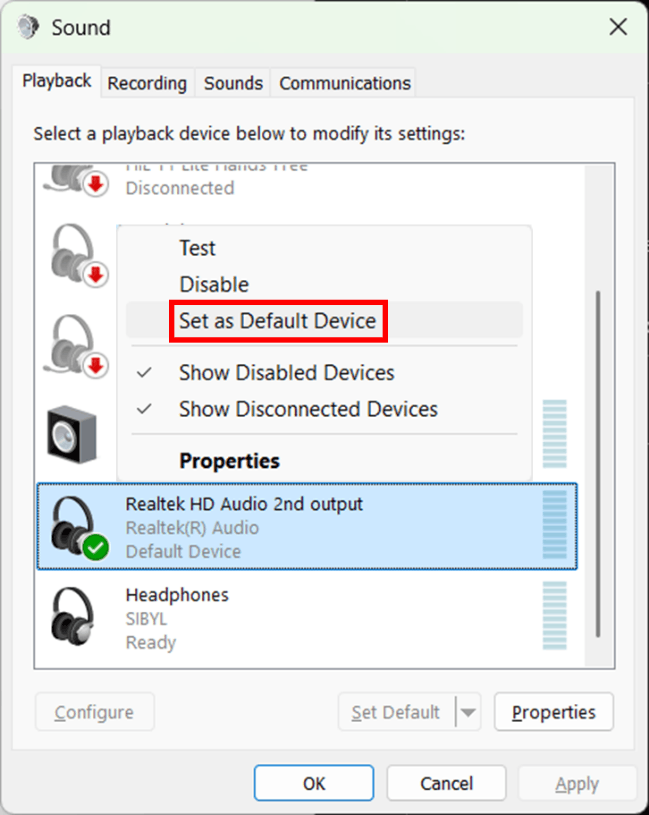
In the "Playback" tab, right-click your audio device (for example, Realtek HD Audio) and select "Set as Default Device". A green checkmark indicates it is set as default.
- Check the balance audio settings in Windows.
- Right-click the speaker icon in the system tray and select "Sound settings".
- Under the "Advanced" section, click "More sound settings".
- In the "Playback" tab, right-click your audio device (for example, Realtek HD Audio) and select "Properties".
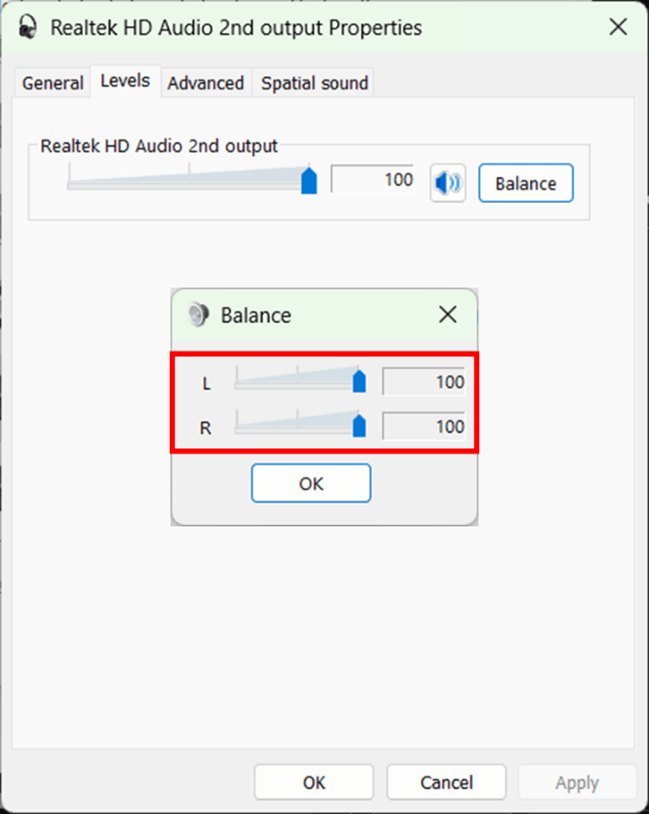
- Navigate to the "Levels" tab and click "Balance".
-
Adjust the left and right volume levels to match.
- Test by playing audio on the computer.
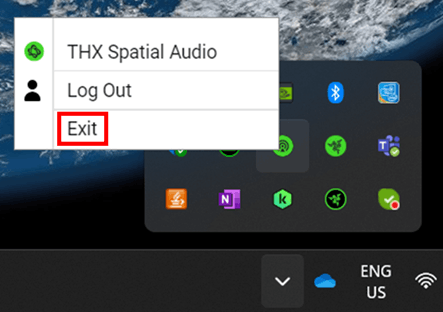
- Exit 7.1 Surround Sound or THX Spatial if installed.
-
Right-click the “Razer AppEngine” icon in the system and select “Exit”.
Note: If the headset works with the software disabled, reinstall the software and restart your computer.
-
- Reinstall the audio drivers.
- Open the "Device Manager".
- Expand "Audio inputs and outputs".
- Right-click the headset and select "Uninstall device".
- Restart the computer to fully remove the drivers. They will automatically reinstall upon restart.
USB Type Headsets
-
Test the headset on another PC or device.
If the headset works on another device, the issue likely lies with your primary device's audio or USB ports. Consider having it inspected by a technician or the manufacturer.
- Ensure the device is connected directly to the PC rather than through a USB hub.
- For wireless headsets, make sure it is fully charged and powered on.
- If the headset has in-line or onboard volume controls, ensure the volume is not set too low.
- Ensure the headset is set as the default playback device.
- Right-click the speaker icon in the system tray and select "Sound settings".
- Under the "Advanced" section, click "More sound settings".
-
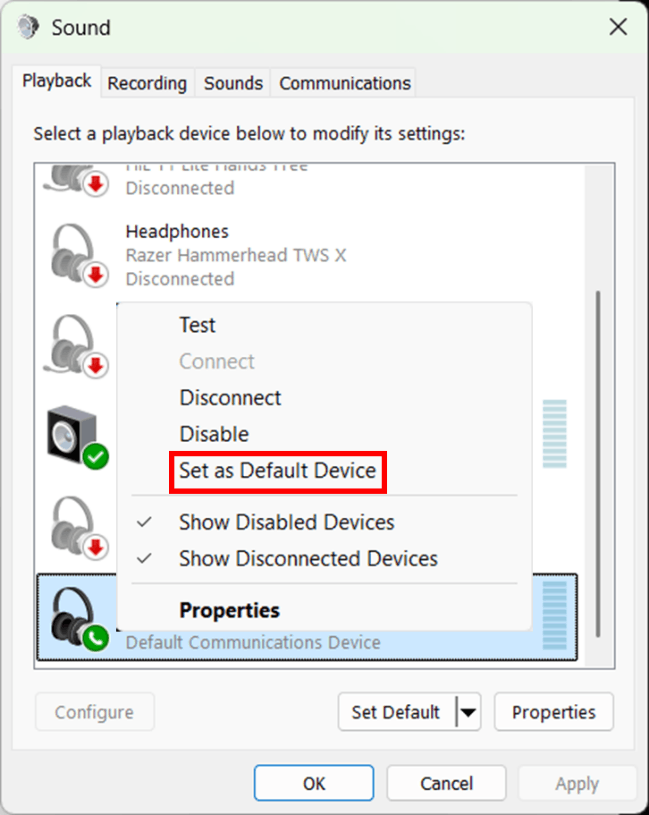
In the "Playback" tab, right-click your audio device (for example, Razer Kraken V4) and select "Set as Default Device". A green checkmark indicates it is set as default.
- Check system volume settings.
- Right-click the speaker icon in the system tray and select "Open volume Mixer".
- Adjust the volume levels to ensure they are not set too low or muted.
- Check the balance audio settings in Windows.
- Right-click the speaker icon in the system tray and select "Sound settings".
- Under the "Advanced" section, click "More sound settings".
- In the "Playback" tab, right-click your audio device (for example, Razer Kraken V4) and select "Properties".
- Navigate to the "Levels" tab and click "Balance".
-
Adjust the left and right volume levels to match.
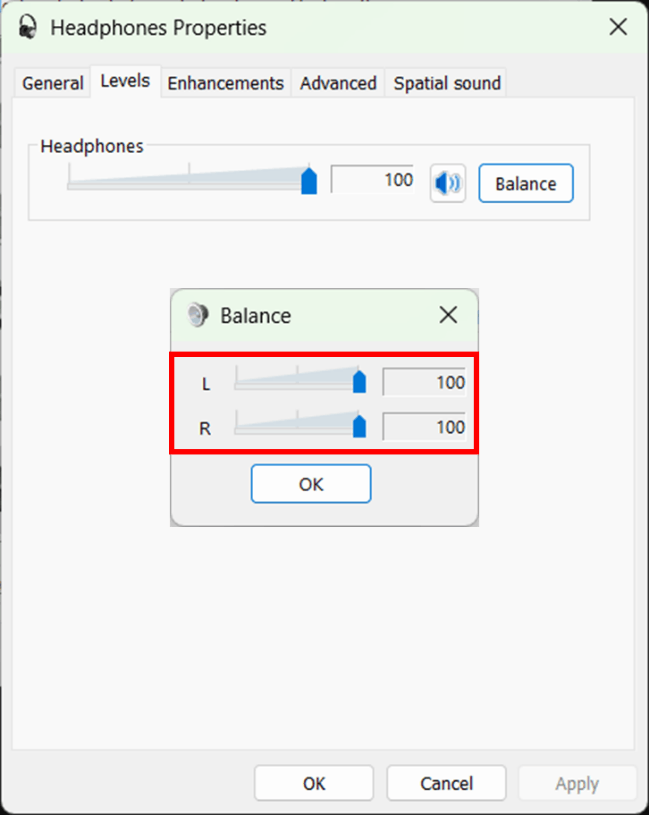
- Perform a test by playing any audio from the computer.
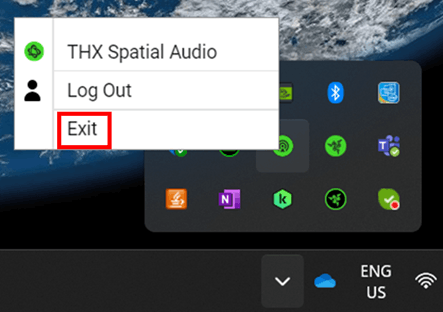
- Exit 7.1 Surround Sound or THX Spatial if installed.
-
Right-click the “Razer AppEngine” icon in the system and select “Exit”.
Note: If the headset works with the software disabled, reinstall the software and restart your computer.
-
-
Disable Audio Enhancements.
Razer Synapse 4
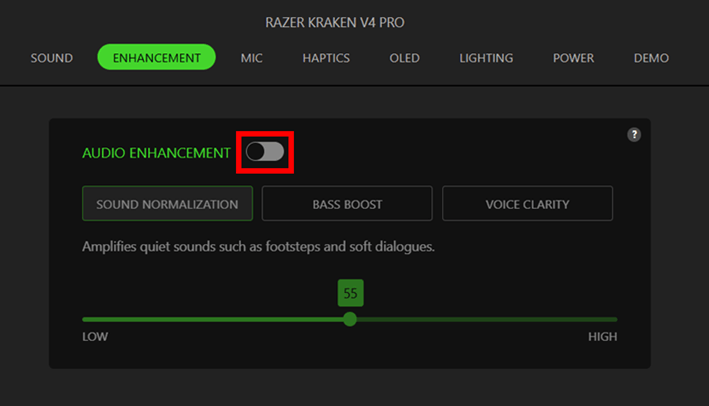
- Open Razer Synapse 4 and navigate to "ENHANCEMENT" tab.
-
Toggle the “AUDIO ENHANCEMENT” slider off.
Razer Synapse 3
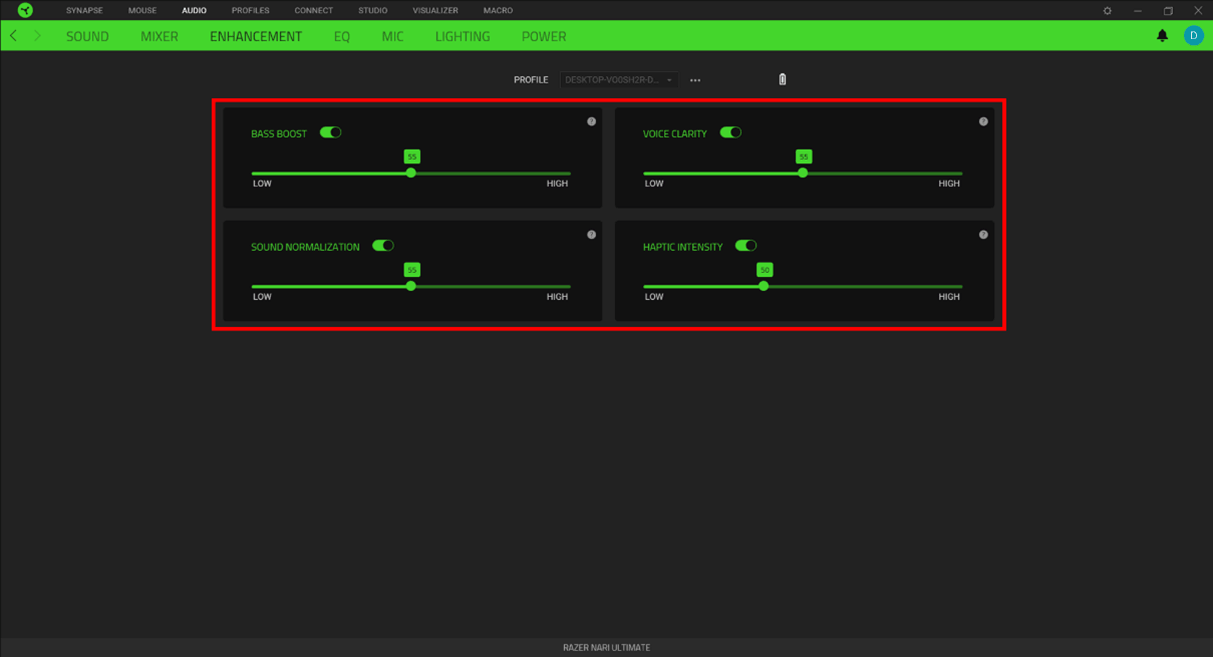
- Open Razer Synapse 3 and navigate to "AUDIO" > "ENHANCEMENT" tab.
-
Use the toggle switch to disable enhancements.
- Disable Razer Synapse.
-
Right-click on the “Razer” icon in the system tray and select "Exit Synapse".
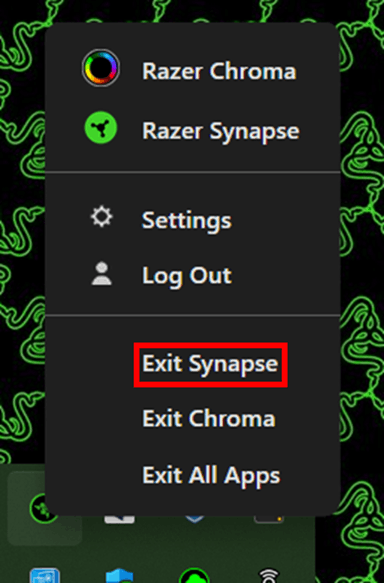
-
- If the headset works with Razer Synapse disabled, do a clean reinstall of the software. See How to re-install Razer Synapse on Windows for instructions.
- Reinstall the audio drivers.
- Open the "Device Manager".
- Expand "Audio inputs and outputs".
- Right-click the headset and select "Uninstall device".
- Restart the computer to fully remove the drivers. They will automatically reinstall upon restart.

