
Error message during system recovery
If you encountered an Error Message when performing a system recovery on the Razer Tomahawk Gaming Desktop, exit from the system recovery and boot Windows to troubleshoot.
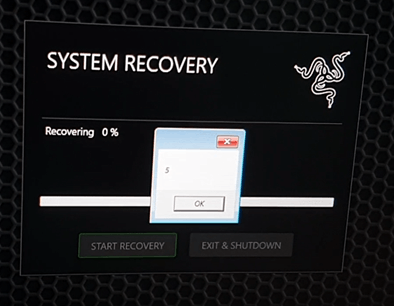
Why does this error message occur?
-
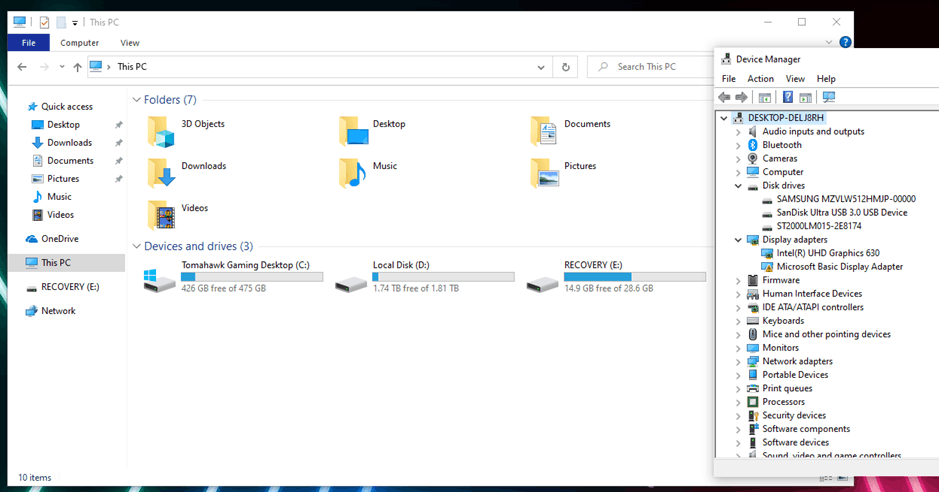
If the Razer Tomahawk Gaming Desktop has two or more memory disk drives that the program detects, then one of the disk drives needs to be disabled during the recovery process.
-
If the Razer Tomahawk Gaming Desktop has more than two memory disk drives continue with this troubleshooting.
The picture below shows Razer Tomahawk Gaming Desktop having more than two memory disk drives.
-
Restart Razer Tomahawk Gaming Desktop and repeatedly press "F2" to enter setup.
-
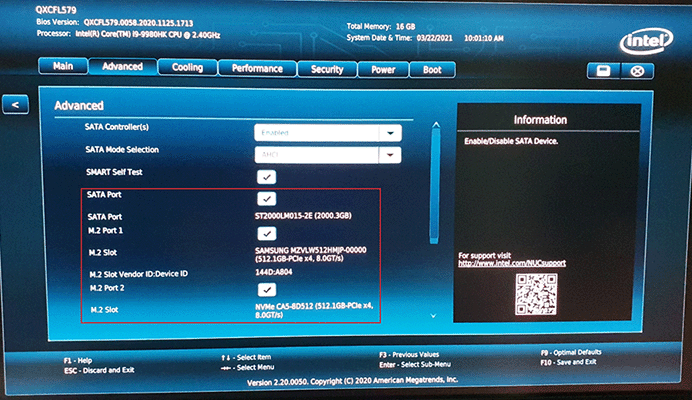
Go to "Advanced" and then "Storage".

The screen below shows the disk drives.
-
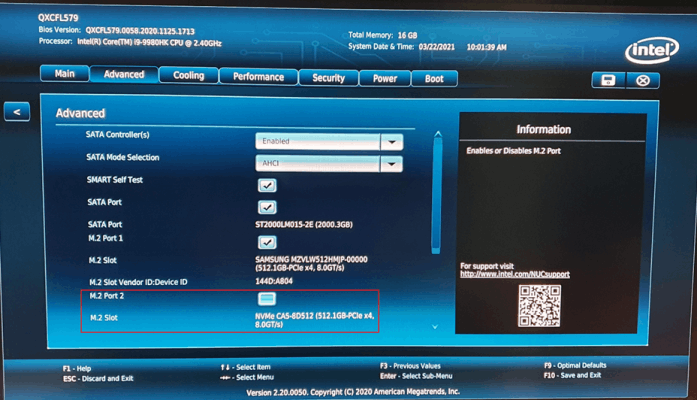
Untick one of the M.2 Ports.
-
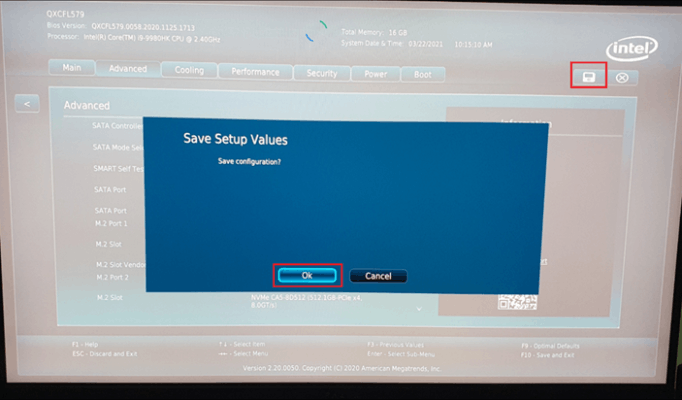
Save changes by clicking the save button and press "OK".
-
Exit the setup by clicking the cross button and press "OK". The system will restart and boot to Windows.
-
Now, you can proceed to recover Razer Tomahawk Gaming Desktop from a recovery stick again.
-
The error should be solved otherwise, contact Razer support if other error messages occur.
-
After Recovery Process (for more than two memory disk drives)
-
Restart Razer Tomahawk Gaming Desktop and repeatedly press "F2" to enter setup.
-
Go to "Advanced" and then "Storage".
-
Tick the M.2 Port to re-install and to fully function.

-
Save changes by clicking the save button and press "OK".
-
Exit the setup by clicking the cross button and press "OK". The system will restart and boot to Windows.

