
End of Support Notice
Razer Synapse 3: Updates and cloud services are no longer supported, effective February 3, 2026.
Razer Synapse 2.0: Cloud‑related features are no longer supported, effective October 28, 2025.
For more details, including a guide on how to migrate profiles, visit the links below.
The following factors can cause mouse issues with a specific program or game:
-
Improper hub connections
-
Software bugs
-
Hardware-related issues such as stuck debris and dirty sensors or switches.
Below are the steps to fix mouse issues with a specific program or game.
Note: Check if your device is working properly or if the issue has been resolved for every step taken.
-
For wired connection, make sure that the device is plugged in directly to a PC and not a USB hub.
-
For a wireless connection, make sure that the device is plugged in directly to a PC and not a USB hub with a clear line of sight from the mouse to the dongle.
-
Make sure that the firmware on your Razer mouse is up to date.
-
Test the device in other applications and see if the issue persists.
-
If the Razer mouse works fine, then the program is the cause of the issue. Contact the program or game developer to fix the issue.
-
Test the device with another system if available.
-
Reset your Razer mouse's Surface Calibration. To do this, check out How to use the Surface Calibration in Razer Synapse 2.0, Razer Synapse 3, or Razer Synapse 4 .
-
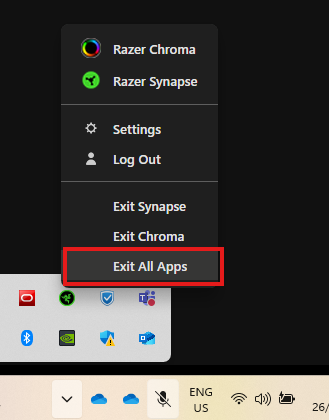
Check if any software is causing the issue. Exit all apps by going to System Tray. Locate the Razer Synapse Icon, then right-click and select “Exit All Apps”.
- Perform a clean reinstall of Razer Synapse to rule out any installation or update bug causing the issue.
-
Uninstall the drivers of your Razer mouse. After the uninstallation process, your Razer mouse driver will automatically reinstall.

