The Razer Chroma Light Strip Set can be configured three ways.
Select preferred method
Via 2.4 GHz mode using Razer Synapse
-
Download and install Razer Synapse. Check out Razer Chroma for more details.
-
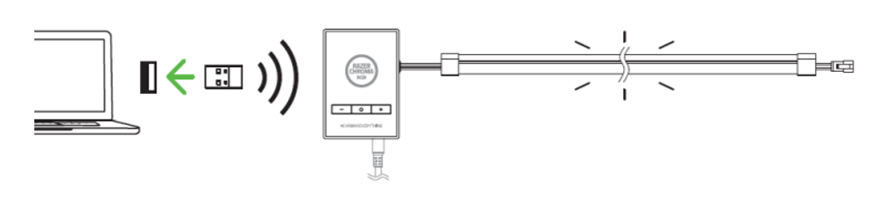
Insert the wireless USB transceiver into any USB port on your PC.
-
Configure the Razer Chroma Light Strip via Synapse. See How to Configure the Razer Chroma Addressable RGB Controller for more details.
Via Bluetooth mode using the Razer Chroma RGB App
-
Download the Razer Chroma RGB app on your mobile device at Google Play Store or App Store.
-
Launch the app.
-
Tap Add Device and follow the onscreen instructions.
Via buttons on the ARGB controller
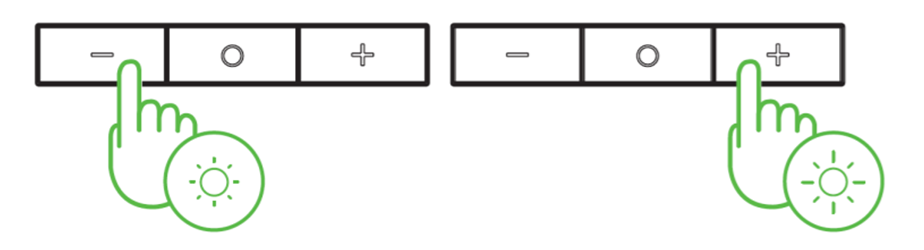
Brightness control buttons
Press the + or – brightness buttons to increase or decrease the brightness of all connected LED strips.
Power button
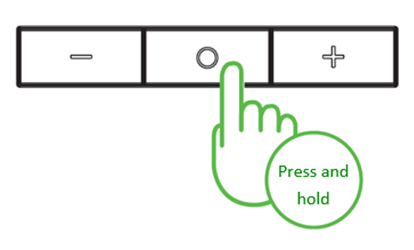
Power on or off lighting
Press and hold the power button to power on or off the ARGB controller.
Changing the lighting effects
Note: For standalone and Bluetooth mode only.
-
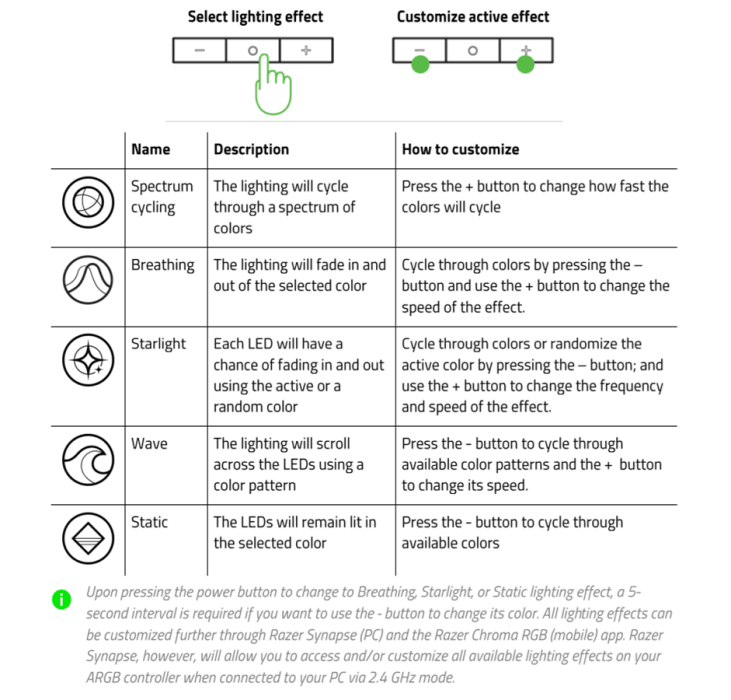
Press the power button to cycle through the Chroma lighting effects.
-
Use the + or – brightness control buttons to configure the settings of the active lighting effects.