
Effective February 3, 2026, Razer Synapse 3 will no longer receive updates or support cloud services. After this date, cloud syncing of configurations across PCs using the same Razer ID will be disabled.
Note: Your installed devices will continue to be configurable in Razer Synapse 3. However, if you uninstall these devices completely, you will need to upgrade to Razer Synapse 4 to continue customization.
Download Razer Synapse 4 and migrate your existing Razer Synapse 3 profiles using the Profile Migration Tool to retain access to your configurations. See How to migrate your Razer Synapse 3 Profile to Razer Synapse 4 for instructions.
You can view the video below for instructions or review a copy of the video transcript.
Step-by-step process on how to fix syncing issues between Razer, third-party RGB devices, and Razer Chroma-supported games.
Select Razer Synapse version
Razer Synapse 4
-
Ensure that your Razer device is working properly and is detected by Razer Synapse. See Razer Synapse does not recognize or detect my Razer device for more information.
-
Check if your RGB device and video game support Razer Chroma.
-
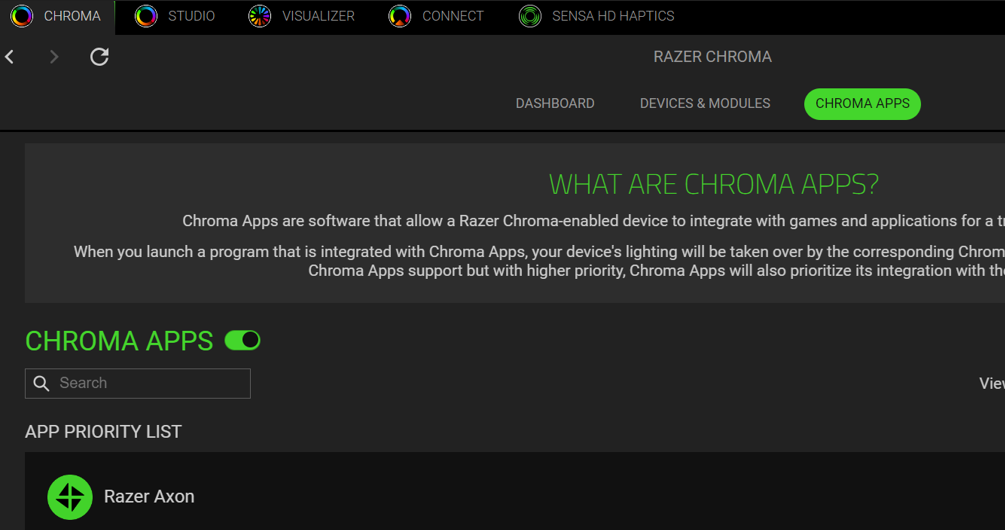
Launch Razer Chroma and click “CHROMA APPS”.

-
Toggle “CHROMA APPS” on.
-
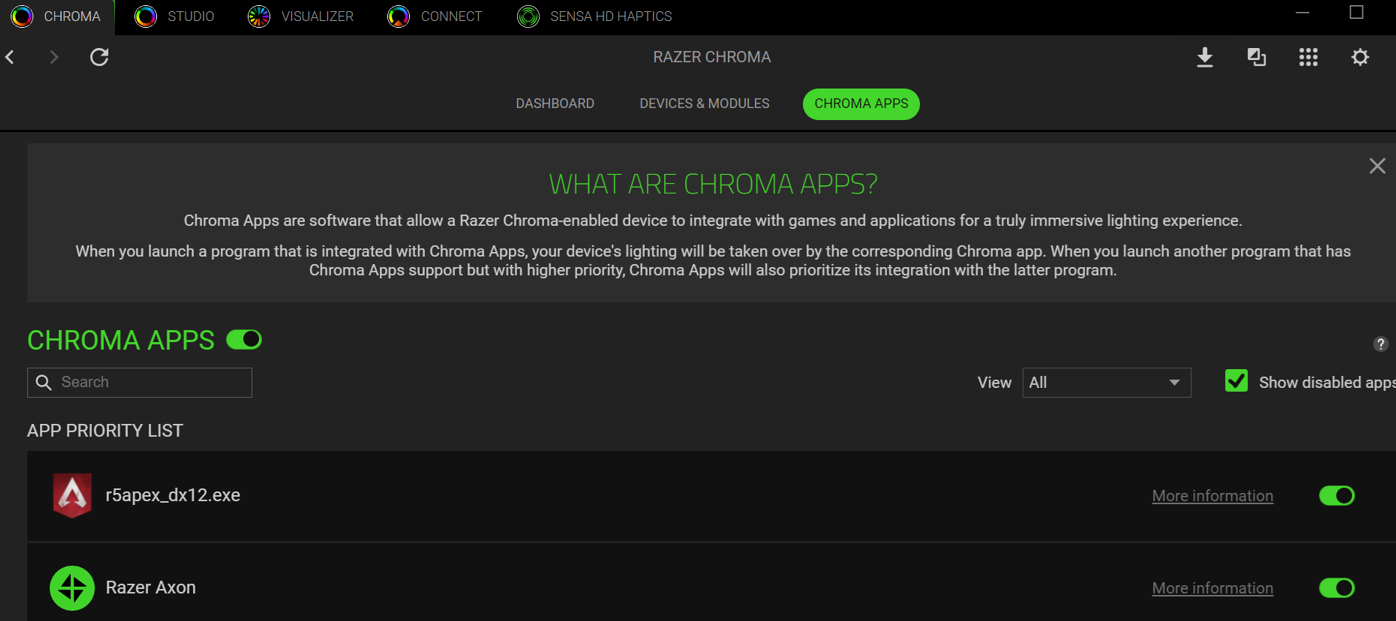
You can then check if Chroma Apps has detected your game successfully.
Note: If it is not detected, ensure that the game has run for the first time for Chroma SDK. This must be done for Chroma Apps to recognize the game.
Razer Synapse 3
-
Ensure that your Razer device is working properly and is detected by Razer Synapse. See Razer Synapse does not recognize or detect my Razer device for more information.
-
Check if your RGB device and video game support Razer Chroma.
-
Go to Razer Synapse > Connect.
-
Check if your RGB device is detected under “DEVICES” and toggle “CHROMA CONNECT” on.

-
Click on “APPS” and check if Razer Synapse has detected your game successfully.

-
Toggle “CHROMA APPS” on.


