
Effective February 3, 2026, Razer Synapse 3 will no longer receive updates or support cloud services. After this date, cloud syncing of configurations across PCs using the same Razer ID will be disabled.
Note: Your installed devices will continue to be configurable in Razer Synapse 3. However, if you uninstall these devices completely, you will need to upgrade to Razer Synapse 4 to continue customization.
Download Razer Synapse 4 and migrate your existing Razer Synapse 3 profiles using the Profile Migration Tool to retain access to your configurations. See How to migrate your Razer Synapse 3 Profile to Razer Synapse 4 for instructions.
The LINKED GAMES subtab of Razer Synapse allows you to add games, view devices linked to games, or search for added games. You can also sort games based on alphabetical order, last played, or most played. Added games will still be listed here, even if they are not linked to a Razer device.
To link to connected Razer devices or Chroma Effects in Razer Synapse, follow the steps below:
Razer Synapse 4
-
Launch Razer Synapse 4.
-
Click the “More” icon at the upper right-hand corner.
-
Under “MODULES”, select “LINKED GAMES”.
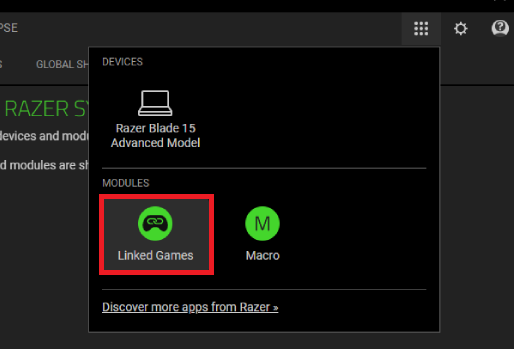
-
Select any game from the list.
-
Click the Razer device or Chroma Effect to link them to the selected game.
-
Click the dropdown under the corresponding Chroma Effect or device to select a specific Chroma Effect or profile.
Razer Synapse 3
-
Launch Razer Synapse 3.
-
Go to “PROFILES” > “LINKED GAMES”.

-
Click on any game from the list.
-
Click “Select a device and its profile to launch automatically during gameplay” to select the Razer device or Chroma Effect it will link with.
-
Click the Miscellaneous
 button of the corresponding Chroma Effect or device to select a specific Chroma Effect or profile.

