
Effective February 3, 2026, Razer Synapse 3 will no longer receive updates or support cloud services. After this date, cloud syncing of configurations across PCs using the same Razer ID will be disabled.
Note: Your installed devices will continue to be configurable in Razer Synapse 3. However, if you uninstall these devices completely, you will need to upgrade to Razer Synapse 4 to continue customization.
Download Razer Synapse 4 and migrate your existing Razer Synapse 3 profiles using the Profile Migration Tool to retain access to your configurations. See How to migrate your Razer Synapse 3 Profile to Razer Synapse 4 for instructions.
You can view the video below for instructions or review a copy of the video transcript.
Below are the steps to pair or unpair the Razer Mouse Dock Pro.
Select an action
Pair the Razer Mouse Dock Pro
Connect the Razer Mouse Dock Pro to your PC.
Open Razer Synapse 3.
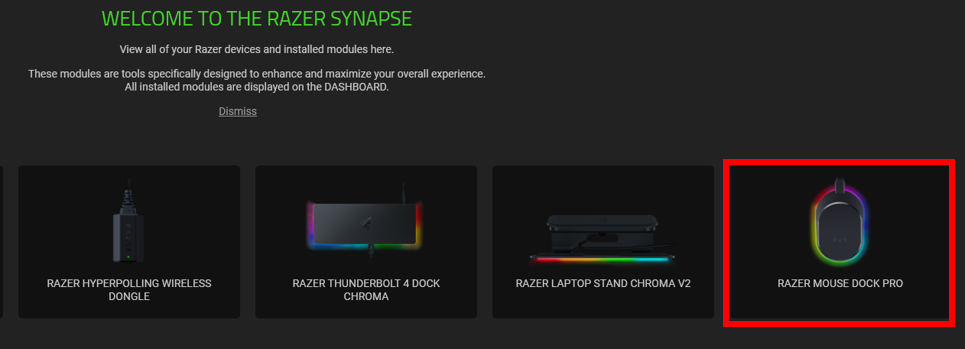
Select the Razer Mouse Dock Pro from the list of devices.

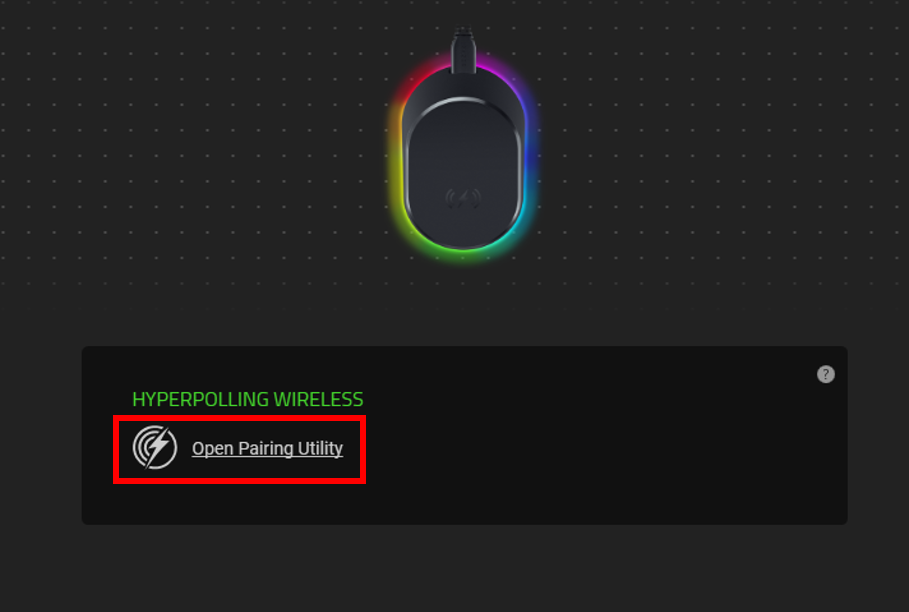
Click “Open Pairing Utility”.
Connect a compatible device to the Razer Mouse Dock Pro.
Click “SELECT DEVICE”.

Set the compatible device switch to “2.4” GHz mode.
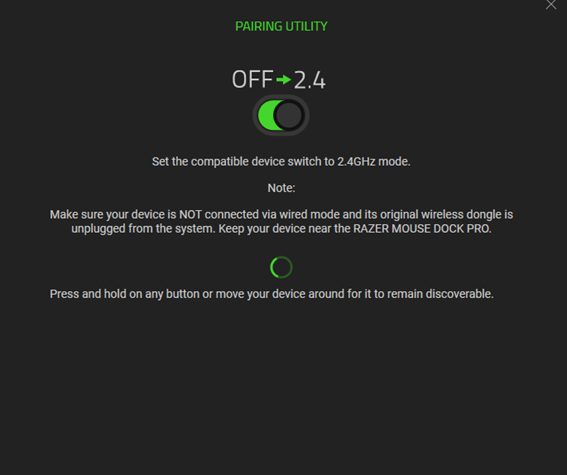
Press and hold any key on the device until it is found.
Select “RAZER MOUSE DOCK PRO” then click “PAIR”.
The device will display under PAIRING UTILITY once paired.

Unpair the Razer Mouse Dock Pro
Open Razer Synapse 3.
Select the Razer Mouse Dock Pro from the list of devices.
Go to the “PAIRING” tab.
Click “UNPAIR”.

Click “CONFIRM” to complete the unpairing process.


