
Effective February 3, 2026, Razer Synapse 3 will no longer receive updates or support cloud services. After this date, cloud syncing of configurations across PCs using the same Razer ID will be disabled.
Note: Your installed devices will continue to be configurable in Razer Synapse 3. However, if you uninstall these devices completely, you will need to upgrade to Razer Synapse 4 to continue customization.
Download Razer Synapse 4 and migrate your existing Razer Synapse 3 profiles using the Profile Migration Tool to retain access to your configurations. See How to migrate your Razer Synapse 3 Profile to Razer Synapse 4 for instructions.
Applicable models:
You can use Razer Synapse to assign new functions to your Razer Naga V2 mouse. See the step-by-step instructions below on how to remap keys or buttons on your Razer Naga V2 mouse.
Choose an option
Razer Synapse 4
-
Launch Razer Synapse 4.
-
Select your mouse from the DASHBOARD.
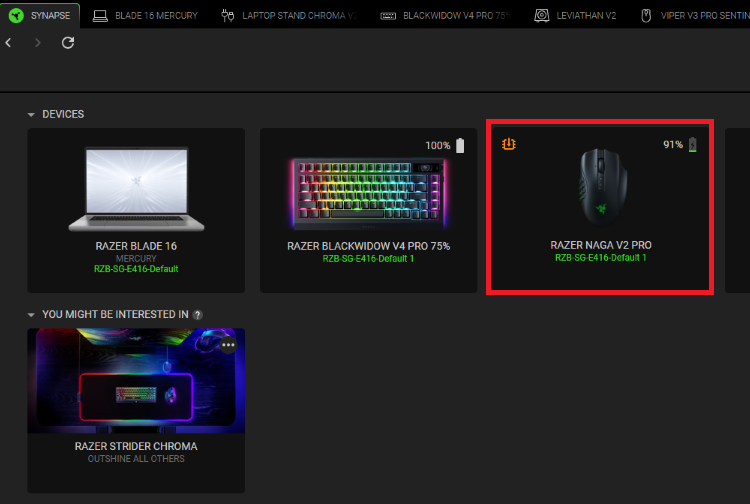
-
Select a button you want to remap.
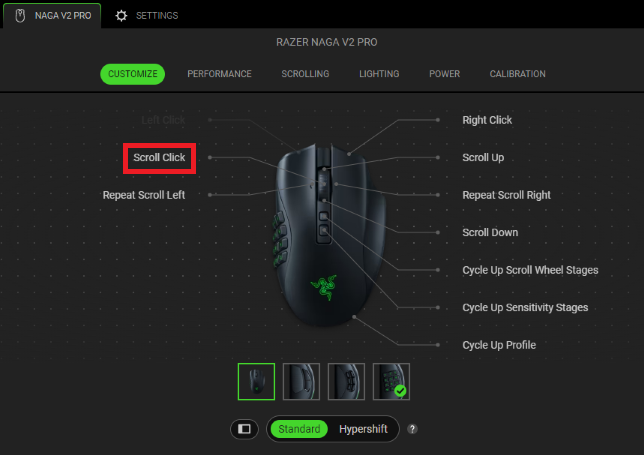
-
Select a function to assign to the key or button you want to remap.
Note: Include modifiers to bind shortcut keys or control how many times the action will be performed when the key or button is held down.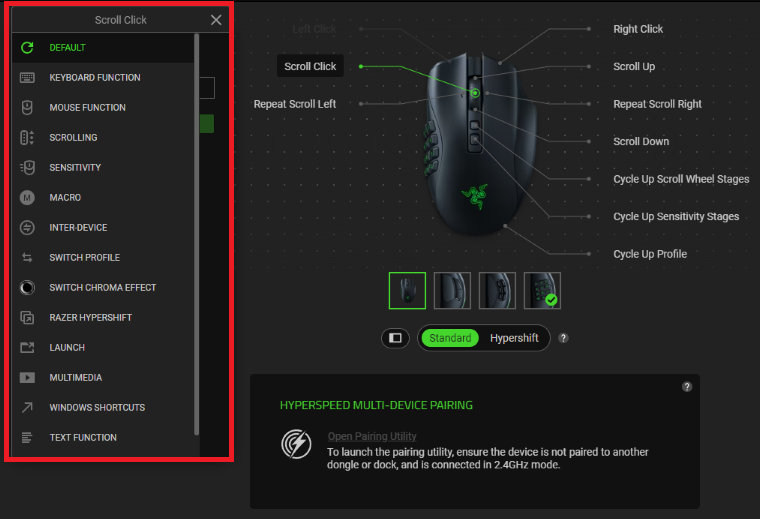
-
Click “SAVE” to complete the process.
Note: Keep Razer Synapse running in the background to use this function.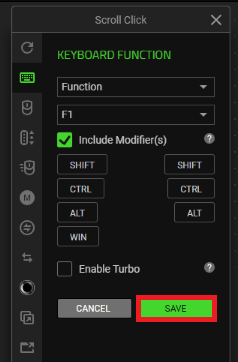
The remapped button is displayed after the shortcut on your device layout.
Razer Synapse 3
-
Open Razer Synapse 3.
-
Select the device you want to customize under “DASHBOARD” > “DEVICES”.

-
Select the key or button you want to remap.

-
Select your preferred function to assign to the key or button you want to remap.
Note: Include modifiers to bind shortcut keys or control how many times the action will be performed when the key or button is held down.
-
Click "SAVE".


