
Screen flicker or image retention on a Razer Blade is usually caused by display power-management features, such as refresh-rate switching, or AC/DC power-state transitions. Select your model number to see the cause and fix for your Razer Blade.
Select your Razer Blade model
RZ09-03101
Issue:
The screen on the Razer Blade Stealth 13" (Late 2019) model flicker when I plug or unplug my power adapter and also comes with a change in the brightness.
Cause:
This issue occurs when the Blade changes from or to "Battery Mode".
Solution:
Follow the steps below:
-
Open the Intel Iris Graphics Control Panel.
-
Click on "Power".
-
Select "On Battery" on the sidebar and click "Enable" under "Panel Self-Refresh".
-
Do the same setting with "Plugged in".
Related articles:
RZ09-0421N*G3
Issue:
The screen on a Razer Blade 15” (2022) OLED flickers when switching the variable refresh rate from 48 Hz to 240 Hz in HDR mode.
Solution:
Follow the steps below to resolve the issue.
-
Download the updater.
-
Run the updater and then follow the on-screen instructions. Ensure your Razer Blade is in NVIDIA Optimus mode before running the updater or you will get an error message as shown below.

Related article:
RZ09-0483x, RZ09-0484x
Issue:
Users have reported screen flickering and image retention issues with their Razer Blade 16" (2023) and Razer Blade 18" (2023) models.
Solution:
Follow the step-by-step process below to apply the update and resolve the issue.
-
Download and install GeForce Game Ready Driver version 531.18 (WHQL).
-
Download the correct Panel Hotfix Updater file after installing the GeForce Driver.
-
Run the Panel Hotfix updater and follow the on-screen instructions.
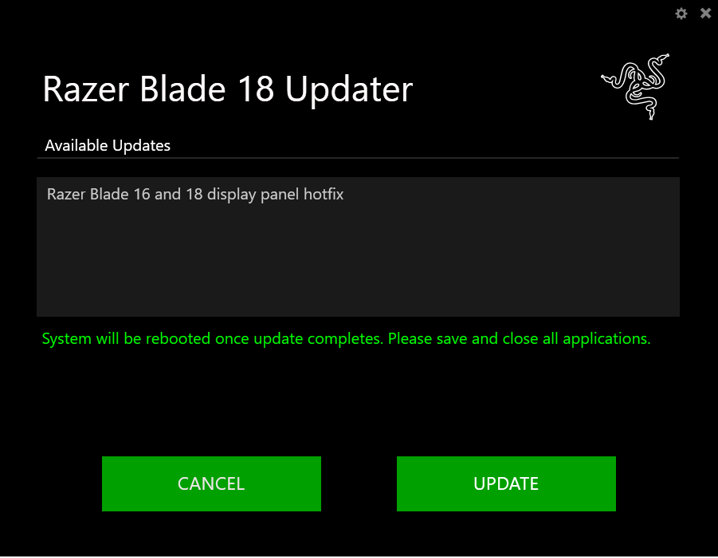
Note: The system must be set to dGPU-only mode to apply the update.
If the system is in Dynamic Display Switch (DDS) mode, the updater will prompt a warning message. To proceed, do the following:
-
Click “CONTINUE”. This will restart the system.

-
Before the system boots into Windows, press the F1/DEL key to enter BIOS.
-
Go to the “Chipset” tab and set the GPU mode to “Dedicated GPU only”.
-
Save your changes and exit.
-
Run the updater again to finalize the update process.
-
RZ09-0510x
Recommended Software Update
Issue:
Users have reported screen flickering and image retention issues with their Razer Blade 16" (2024) models.
Important: Wait while the update process is ongoing. This may take approximately 30 minutes. Do not interrupt.
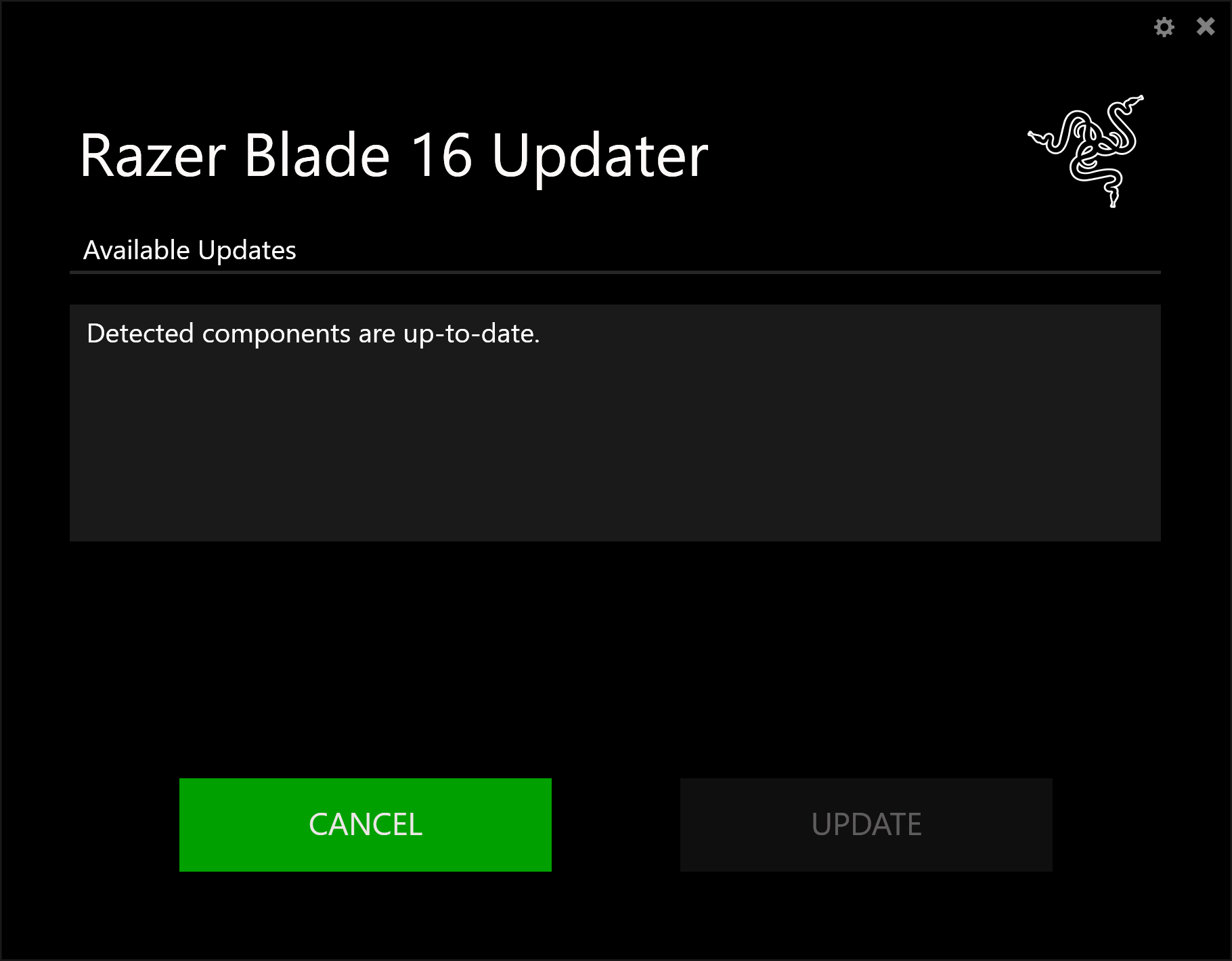
Note: If your Razer Blade shows that your system is up-to-date, then this firmware is not applicable for your Razer Blade.
Solution:
Follow the step-by-step process below to apply the update and resolve the issue.
-
Download the Panel FW file.
-
Run the Panel FW and follow the on-screen instructions.
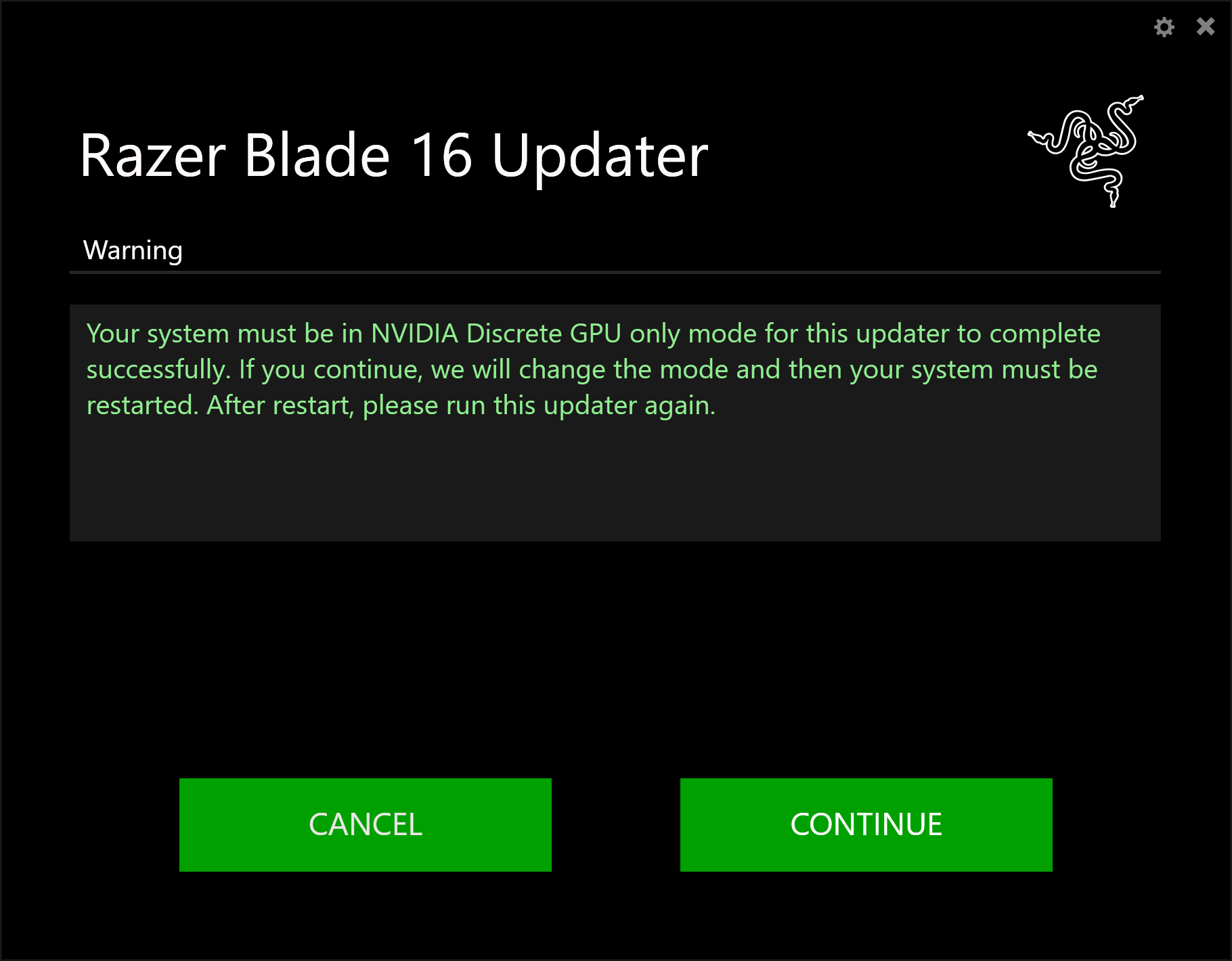
Note: The system must be set to dGPU-only mode to apply the update.
If the system is in Dynamic Display Switch (DDS) mode, the updater will prompt a warning message. To proceed, do the following:
-
Click “CONTINUE”. This will restart the system.
-
Before the system boots into Windows, press the F1/DEL key to enter BIOS.
-
Go to the “Chipset” tab and set the GPU mode to “Dedicated GPU only”.
-
Save your changes and exit.
-
Run the updater again to finalize the update process.
-

