
Effective February 3, 2026, Razer Synapse 3 will no longer receive updates or support cloud services. After this date, cloud syncing of configurations across PCs using the same Razer ID will be disabled.
Note: Your installed devices will continue to be configurable in Razer Synapse 3. However, if you uninstall these devices completely, you will need to upgrade to Razer Synapse 4 to continue customization.
Download Razer Synapse 4 and migrate your existing Razer Synapse 3 profiles using the Profile Migration Tool to retain access to your configurations. See How to migrate your Razer Synapse 3 Profile to Razer Synapse 4 for instructions.
Step-by-step process
-
Plug in your Razer Nari Headset to your system via USB cable.
- Expand the system tray by clicking the arrow found on the lower right side of your desktop. Right-click on the Razer Central icon and click “Check for Updates.”

- Synapse will check for updates upon launching. You may also manually check for updates by clicking “CHECK FOR UPDATES”. Install the updates if there are any.

Note: This step only applies to Razer Synapse 3. Razer Synapse 4 updates automatically.
If the issue persists, you may try the following:
Razer Synapse 4
- Connect your Razer Nari to your laptop or desktop computer via USB dongle or USB cable.
- Launch Razer Synapse.
- Select the Razer Nari from the "DASHBOARD".
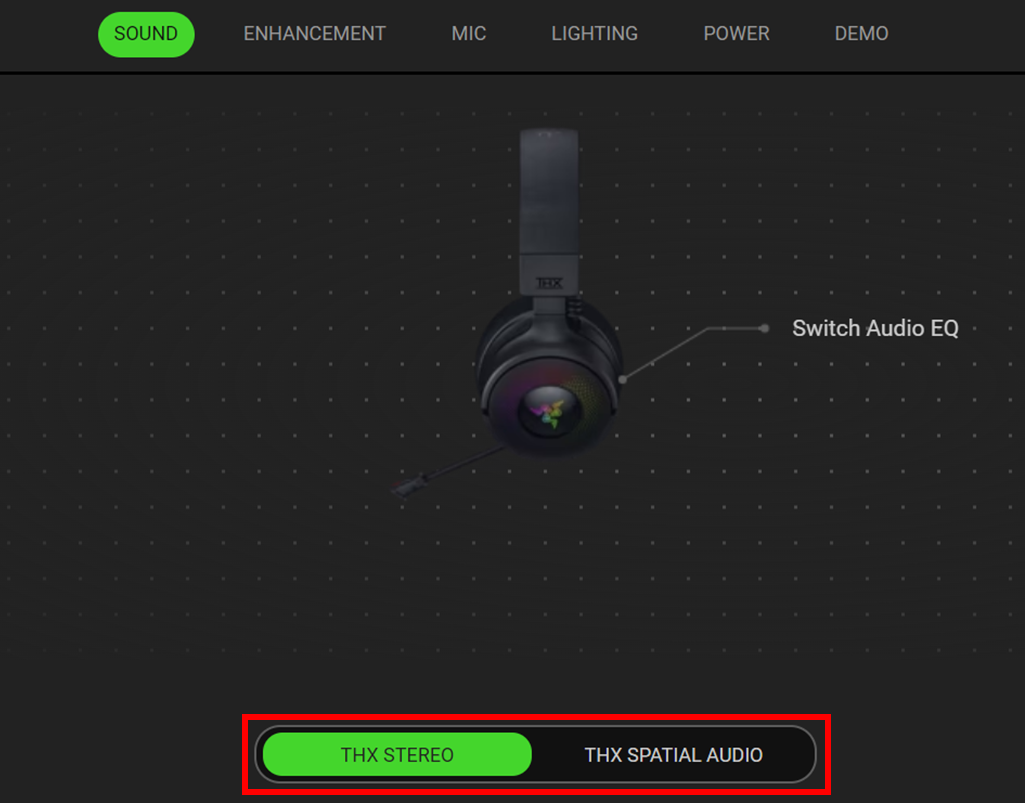
- Navigate to the "SOUND" tab.
- Toggle "THX SPATIAL AUDIO" off to "STEREO".
Razer Synapse 3
-
Connect your Razer Nari to your laptop or desktop computer via USB dongle or USB cable.
-
Launch Razer Synapse.
- Go to “Profiles” and create a blank profile with Synapse.

- On your new profile, calibrate THX Surround Sound to your liking. You may adjust the channels according to your preference by moving them around the circle or click “Reset” to restore defaults.

- Turn THX off. This will make every single source into “Stereo” automatically.

-
Go to Audio > EQ. Then introduce your custom EQUALIZER settings.

- Go back to Profiles and select the “New Profile” that you just created.
- Right-click and select “Duplicate”.

- On the newly duplicated profile, you can turn THX back on.

- Do not disable THX or change the EQ settings on this profile. If you wish to go back to Stereo mode, you may use other profiles.

