

Tips to help you get started
Full Technical Specifications
| Category | Specification |
|---|---|
| Variation | Razer Chroma App |
| Supported Operating System |
|
| Supported Languages |
|
| Supported Modules |
|
| Supported Devices |
To view the full list of supported devices, click the link below: |

How To
How do I add lighting effects in Chroma Studio?
- Launch the Razer Chroma app.
- Under MODULES, click on “Chroma Studio”.
- Click the Chroma effect you prefer under “ADD EFFECT”.
- Select the effect and apply the effect to your Razer product.
- Click “SAVE” located at the bottom-right corner of Chroma Studio.
See the answer below for more details.
How do I activate Chroma lighting effects during gameplay?
Ensure the Razer Chroma App is running.
How do I customize a Chroma effect in Chroma Studio?
- Launch the Razer Chroma app.
- Go to the “STUDIO” tab.
- Select the Chroma effect to modify.
- Select the LEDs to apply your preferred effect.
- Click “SAVE” to apply changes.
See the answer below for more details.
How do I add third-party device to Chroma Studio?
Supported hardware is automatically added to Chroma Studio.
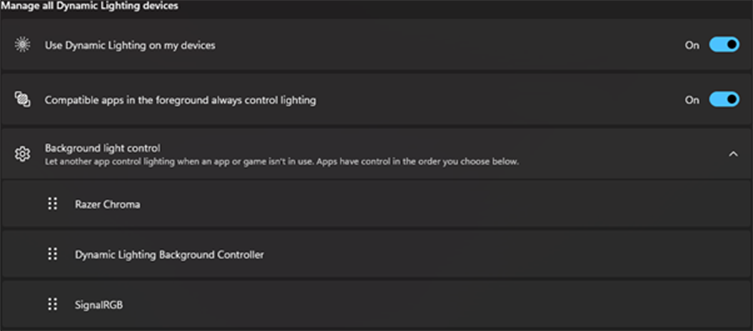
How do I allow Chroma Studio to control my third-party device’s lighting?
- Open “Settings”.
- Go to “Personalization” > “Dynamic Lighting”.
- Turn on “Use Dynamic Lighting on my devices”.
- Ensure Razer Chroma is at top under “Background light control”.
How do I remove a Chroma effect on Razer Chroma Studio?
To remove an entire effect layer:
- Launch the Razer Chroma app.
- Under MODULES, click on “Chroma Studio”.
- Right-click a Chroma effect in your layers to open a drop-down list.
- Select "Delete".
- Click “SAVE”.
To remove an entire effect from a selection or Razer device:
- Launch the Razer Chroma app.
- Under MODULES, click on “Chroma Studio”.
- Select the effect you want to remove under “EFFECT LAYERS”.
- Press and hold down “Ctrl” using the “Selector tool” and click on the LED(s) where you want to remove the effect.
- Click the “Clear Selection” tool then select “SAVE”.
See the answer below for more details.
How do I release my device from dynamic lighting?
Turn off the dynamic lighting setting in “Windows Settings”.
How do I enable or disable Chroma Workshop Games or Apps?
- Launch the Razer Chroma app.
- Go to “CHROMA APPS”.
- Toggle on or off for specific games and apps or for all Chroma apps to enable or disable them.
How do I use Chroma Connect?
- Launch the Razer Chroma app.
- Under MODULES, click on “CHROMA CONNECT”.
- Toggle on or off for compatible Chroma Partners apps, and assign lighting effects to the devices.
General Information
What are Chroma Apps and how do they work?
Chroma Apps are applications that are compatible with the Razer Chroma App. These applications have the capability of driving Chroma effects on your Chroma-enabled devices.
What devices are compatible with Dynamic Lighting?
Devices that appear under Windows Dynamic Lighting are compatible.
Why is my device still visible in Chroma Studio after turning off Dynamic Lighting?
Dynamic Lighting only controls Windows’ access to your device.
Turning it off releases the device from Windows, but it does not remove it from third‑party apps like Chroma Studio.
Razer Sensa HD Haptics
How do I activate Audio-to-Haptics?
- Check if your device is detected and turned on at a suitable intensity level.
- Select "Audio-to-Haptics" as the Haptic Source.
- Confirm that an adequate audio volume is being played.
- Ensure the audio signal is being picked up in Audio-to-Haptics profile.
See the answer below for more details.
How do I activate Sensa HD Games?
- Make sure your game is Sensa HD-compatible. Refer to the list of Sensa Games for details.
- Check if your device is detected and turned on at a suitable intensity level.
- Select "Sensa HD Games" as the Haptic Source.
- Enable "Chroma Apps".
- Ensure the game is enabled in the app priority list.
See the answer below for more details.
What devices support Sensa HD Haptics?
The following devices support Sensa HD Haptics:
What games support Sensa HD Haptics?
Refer to Sensa Games for the complete list of supported devices.
| Documentation | Language |
|---|---|
| User Guide (English) | English |
| User Guide (Spanish) | español |
| User Guide (French) | français |
| User Guide (German) | Deutsche |
| User Guide (Portuguese-Brazilian) | português |
| User Guide (Russian) | русский |
| User Guide (Traditional Chinese) | 繁體中文 |
| User Guide (Simplified Chinese) | 简体中文 |
| User Guide (Korean) | 한국어 |
| User Guide (Japanese) | 日本語 |

