
When calling, there can be instances where the audio quality is poor or there is no sound at all. Poor audio quality during a call could be affected by poor network coverage or structural obstructions. This problem could also be due to a software issue.
Step-by-step process:
Note: Before proceeding to the troubleshooting steps, check the Razer Phone is up to date. Navigate to Settings > System > Advanced > System update > Check for update.
-
Check the network coverage in your area. Poor network coverage will normally affect the quality of your calls and can even result in dropping calls.
-
Remove any cellphone covers, case protectors and screen protectors from the phone as they can obstruct the sound from the phone speakers.
-
If the phone has a good network coverage and all obstructions from the phone have been removed and you are still experiencing issues, restart the phone by pressing and holding the power or fingerprint button.
-
Test the phone again.
-
If the issue persists, check the audio settings are correct and the device is not muted.
-
From your “Top menu”, click the “Settings” icon indicated by a cog.

-
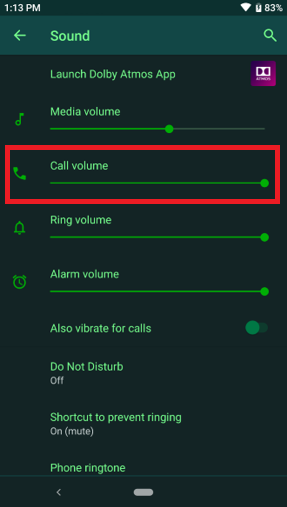
Select the “Sound” settings. Ensure the “Call volume” is set to its maximum for testing. You can adjust the volume to your liking after testing.
-
Test your phone again.
-
After all the settings have been configured, call your Razer Phone from a different phone line.
-
Reboot the device and test the phone again.
-
If the issue persists, back up your phone data and perform a factory reset.

