
The following issues can arise due to poor network coverage:
- Poor call quality
- Break up or drop calls
- Network busy
- No service
Below are the troubleshooting steps that may help fix the issue(s):
Check that the Phone is up-to-date by performing a system update.
Signal Troubleshooting
-
Check network coverage on the Razer Phone. Move to a different location, preferably with fewer obstacles and more open and check the signal.
Note: Network signal is affected by walls, buildings, trees, and weather.
Device Settings Troubleshooting
Note: The instructions below apply to the Razer Phone with the Android Pie installed.
-
From your home screen, swipe down twice to display quick settings.
-
Ensure that the "Airplane mode" and "Do not disturb" are not enabled.
-
If they are enabled, tap the icon(s) to disable.

-
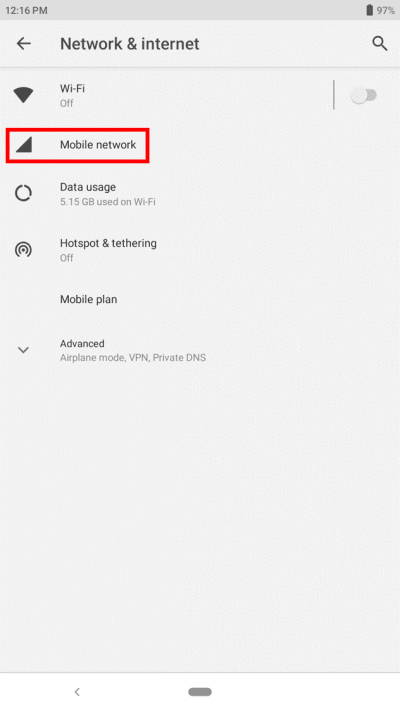
Go to Settings > Network & internet > Mobile network.
-
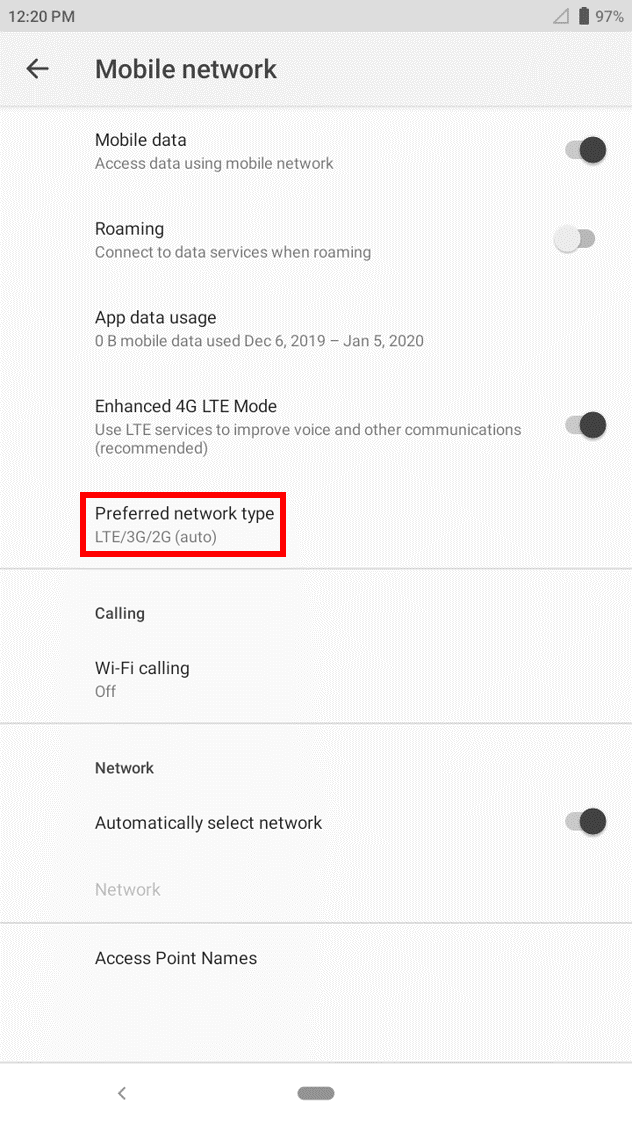
Tap "Advanced" to display more options, then tap "Preferred network type".
-
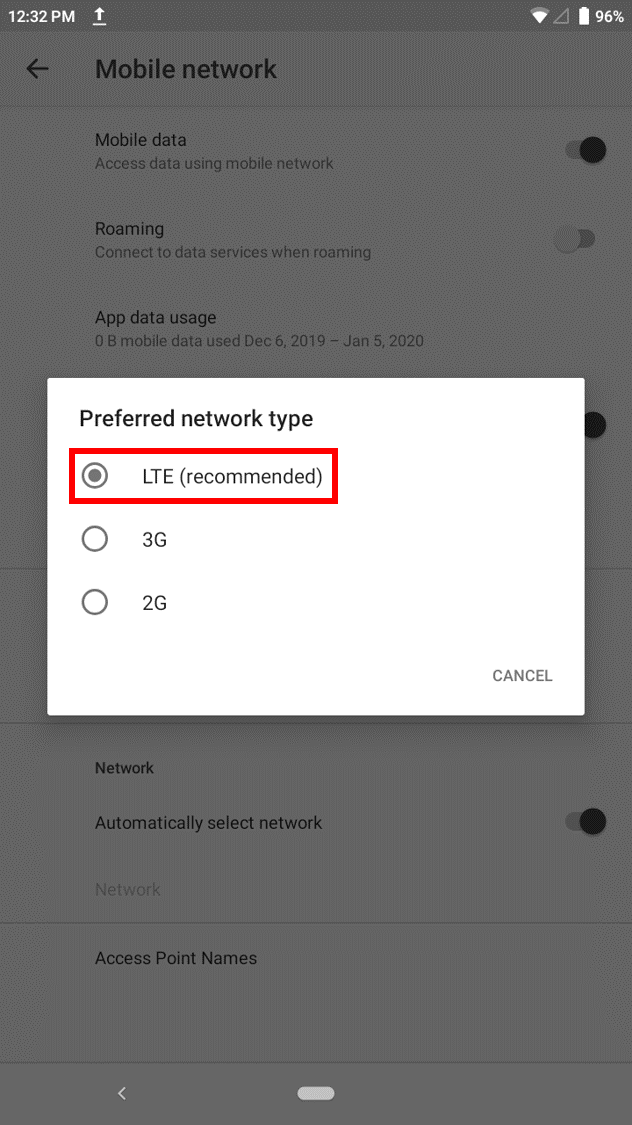
Ensure that the preferred network type is "LTE/3G/2G (auto)" by selecting the "LTE (recommended)" option.
SIM Troubleshooting
- Use another SIM card. If the Razer Phone starts to have better network coverage, then the issue is with the SIM. You may opt to replace your existing SIM card or contact your network provider.
Ruling Out
- If you are still experiencing the issue(s) despite following the instructions above, you may consider performing a hard reset.
- If the issue persists, back up your phone data and perform a factory reset.

