
Effective February 3, 2026, Razer Synapse 3 will no longer receive updates or support cloud services. After this date, cloud syncing of configurations across PCs using the same Razer ID will be disabled.
Note: Your installed devices will continue to be configurable in Razer Synapse 3. However, if you uninstall these devices completely, you will need to upgrade to Razer Synapse 4 to continue customization.
Download Razer Synapse 4 and migrate your existing Razer Synapse 3 profiles using the Profile Migration Tool to retain access to your configurations. See How to migrate your Razer Synapse 3 Profile to Razer Synapse 4 for instructions.
Razer Hypershift is a feature in Razer Synapse that allows you to temporarily unlock a secondary set of functions on top of your existing button assignments. This feature effectively doubles the number of customizable buttons on your device.
You can view the video below for instructions or review a copy of the video transcript.
Select Razer Synapse version
Razer Synapse 4
Assign a command to a button while in standard mode, which is indicated below your mouse on the device layout as “Standard”. See the answer below for more details.
Below is a list of commands and controls you can assign to your mouse.
Default
Keyboard Function
Mouse Function
Inter-Device
Switch Lighting
Click on the “Hypershift” button below the mouse device layout. This will give you a device layout with default settings.
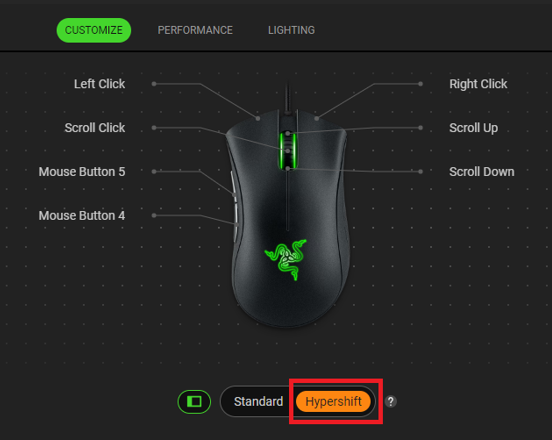
Assign another set of commands to the mouse buttons.
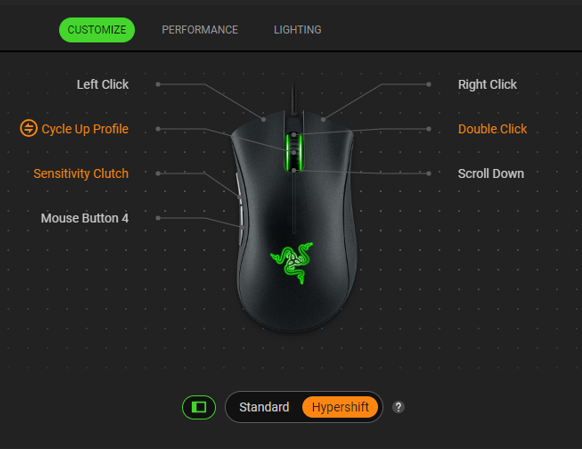
Click on the “Standard” button to change it back to standard mode.

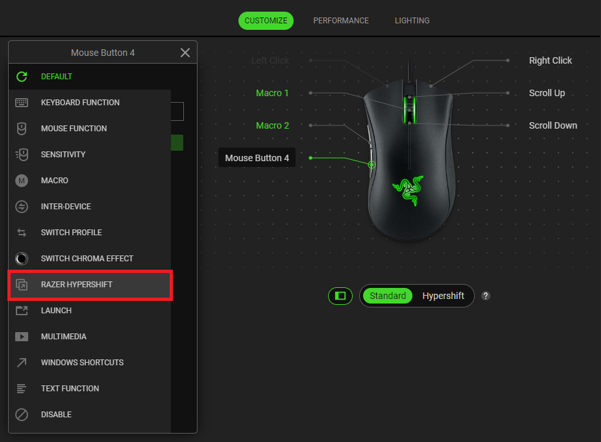
Click the button you want to assign as the Hypershift button and select “RAZER HYPERSHIFT” on the window that pops up.
Click “SAVE” to assign the button as a Hypershift modifier key.
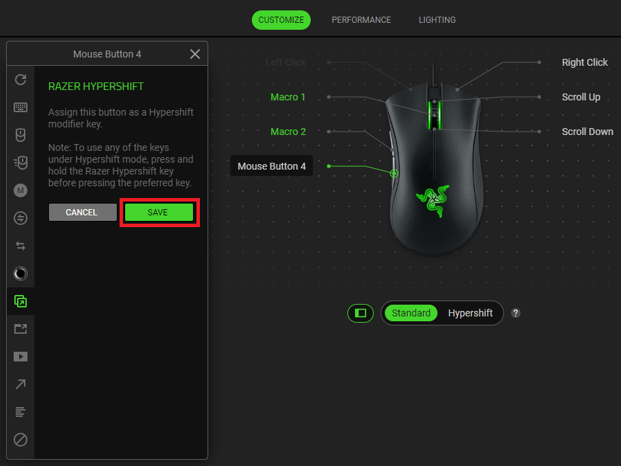
Note: The assigned button will appear in the device layout as “Razer Hypershift”.
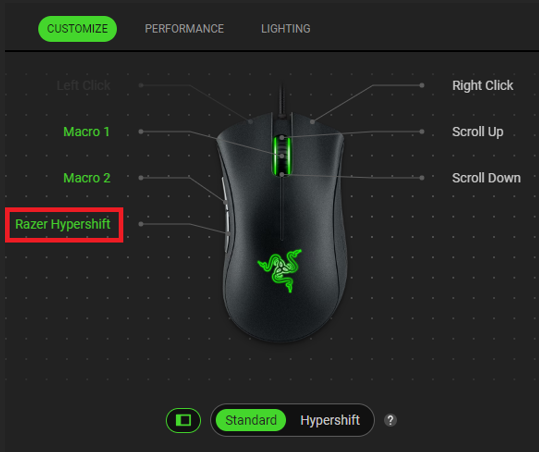
- Press and hold the “Razer Hypershift” button to use any of the keys under Hypershift mode and click on your preferred button with a secondary command.
Razer Synapse 3
Assign a command to a button while in standard mode, which is indicated below your mouse on the device layout as “Standard”. See the answer below for more details.
Below is a list of commands and controls you can assign to your mouse.
Default
Keyboard Function
Mouse Function
Inter-Device
Switch Lighting
Click on the "Standard" label below the mouse device layout to change it to “Hypershift”. This will give you a device layout with default settings.

Assign another command on the same button you assigned to at Step 1.
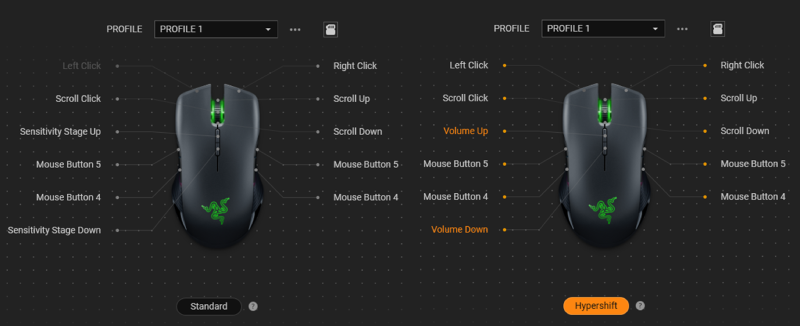
Click on the "Hypershift" label to change it back to standard mode.

- Select a button that you want to assign as the “HYPERSHIFT” button.
Select the “HYPERSHIFT” option on the left side of the Synapse window.

Click “SAVE” to complete the process. The assigned button will appear in the device layout as “Razer Hypershift”.

To use Razer Hypershift, hold down the “Razer Hypershift” button and click on the other button with a secondary command.


