
Effective February 3, 2026, Razer Synapse 3 will no longer receive updates or support cloud services. After this date, cloud syncing of configurations across PCs using the same Razer ID will be disabled.
Note: Your installed devices will continue to be configurable in Razer Synapse 3. However, if you uninstall these devices completely, you will need to upgrade to Razer Synapse 4 to continue customization.
Download Razer Synapse 4 and migrate your existing Razer Synapse 3 profiles using the Profile Migration Tool to retain access to your configurations. See How to migrate your Razer Synapse 3 Profile to Razer Synapse 4 for instructions.
Applicable Products
Available EC Updates
Note: Only use the most recent updater, other updaters are listed for reference and a running list of issues addressed.
RazerUpdater_v1.1.1.2_CH551-ECv0101
- https://rzr.to/iCAmd
- Fix unknown adapter ID low performance issue when adapter is plugged in halfway
- Add CPU Custom Performance Mode Boost option support (Updating Synapse to the latest version is required. See Razer Blade 15” Advanced (2020) Software Updates for more details.)
STEP-BY-STEP PROCESS
Before you start:
-
Ensure Windows is up to date. See How to get the latest software and driver updates from Windows.
If you just updated Windows, please install the "Optional updates" under Settings > Windows Update > Advanced options.
-
Ensure that you have the latest version of Synapse 3.
To check for updates, see How do I manually check for updates on Razer Synapse 3.
-
Ensure your Blade is plugged into a wall outlet and not running on battery alone before proceeding.
-
Save any open documents on your computer and close all other programs before attempting this update.
Update Process
-
Download the latest Razer Updater from the link above.
-
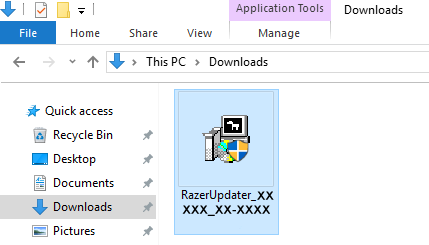
The Razer Updater will automatically download to your default download destination (this should be the “Downloads” folder unless changed manually).
Note: Be advised that during the update process of your Razer Blade, you will not be able to interact or save other applications’ progress. As such, it is strongly advised that you save your progress and close all other applications or programs before launching the Razer Updater and updating the system.
-
Click on RazerUpdater_ to begin the update process.
Note: Filename on actual updater may be different from what is shown below.
-
The User Account Control window may pop up to confirm changes that will be made by the application. Click “Yes” to allow the RazerUpdater_ application to launch.
-
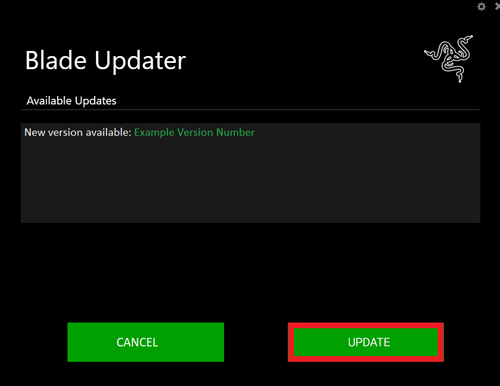
The Blade Updater window will appear with details regarding your current BIOS version and what version your Blade will be updated to.
Note: Your updater’s version may be different from what is shown below. Also, If your Blade does not need an update, the updater will not proceed from this point.
-
Click “UPDATE” to initiate the update process of your Blade.
-
A progress bar will appear indicating the status and progression of the installation process. During the installation process, you will not be able to access other applications.
-
Once the progress bar reaches 100% completion, your Razer Blade will restart automatically. No further action or steps are required after the progress bar reaches 100%. Once your Blade has restarted, your system will be updated.

