

Tips to help you get started
- Download software and firmware updates
- Configure mouse settings with Razer Synapse
- Configure lighting on your Razer device
- Assign macros to mouse buttons
You can view the video below for instructions or review a copy of the video transcript.
The Razer Mamba + Firefly Hyperflux is a battery-less, ultra-lightweight wireless gaming mouse. Weighing only at 96 g, the Mamba Fireflux weighs and performs like your standard gaming mouse. It features Razer’s cutting edge 16,000 DPI 5 G optical sensor for swift and accurate control.
The secret is the included Razer Firefly Hyperflux mouse mat that features Razer Hyperflux Wireless Power Technology for continuous and uninterrupted power transfer. The Firefly comes with dual hard and cloth surfaces for flexibility in playstyles.

Device Layout

- Left mouse button
- Right mouse button
- Scroll wheel
- Left tilt-click
- Right tilt-click
- DPI stage up
- DPI stage down
- Power indicator (mouse)
- Profile button
- Profile indicator
- Mouse button 5
- Mouse button 4
- Micro-USB port (mouse)
- Ultraslick mouse feet
- True 16,000 DPI 5G optical sensor
- Micro-USB (mouse mat)
- Power indicator (mouse mat)
- Dual-sided hard/cloth mouse mat surface
- Customizable Razer Chroma™ lighting
- Non-slip rubber base
- Detachable USB to Micro-USB cable
Full Technical Specifications
| Category | Specification |
|---|---|
| Variation | Razer Mamba + Firefly Hyperflux |
| Sensitivity | Razer 5G optical sensor with true 16,000 DPI |
| Acceleration | Up to 450 inches per second (IPS) / 50 G acceleration |
| Ultrapolling | 1000 Hz Ultrapolling |
| Razer Synapse Support | Razer Synapse 3 enabled |
| Razer Chroma | Razer Chroma™ lighting with 16.8 million customizable color options |
| Inter-device Synchronization | Yes |
| Adaptive Frequency Technology | Yes |
| On-the-Fly Sensitivity Adjustment | Yes |
| Storage | Hybrid On-Board Memory and Cloud Storage |
| Connectivity | Razer HyperFlux Wireless Power Technology |
| Design Factor | Ergonomic right-handed design with enhanced rubber side grips |
| Gaming Console Compatibility | Compatible with Xbox One for basic input |
| Programmable Buttons | 9 independently programmable Hyperesponse buttons |
| Cable Type | Cable length: 2.1 m / 6.89 ft (For using mouse in wired mode when away from Razer HyperFlux enabled wireless power mat) |
| Razer Mechanical Switches | Razer™ Mechanical Mouse Switches |
| Scroll Type | Gaming-grade tactile scroll wheel |
| Approx. Dimensions |
|
| Approx. Weight | 96 g / 0.211 lbs (Excluding Cable) |
| Cable Type | Cable length: 2.1 m / 6.89 ft (For using mouse in wired mode when away from Razer HyperFlux enabled wireless power mat) |
How To
How do I adjust the DPI setting on a Razer mouse through Razer Synapse?
- Open Razer Synapse.
- Select your mouse on the device list.
- Go to the “PERFORMANCE” subtab.
- Adjust the DPI using the stage options.
- Alternatively, adjust the DPI using the slider at the bottom of the sensitivity section.
See the answer below for more details.
How do I manually change the DPI sensitivity on a Razer mouse?
- Click the DPI stage up button to increase sensitivity
- Click the DPI stage down button to decrease sensitivity
See the answer below for more details
How do I adjust the polling rate on a Razer mouse?
- Open Razer Synapse.
- Select your mouse on the device list.
- Go to the “PERFORMANCE” subtab.
- Select the desired ultrapolling rate under the “POLLING RATE” section.
See the answer below for more details.
How do I use Razer Hypershift on a Razer mouse?
Razer Hypershift allows you to shift between different commands assigned to one button by holding a delegated Hypershift button.
You can view the video below for instructions or review a copy of the video transcript.
See the answer below for more details.
How do I use the "Surface Calibration" on my Razer Mouse?
Surface Calibration allows you to optimize the Razer Precision Sensor to any surface for better tracking. You can configure all Razer and third-party mouse mats with this feature.
See the answer below for more details.
How do I ensure smooth operation of the scroll wheel and other Razer mouse parts?
Use compressed air to blow away dirt from the mouse. See the answer below for more details.
How do I keep my Razer Mamba HyperFlux lighting and power consistent?
Remove potential items that cause external interference. See the answer below for detailed instructions.
How do I clean my Razer mouse?
Razer devices are built to last extreme gaming sessions and productive work, but dirt and grime accumulate over time and hamper performance and experience.
See the answer below for detailed instructions.
General Information
Can the mouse be used without the mat?
Yes. Unplug the included cable from the Razer Firefly HyperFlux and insert it into the Razer Mamba HyperFlux. Wireless mode is only accessible with the included mat.
Can I charge my wireless charging enabled mobile phone on the Razer Firefly HyperFlux?
No. The Razer Firefly HyperFlux is designed to directly power HyperFlux enabled devices. As such, it will not charge the battery on your mobile phone. Keep foreign objects off the mouse mat as they may interfere with the magnetic field and power transfer between the mat and the mouse.
Can wireless power technology be described as inductive power?
Yes. the magnetic field created by the mat induces a current in the mouse which directly powers it without the need for a battery.
Will the mouse lose power if I lift it off the mat?
No. The Razer Mamba HyperFlux has a capacitor that will retain power for approximately 5-10 seconds when the mouse is away from the mat, so lifting and repositioning the mouse will not interrupt gameplay.
Applicable Models
Firmware v1.02.00_r1
- Mat Firmware Updater: https://rzr.to/s8n6S
- Mouse Firmware Updater: https://rzr.to/R398t
- Bug fixes: Mouse Mat not lighting up
STEP-BY STEP-PROCESS
Please note the two steps, you will need to update both the Firefly Mat and the Mamba Mouse.
Step 1: Updating the mat
-
Download the latest firmware update by opening the link found above.
-
Close Razer Synapse and all other running applications before proceeding with the update.
-
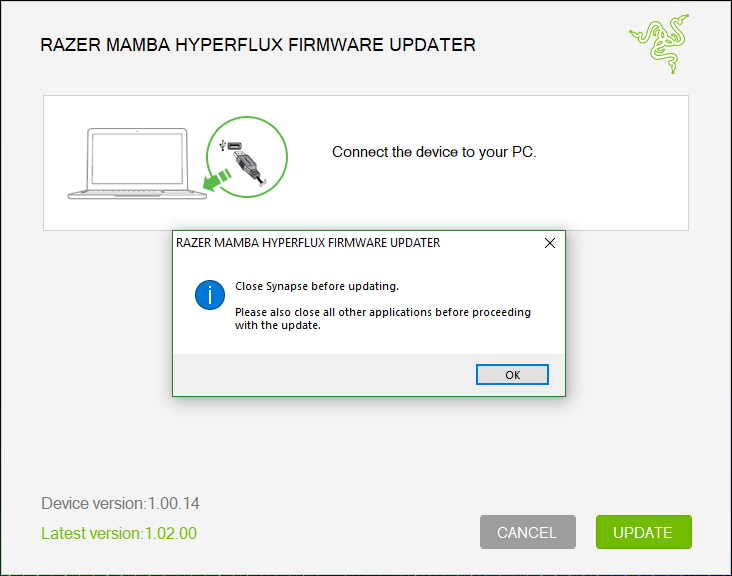
Run the downloaded firmware (The installer will prompt you to close Synapse and all other applications, if you have already done so, click "OK" to proceed).
-
Connect the Hyperflux Firefly Mat to your PC using the USB to Micro USB cable.
-
Click "UPDATE" to begin.
-
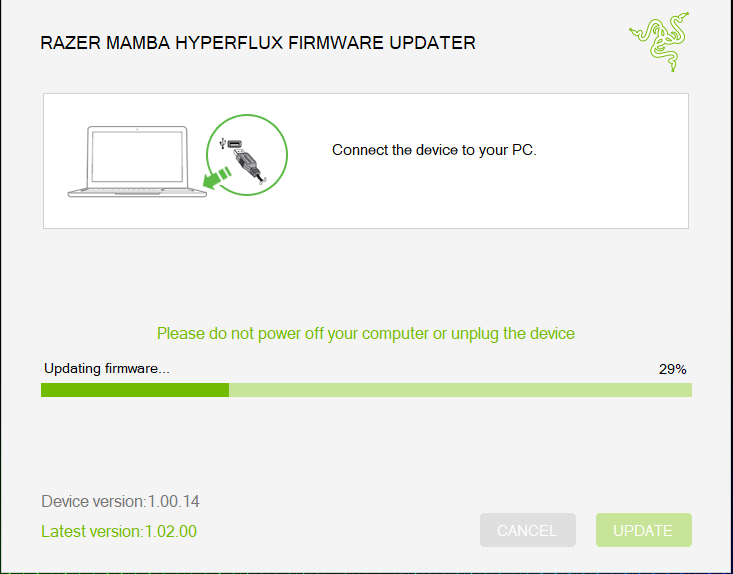
Wait for the update to complete.
-
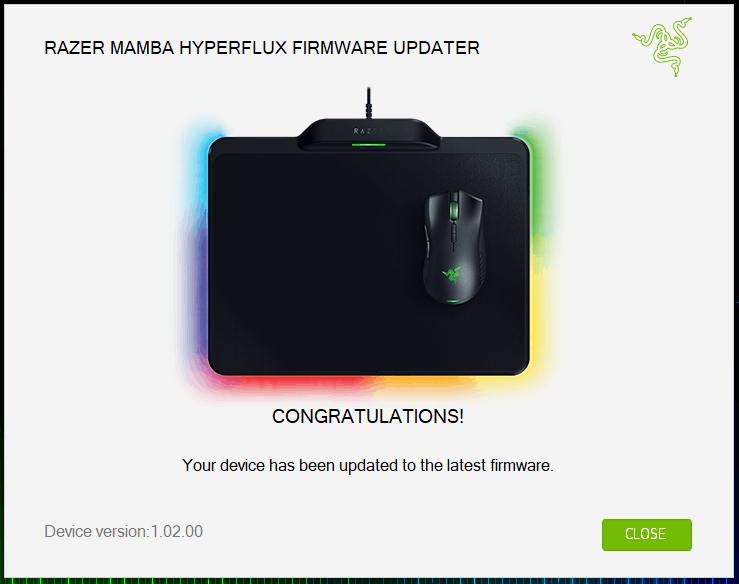
Once the firmware has been successfully applied, Click "CLOSE" to exit the installer.

Step 2: Updating the mouse
-
Download the latest mouse firmware update by opening the link found above.
-
Close Razer Synapse and all other running applications before proceeding with the update.
-
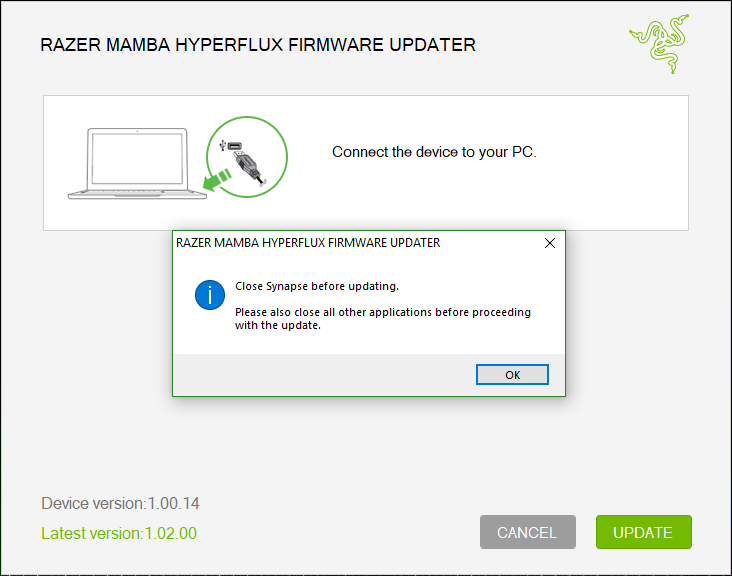
Run the downloaded firmware (The installer will prompt you to close Synapse and all other applications, if you have already done so, click "OK" to proceed).
-
Connect the Hyperflux Mamba Mice to your PC using the USB to Micro USB cable.
-
Click "UPDATE" to begin.
-
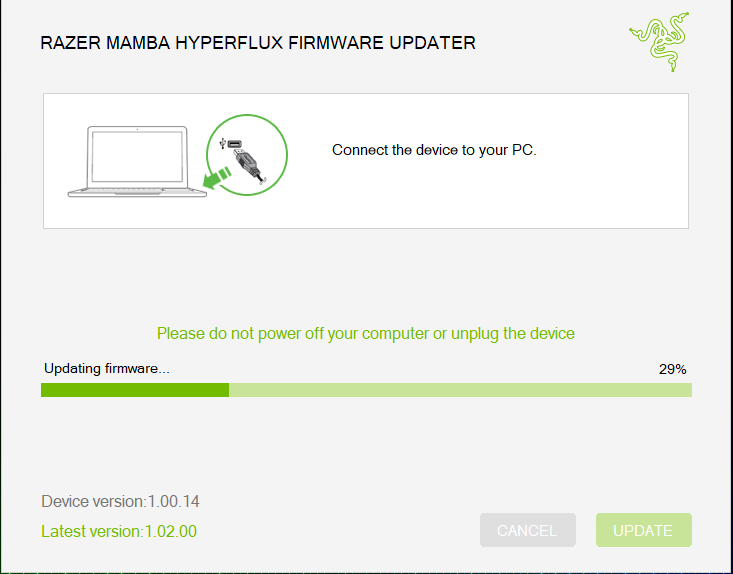
Wait for the update to complete.
-
Once the firmware has been successfully applied, click "CLOSE" to exit the installer.
| Documentation | Language |
|---|---|
| User Guide (English) | English |
| User Guide (Spanish) | español |
| User Guide (French) | français |
| User Guide (German) | Deutsche |
| User Guide (Portuguese-Brazilian) | português |
| User Guide (Russian) | русский |
| User Guide (Simplified Chinese) | 简体中文 |
Please see our warranty policy for a complete review of our warranty policy.
You are eligible for Limited Warranty support for the following periods of time commencing upon the date of retail purchase of your Product (Warranty Period).
| Product | Warranty Period |
|---|---|
| 2021 and Older Model Laptops | 1 yeara |
| 2022 and Newer Model Laptops | 1 yeara 2-year limited battery warrantya |
| Razer Viper Mini Signature Edition | 3 year |
| Razer Phone and Phone Accessories | 1 year |
| Razer Edge Gaming Handhelds | 1 year |
| Razer Mice | 2 years |
| Razer Keyboards and Keypads | 2 yearsb |
| Razer Huntsman Signature Edition | 5 years |
| Razer Headsets, Earphones and Earbuds | 2 yearsb |
| Razer Wireless Mouse and Mat Bundles | 2 yearsb |
| Razer Mouse Mats | 1 yearc |
| Razer Speaker Systems and Broadcaster Devices | 1 year |
| Razer Controllers and Chargers | 1 year |
| Razer Routers (except Singtel) | 1 year |
| Razer Routers (Singtel) | 2 years |
| Razer Monitors | 1 year |
| Smart Watches and Eyewear | 2 years |
| Razer Case Fans | 2 years |
| Razer Liquid Cooling | 2 years |
| Razer Power Supplies | 5 years |
| Razer Fan and RGB Controllers | 2 years |
| Razer Cases | 1 year |
| Razer System Accessories | 1 year |
| Razer Docks | 1 year |
| Wearable Air Purifiers | 1 year |
| Razer Gaming Accessories | 1 yearc |
| Razer Rechargeable Batteries for Wireless Devices | 1 yeard |
| Razer Gaming Chairs | 3 yearse |
| Chair Frame, mechanisms and armrests | Up to 5 years |
| Mesh backing and seat pan | Up to 1 year |
All new Products will have the Warranty Periods listed above, subject to applicable local law. Certain "end of life", sell out or discontinued Products may have a shorter Warranty Period; this will be clearly marked at the time of purchase and the given Warranty Period will be stated at that time. Refurbished Products purchased from Razer.com will have the lesser of a 1 year warranty period or the warranty period as stated above. Refurbished products not purchased from Razer.com will have a 90 day warranty period. If you are uncertain whether your Product is eligible for Limited Warranty support, please contact our support team for clarification.
Please note that third-party products may be covered by the product manufacturer's warranty and these warranty terms are exclusively provided by the product manufacturer. Razer does not offer a warranty for third-party products. If you need product or warranty support with your third-party product, please contact the product manufacturer. Please consult the product documentation provided by the product manufacturer for details.
If you are uncertain whether your Product is eligible for Limited Warranty support, please contact our support team for clarification.
[a] If you are a customer outside of the U.S. and have validly purchased a Razer Extended Warranty for your product, the Warranty Period shall be extended for another one (1) year period, to be a total of two (2) years commencing upon the date of retail purchase of your Razer Product. The Razer Extended Warranty does not apply to batteries. Aside from the change to Warranty Period, the Razer Extended Warranty does not alter any other terms and conditions of the Limited Warranty.
[b] Products purchased prior to October 1st, 2018 maintain the original 1 year warranty (keyboards with mechanical switches maintain original 2 year warranty).
[c] Warranty period for Razer Firefly HyperFlux is 2 years.
[d] Products purchased prior to October 1st, 2018 maintain the original 6 month warranty.
[e] Limited Warranty: The Razer Iskur is free from defects in workmanship, materials and construction for three years from the date of purchase. In the event that a defect is found, the manufacturer will either repair or replace the defective item, at its discretion. Exclusions and Limitations: This Limited Warranty does not cover cosmetic damage, minor cosmetic abnormalities and normal wear and tear, including without limitation scratches, dents, discoloration and tears in the head pillow, seat cushion, PU leather, Armrest and stitches of the upholstery.

