

Tips to help you get started
How To
How do I start Razer Axon successfully?
- ownload the latest WebView2 version.
- Run the Microsoft Edge WebView2 setup file as administrator.
- Wait for the installation process to complete.
See the answer below for more details.
How do I redeem a wallpaper?
All redemptions are final. Wallpapers obtained through redemption are non-refundable and cannot be exchanged for Razer Silver, cash, other rewards, store credit, or any other services. To learn more about how to earn Razer Silver, click here.
- Log in to your Razer ID account.
- Find Premium Wallpapers in Razer Axon > Browse. Wallpapers that require Razer Silver display a Silver icon and value in the bottom-right corner of their thumbnails.
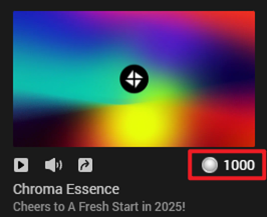
- Click the thumbnail, then click “Redeem”. The required amount of Silver will be deducted from your account.
- Once redeemed, click “Download” to download the wallpaper. After the download is complete, you can apply it to your desktop.
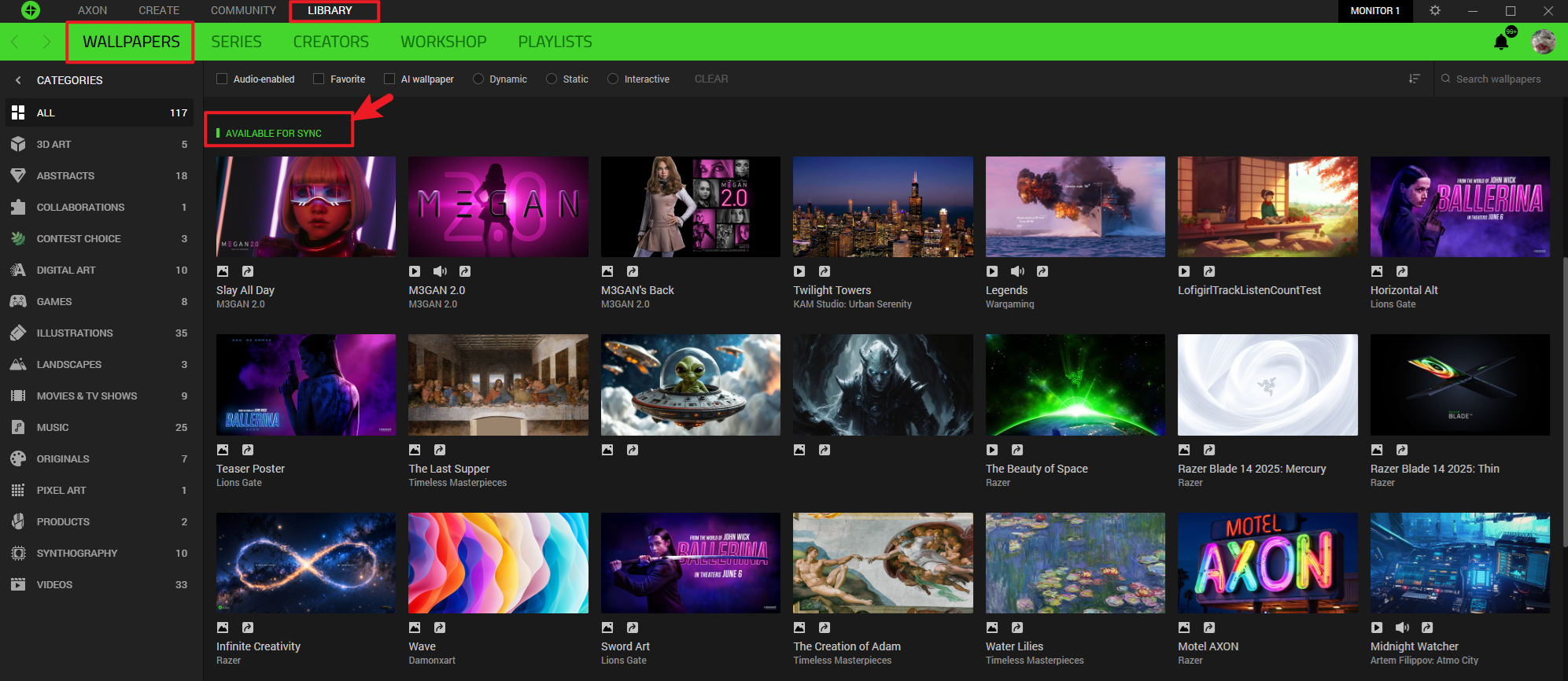
- If you previously redeemed a wallpaper but manually deleted it from your device, you can find it again in Library > Wallpaper > Available to Sync. Click “Download” to use it again.
How do I improve playback and performance on Razer Axon?
- Set auto-pause modes in the settings.
- Reduce the number of playbacks.
- Plug all your monitors into their dedicated graphics cards.
How do I enable audio for Razer Axon wallpaper?
Ensure the following conditions are met to enable audio on your Razer Axon wallpaper:
- The wallpaper audio is not muted.
- The wallpaper audio is playing on a monitor that is audio-enabled.
- The limited maximum volume is not muted in “Client Settings”.
How do I play a Spotify music wallpaper?
- Find the Spotify supported wallpaper with ‘Music’ icon and click on its thumbnail to view the details page.
- Click the LOG IN button and follow the instructions.
For more detailed instructions, see the answer below:
How do I manage the playback queue?
Razer Axon automatically changes the wallpaper playback under the timer setting or manually set a playback queue for each monitor.
For the queue list, do the following:
- Click on the menu to add your downloaded wallpaper to the queue list.
- Drag the thumbnail in the queue to re-order the playback.
- Remove a single wallpaper from the queue list or empty the whole playlist.
How do I enable Razer Chroma RGB for my wallpaper?
Go to “Property Settings” on the wallpaper detail page to enable Razer Chroma RGB.
Note: If you have multiple monitors that have Razer Chroma RGB wallpapers applied simultaneously, select a specific monitor that will take control of Razer Chroma RGB.
How do I set up a screensaver?
- Go to “Display Settings” to set up a screensaver. The screensaver will clone the wallpaper that is playing on your main screen.
- Ensure there is at least one wallpaper applied to the desktop of your main screen.
Current display technologies allow you to safely use any type of wallpaper as a screensaver for aesthetic purposes. Most monitors are not susceptible to permanent image burn-in display damage.
If you are using a CRT, Plasma, OLED, or similar screen technology that is susceptible to burn-ins, use several wallpapers at the same time as a screensaver or a wallpaper with regular motion.
How do I meet Windows Media Player requirement for Razer Axon?
Visit the Windows Media Player Legacy page if your system is running Windows N or KN editions for more information.
Note: If you still see a notice requiring Windows Media Player, verify that Windows Media Player is enabled in the system settings or perform a clean reinstallation of Windows Media Player.
How do I set a wallpaper when multiple monitors are available?
- Set your wallpaper for each monitor separately.
- Download the wallpaper.
- Select your preferred monitor.
- Set the wallpaper from the wallpaper detail page.
- Duplicate the wallpaper from your selected monitor.
- Select the “Duplicate the selected monitor to others” button under “Display Settings”. This will replicate the wallpaper on your selected monitor to other monitors.
How do I customize my own wallpaper?
There are two ways of adding your personal wallpapers from “My Wallpaper”.
- Add local video files to the “My Wallpaper” repository, then set it as a desktop wallpaper. Formats such as MP4, WebM, M4V, MOV, and WMV are supported.
- Add online URL links or offline web resources to the “My Wallpaper” repository, then set it as a desktop wallpaper.
Note: For each of your original, self-created wallpapers, Razer Axon will never remove, duplicate, delete, or upload any original files that belong to you.
General Information
Where do I set the wallpaper playback timer in the playback queue?
Set the playback timer in “Playback Settings”.
Can I set automatic pause rules to reduce hardware usage?
Yes. Go to “Performance” in “Client Settings” and toggle on “General mode”. This will automatically pause the wallpaper of the current screen when the app or game is in full-screen mode.
Can I choose a different wallpaper storage directory?
Yes. Go to “General” in “Client Settings” to customize the path of the wallpaper directory. Your newly downloaded wallpaper will be saved to the most recent designated path.
Note: Files in the old paths will not be removed until they are manually deleted.
Why can't I publish my AI-generated work to the Community?
Wallpapers that are screened and marked as sensitive or NSFW by the content filter cannot be posted to the Community. For more information, see the answer below:
Why did the AI-generated artwork using the tool Realtime Canvas disappear?
All sketches are only saved on the server for three months. You can save the current work in time so that you can see the generated work in MY WORKSHOP tab.
Why is the monthly free token no longer available
Starting from version V2.5, Axon Create with AI has stopped offering monthly free tokens to all users. Users may choose to top up or participate in Axon community events to earn additional tokens.
Contest
How do I join Axon Create contests?
Entrants must use the designated functions within Axon Create to generate wallpapers and then upload the wallpapers following the on-screen instructions within the relevant period ("Contest Period") for the current contest. Each entrant is limited to ten (10) wallpapers uploaded per contest.
How will the winners of the contest be selected?
- During the contest period, the community of registered Razer Axon users will vote on the submissions. The winners will be the submissions with the highest cumulative scores, based on ratings from 1 to 5. In the event that two or more submissions have the same total score at the end of the contest period, the submission that was submitted first will be considered the winner.
- If an entrant has multiple submissions with winning scores at the end of the Contest Period, only the submission with the highest cumulative score will be recognized as the winning entry.
All voting results are reviewed by Razer, and all decisions are final. If you do not agree to these terms and conditions, refrain from submitting to Razer.
What is the prize for the contest, and how can I claim it?
- Prizes for each contest may vary and will be listed on the contest page before entry. Refer to the contest page for details on the specific prizes available for the current contest.
- Winners will be notified via a pop-up window in Axon after the winning submissions are announced on the contest homepage.
For more details on the contest rules and regulations, refer to the RAZER AXON CONTEST RULES AND REGULATIONS.

