
Effective February 3, 2026, Razer Synapse 3 will no longer receive updates or support cloud services. After this date, cloud syncing of configurations across PCs using the same Razer ID will be disabled.
Note: Your installed devices will continue to be configurable in Razer Synapse 3. However, if you uninstall these devices completely, you will need to upgrade to Razer Synapse 4 to continue customization.
Download Razer Synapse 4 and migrate your existing Razer Synapse 3 profiles using the Profile Migration Tool to retain access to your configurations. See How to migrate your Razer Synapse 3 Profile to Razer Synapse 4 for instructions.
You can achieve an optimal gaming experience on your Razer Blade through the following gaming techniques.
-
Plug your Razer Blade into a wall power outlet to optimize battery life and reach the best gaming performance. Unnecessary discharging and recharging of your laptop greatly reduces the battery lifespan.
-
Elevate the bottom of your Razer Blade by using a laptop stand or cooling pad. This will considerably help in lowering temperatures and increase gaming performance.
-
Utilize your Razer Blade’s dual-channel memory. Use the available slot to upgrade your laptop’s RAM.
See the answer below for more details.
-
Enable CPU overclocking on your Razer Blade.
Overclocking is attained by carefully maximizing your CPU's frequency and balancing it with voltage regulation to run your processor above default specifications. When done correctly, this results in increased and better performance from your PC overall.
See the answer below for more details.
-
Enable the Battery Health Optimizer on your Razer Blade.
When the Battery Health Optimizer feature is enabled, the battery will stop charging when it has reached the limit specified even though your device is still plugged in. Enabling this feature will protect your battery and prolong its life.
See the answer below for more details.
-
Lower your Razer Blade screen’s brightness and lower the refresh rate to 60 Hz to increase battery life. Press the fn key + F8 on your keyboard to decrease screen brightness.
See the answer below for more details.
-
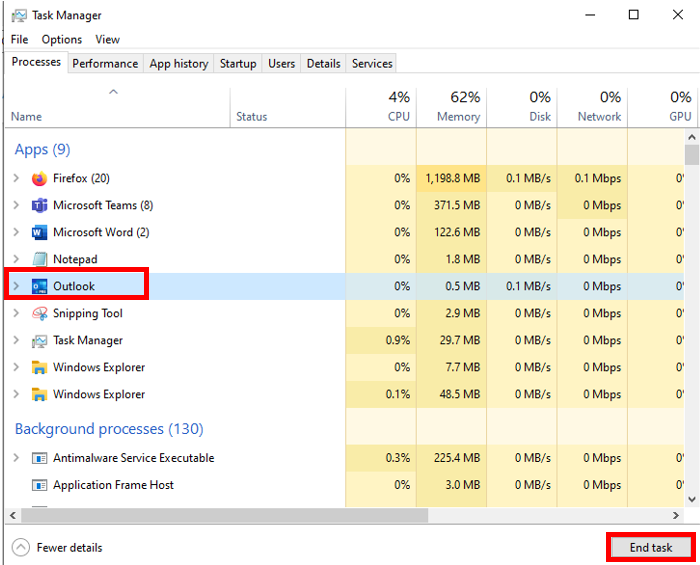
Close and remove unnecessary apps.
-
Go to "Task Manager", choose the running app you want to close, then click "End task".
-
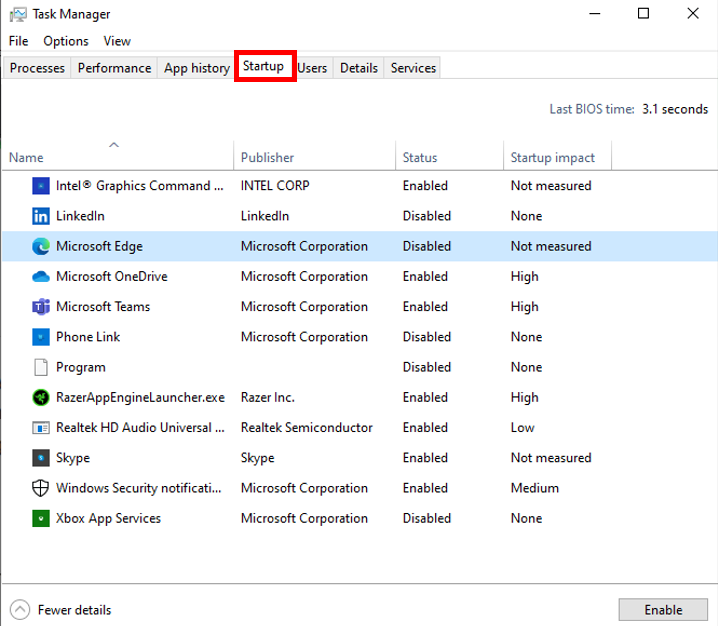
Click "Startup" to remove unnecessary apps from the Startup list to prevent them from automatically launching when Windows boots.
-
-
Make sure your Razer Blade storage drive has at least 120 GB of free space to ensure optimum performance. Delete temporary files or uninstall apps that you don’t use.
-
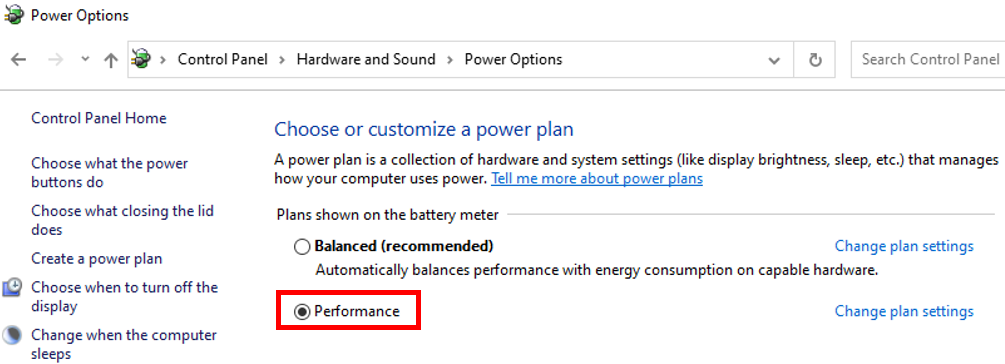
Switch to “Performance” power plan.
-
Go to Start > Settings > System > Power & sleep > Additional power settings.
-
Create a “High performance” power plan then change "Balanced" to "Performance".
-
-
Switch the Display mode to Dedicated GPU
-
If your Razer Blade supports NVIDIA Advance Optimus:
-
Launch the “NVIDIA Control Panel” app.
-
Click “Manage Display mode”.
-
Choose “NVIDIA GPU only”.
-
-
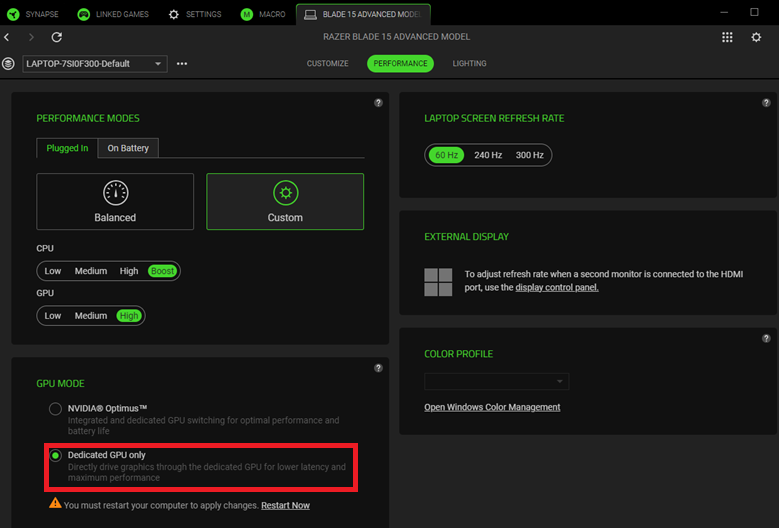
For other models with Razer Synapse 4:
-
Launch the Razer Synapse 4.
-
Select your Razer Blade.
-
Go to "PERFORMANCE".
-
Choose "Dedicated GPU Only" under GPU MODE.
-
-
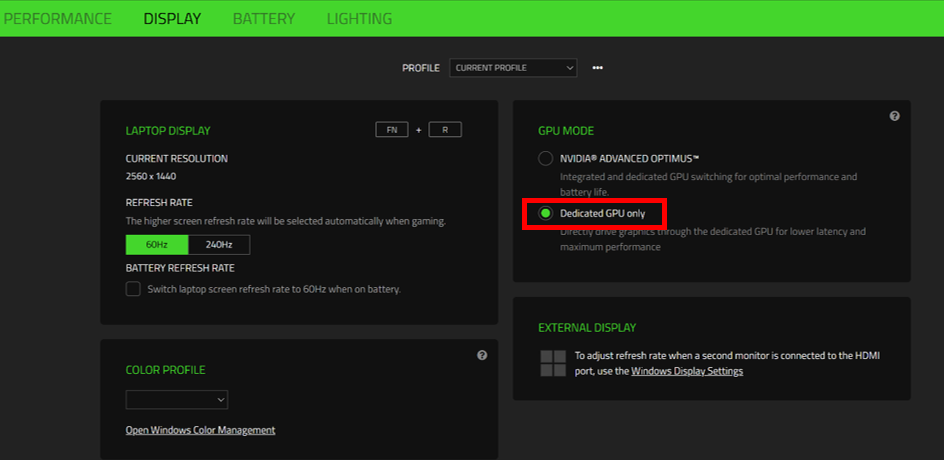
For other models with Razer Synapse 3:
-
Launch the Razer Synapse 3.
-
Go to "SYSTEM" > "DISPLAY".
-
Choose "Dedicated GPU Only" under GPU MODE.
-
-

