
Important - Review prior to upgrading:
- Review our warranty policy.
- Check the Tomahawk Gaming Desktop specifications for compatibility.
- Place the unit on a smooth surface for proper grounding.
You can view the video below for instructions or review a copy of the video transcript.
Step-by-step Process
- Create a system recovery stick for the Razer Tomahawk Gaming Desktop. See How to create and use a system recovery stick for more details.
-
Unplug all connections including the AC power cord from the unit.
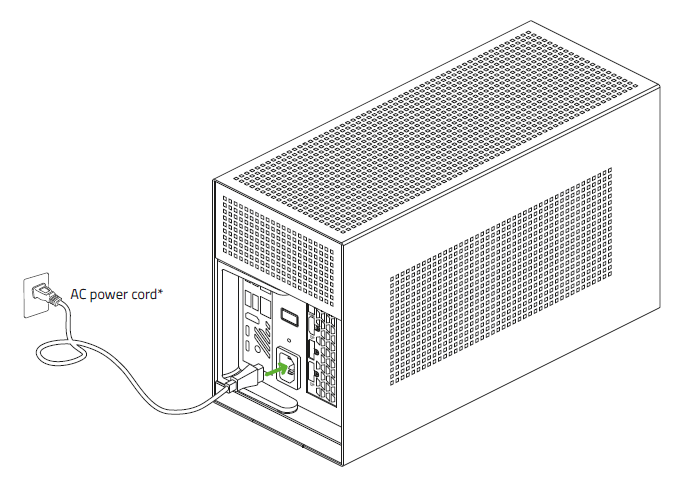
-
Pull the lever and remove the compartment from the enclosure.
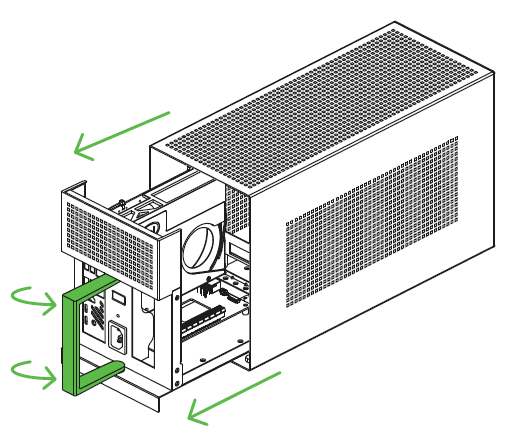
There is a 512 GB PCIe NVMe SSD and one unpopulated M.2 slot located inside the Compute Element, while the HDD is located beside the power supply.
-
Remove the graphics card to gain access.
- Remove the power connectors.
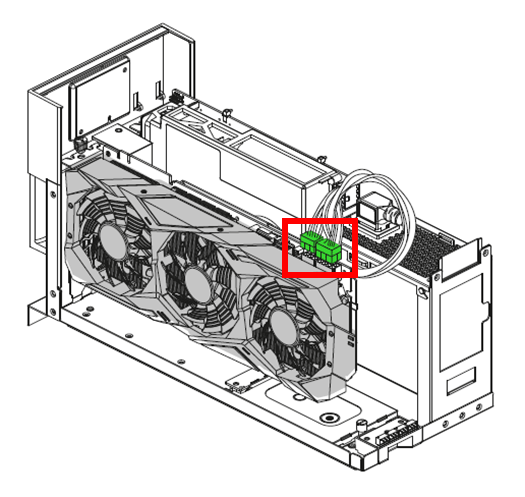
- Remove the PCIe thumbscrew.
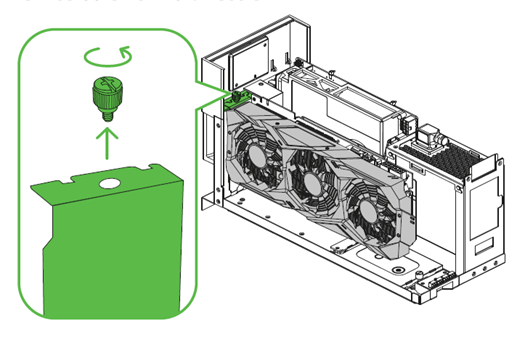
- Pull out the graphics card from the PCIe slot.
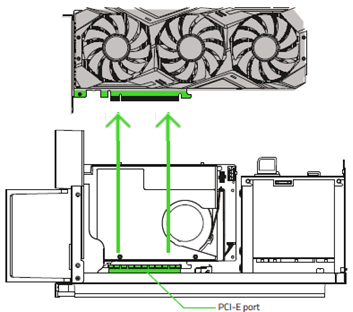
- Remove the power connectors.
-
Select the storage type you want to replace, then follow the detailed steps below to complete the process.
Select storage type
SSD Replacement
-
Unfasten the screws on the Compute Element’s front panel using a Phillips screwdriver to access the current SSD and unpopulated M.2 slot inside the Compute Element.
Note: Be careful with the amount of force you use. Do not use an electric screwdriver.
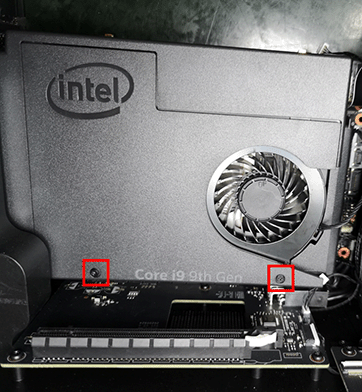
-
Unfasten the screw holding it until it pops up then pull it straight out.

-
Insert the new SSD at an angle and push it down until it clicks then secure it with the screw.
-
Reinstall the Compute Element’s front panel.
HDD Replacement
-
Unfasten the thumbscrew on the metal plate that is holding the current HDD.
-
Open the metal plate and slide out the HDD.
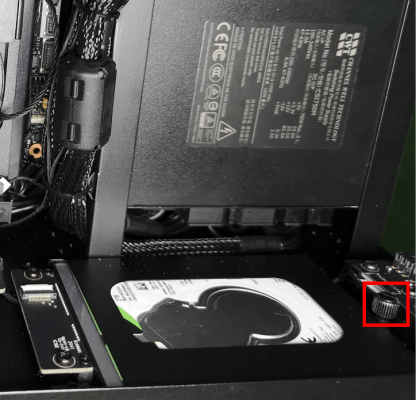
-
Insert the new HDD then secure it with the metal plate and thumbscrew.
-
-
Reattach the graphics card after successfully doing an SSD or HDD replacement.
-
Slide the compartment back into the enclosure then push the lever to lock.
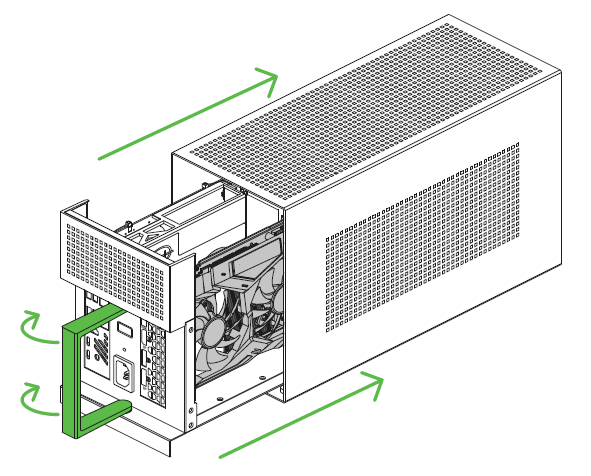
-
Perform the System Recovery process. See Razer Blade System Recovery User Guide for more details.
-
Boot up the Gaming Desktop.
-
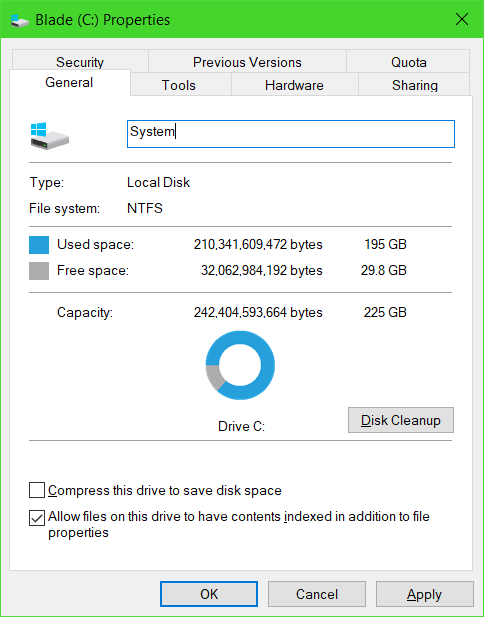
Go to "This PC". Right-click on drive "C:" then select "Properties".
-
Check if the correct storage capacity is being detected.
Related Links:
- How to upgrade RAM on the Razer Tomahawk Gaming Desktop
- How to upgrade the GPU on the Razer Tomahawk Gaming Desktop

