
The battery performance of your Razer Blade primarily depends on your usage. Enabling the Battery Health Optimizer feature in Razer Synapse helps protect the battery and extend its life. See How to enable the Battery Health Optimizer feature in Razer Synapse to learn how to do this.
Note: While enabling this feature and doing the tips below will help to protect the battery, note that if the battery level is capped at 80%, it will be depleted sooner when in use.
You can view the video below for instructions or review a copy of the video transcript.
The battery performance of your Razer Blade depends on your usage. The Razer Blade uses lithium-based batteries and may reduce performance over time as the battery gets older. The hours you can get out of your Razer Blade battery are affected by the following factors:
-
Running load-heavy programs such as games and media editing tools
-
High Brightness settings
-
Turning on wireless features such as Wi-Fi / Bluetooth for long periods
-
A long sleep or screen timeout
-
Exposing the device to extremely hot or cold temperatures
-
High display resolutions
-
Having multiple peripherals plugged into the device (Keyboards, Mice, External monitors)
The following options and steps help extend the battery life of your Razer Blade.
Note: Ensure the Razer Blade is updated to the latest BIOS / SW before entering battery mode.
Select preferred method
Decrease brightness or turn off your keyboard lighting
-
Press the fn key + F10 to decrease keyboard lighting brightness.
-
Alternatively, go to Razer Synapse > LIGHTING.
-
Turn off or set your preferred brightness under "SYSTEM LIGHTING" > On Battery settings.

Decrease your screen brightness
-
Press the fn key + F8 to decrease screen brightness.
-
Alternatively, enable the adaptive brightness on your Razer Blade.
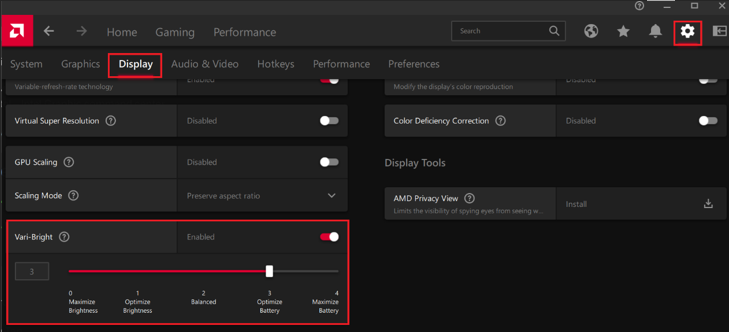
- For AMD
- Click the Start button and search for AMD Software then select the application.
- Click the Settings icon on the top-right of the application.
- Go to “Display”.
- Toggle on the “Enabled” option beside the “Vari-Bright”.
- Adjust the slider to the desired setting.
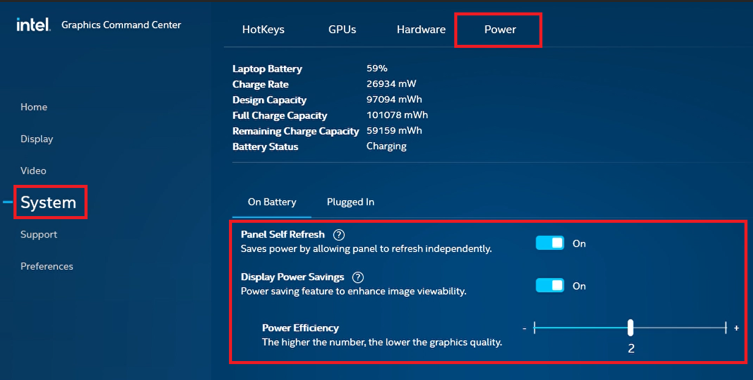
- For Intel
- Click the Start button and search for “Intel Graphics Command Center”.
- Go to “System” > “Power”.
- Toggle on the “Panel Self Refresh” and “Display Power Savings”.
- Adjust the slider to the desired setting.
- For AMD
Close applications that are not in use
- Press Ctrl + Alt + Del buttons at the same time.
-
Choose "Task Manager".
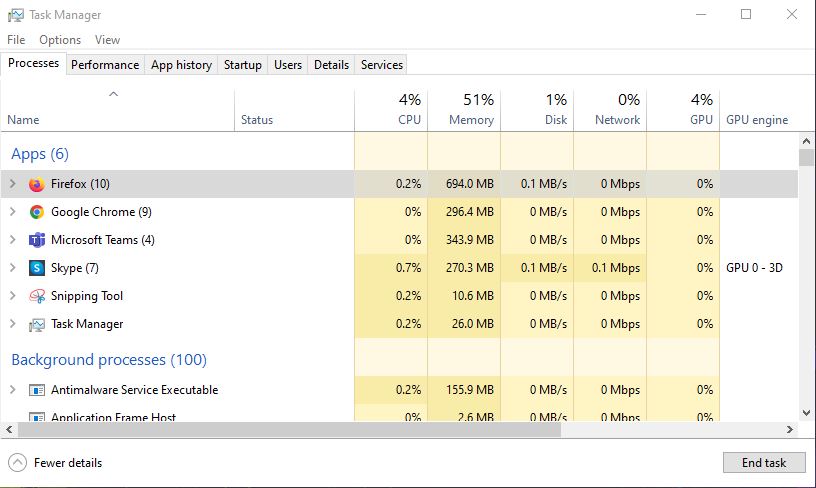
- Click on background applications that you are not currently using or programs that consume high resources.
- Click "End task".
Disconnect USB peripherals
Properly remove connected peripherals that are not in use, such as an external SSD or thumb drive.
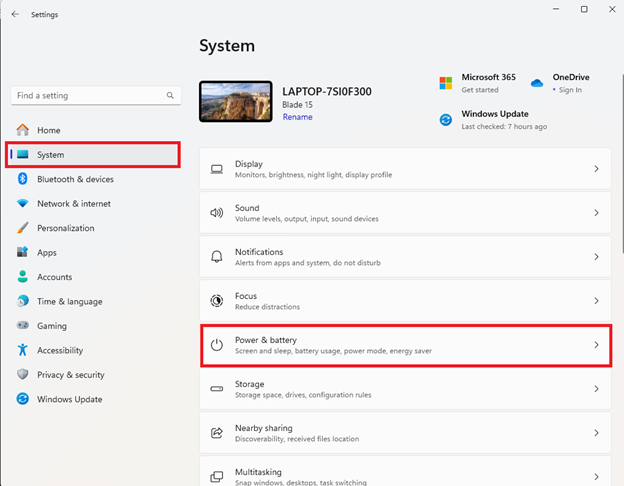
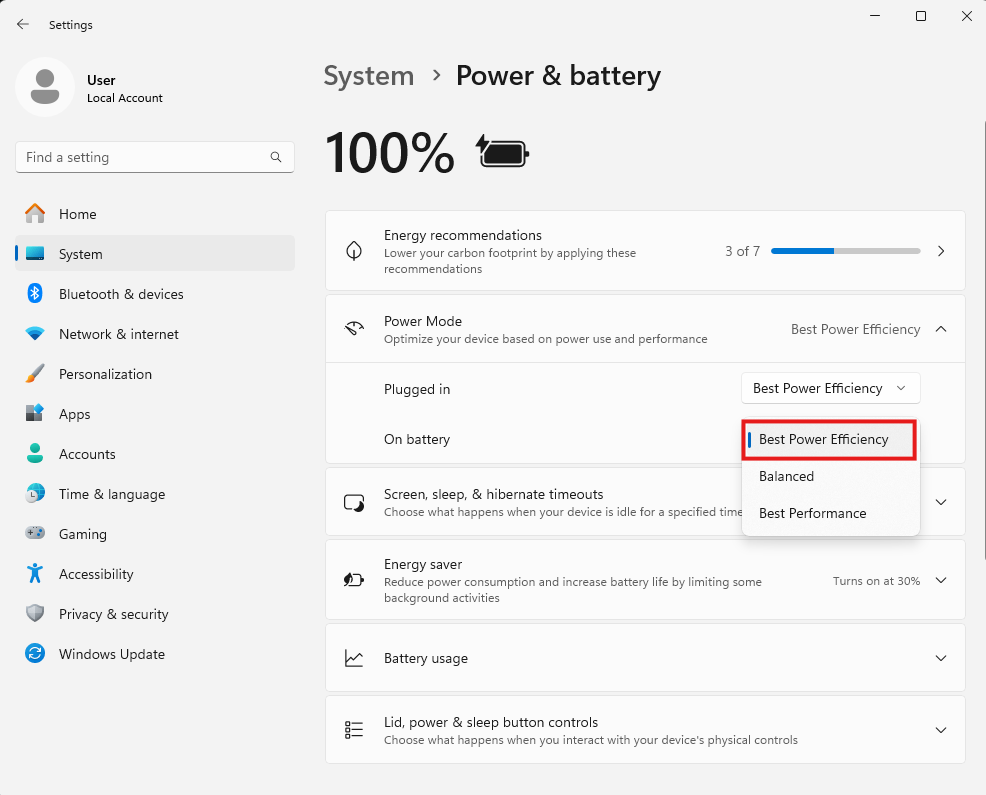
Set your "Power mode" to "Best Power Efficiency"
-
Go to Windows Settings > System > Power & battery.
-
Click “Power Mode” and choose “Best Power Efficiency” for On battery.
Enable "Energy saver" settings
-
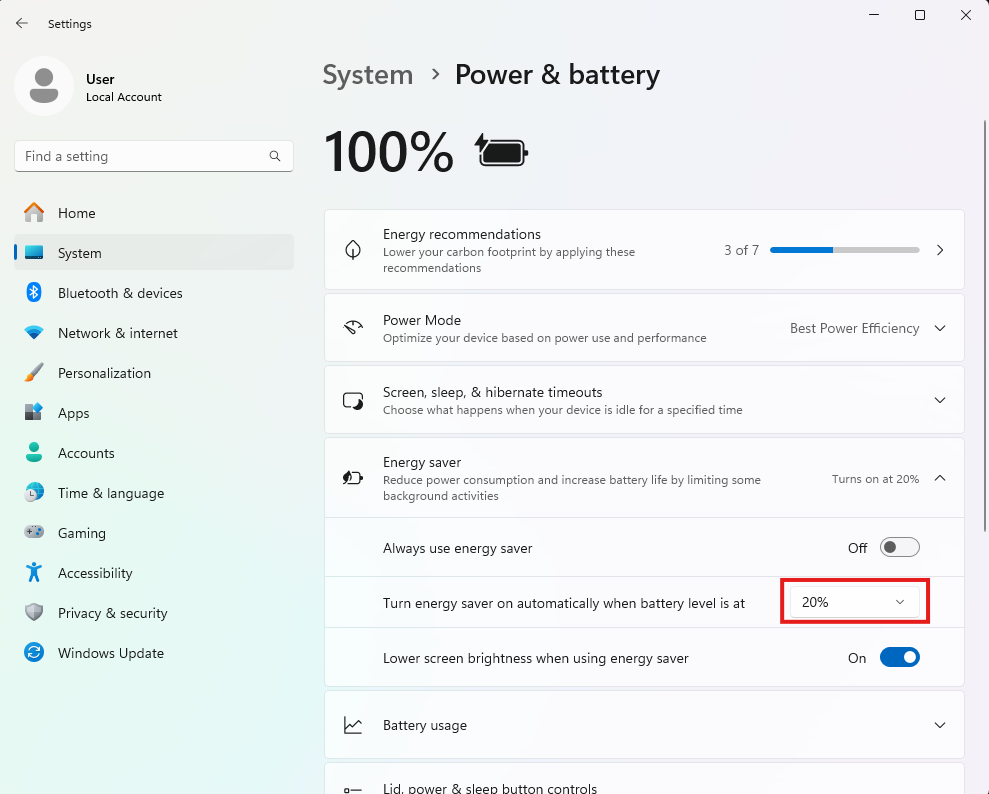
Go to Windows Settings > System > Power & battery.
-
Set the percentage level for "Turn energy saver on automatically when battery level is at".
-
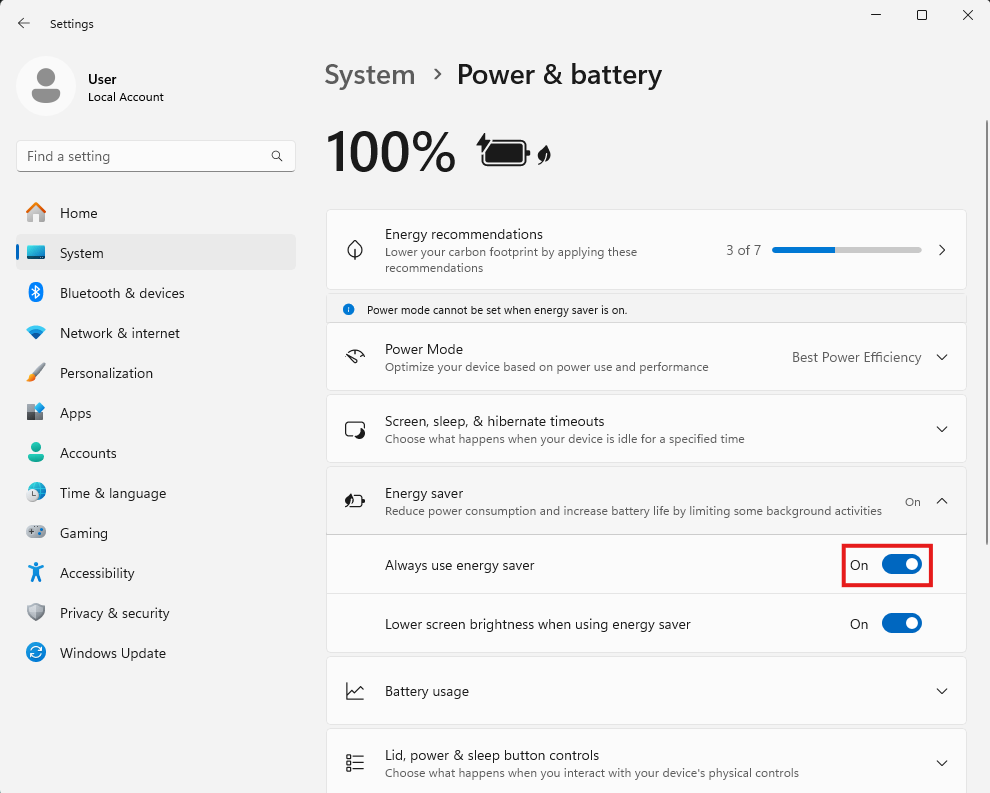
Alternatively, you can turn on energy saver by toggling “Always use energy saver” on until you can plug in your PC.
Energy recommendations on Windows
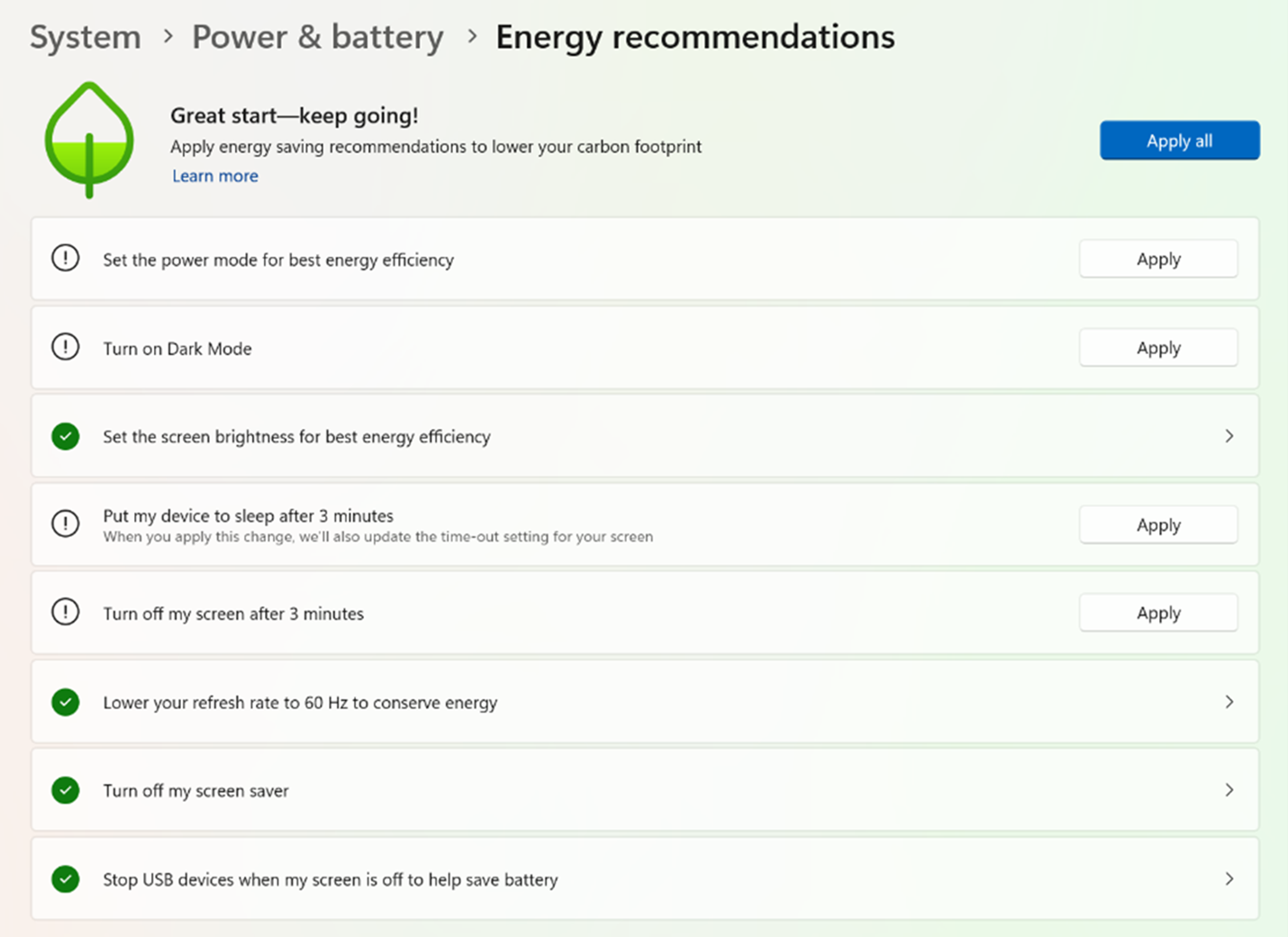
Windows 11 has a feature called Energy recommendations. It collects settings that can help you reduce your power consumption and improve battery life.
- Go to Windows Settings > System.
- Select “Power & battery”.
- Click “Energy recommendations”.
- Configure your settings based on your preference or click "Apply all".
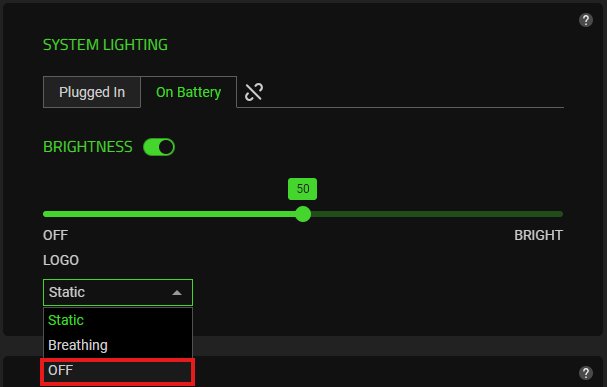
Turn off your Razer Blade logo lighting
-
Go to Razer Synapse > LIGHTING.
-
Go to SYSTEM LIGHTING > On Battery > LOGO.
-
Select "OFF".
Reduce your screen refresh rate
-
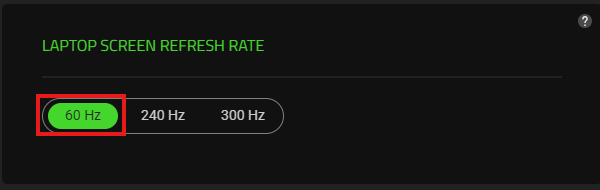
Open Razer Synapse, then click “PERFORMANCE”.
-
Select the lowest rate under "LAPTOP SCREEN REFRESH RATE".
See the answer below for more details.
Change the GPU Mode
Note: Disabling the dGPU will result in the system being unable to communicate with the dGPU which includes going into low-power states. Disabling and choosing the wrong mode will cause the battery to drain.
- Open Razer Synapse, then click “PERFORMANCE”.
- Select the appropriate GPU mode for your Razer Blade for better battery life and performance.
For Razer Blades that feature Nvidia Advanced Optimus:
- Go to “Nvidia Control Panel”.
- Click “Manage display mode” > “Auto Select”.
Perform battery calibration
-
Fully charge your Razer Blade.
-
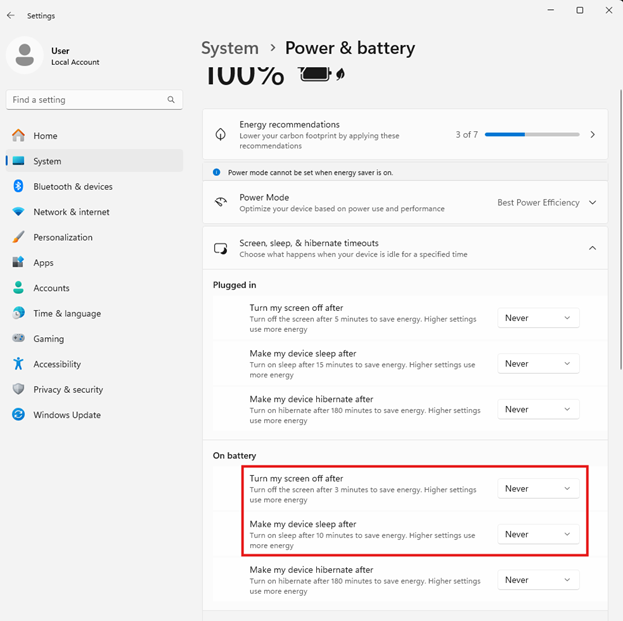
Go to Windows Settings > System > Power & battery.
-
Choose “Never” for “Turn my screen off after” and “Make my device sleep after” in the “On battery” section.
-
Unplug the power adapter and let your Razer Blade idle until the battery drains completely.
-
Charge your Razer Blade until it reaches 100%. Avoid using it for accurate calibration.
-
Check the battery report. Ensure full charge capacity closely matches design capacity.
-
Repeat the calibration process every few months to maintain accuracy and address performance discrepancies.
See the answer below for more details.
If you have issues with your Razer Blade battery, get a Battery Report and create an Energy Report. See the answers below for more details.

