
Tips to help you get started
You can view the video below for instructions or review a copy of the video transcript.
Experience insane performance and ultra-portability with the Razer Blade 16—featuring more graphics power per inch³ than any other 16” gaming laptop. Armed with the world’s first dual-mode mini-LED display, witness quality you can’t unsee with UHD+ 120 Hz and FHD+ 240 Hz native resolutions.

Device Layout

- Array microphone
- Webcam indicator light
- Built-in camera cover with indicator
- Full HD webcam
- Infrared sensor
- 16" Anti-glare display
- Power button
- Speakers powered by THX® Spatial Audio
- Per-key RGB powered by Razer Chroma™ N-Key rollover backlit keyboard
- Precision glass touchpad
*Supports 20 V USB PD 3.0 up to 100 W
- Power indicator
- UHS-II SD card reader
- Thunderbolt™ 4 port (USB Type-C)*
- USB 3.2 Gen 2 Type-A ports
- HDMI 2.1 port
- Lock slot
- Power port
- USB 3.2 Gen 2 Type-C port*
- 3.5 mm headphone/ microphone combo port
Full Technical Specifications
| Category | Specification |
|---|---|
|
Operating System |
Windows 11 Home - 64-Bit |
|
Processor |
13th Gen Intel® Core™ i9-13950HX 5.5 GHz |
|
Cache / Boost |
36 MB of Cache, Boost up to 5.5 GHz |
|
Cores / Threads |
24 Cores / 32 Threads |
|
Graphics |
|
|
Name |
NVIDIA® GeForce® RTX™ 4090 Laptop GPU |
|
Total Graphics Power (TGP) |
Up to 175 W |
|
NVIDIA CUDA® Cores |
9728 |
|
Boost Clock |
Up to 2040 MHz |
|
NVIDIA GPU Boost™ |
Yes |
|
NVIDIA Optimus™ Technology |
Yes |
|
NVIDIA Whisper Mode 2.0 |
Yes |
|
VR Ready |
Yes |
|
Thermal System |
Patented Vapor Chamber Cooling |
|
Display |
|
|
Size |
16" |
|
Resolution |
UHD+ 16:10 (3840 x 2400 WQUXGA) / FHD+ 16:10 (1920 x 1200, WUXGA) |
|
Anti-Glare |
Yes |
|
Response Time |
3 ms |
|
NVIDIA G-Sync™ Enabled |
Yes |
|
Individually factory calibrated |
Yes |
|
Brightness (Typical / Max) |
600 nits (SDR) / 1000 nits (HDR) |
|
Color Gamut |
DCI-P3 100% |
|
Pantone Validated |
No |
|
Supports HDR |
Yes (HDR 1000) |
|
Technology |
Mini-LED |
|
Viewing Angle |
Up to 170° |
|
Bezel (Side / Top / Bottom) |
4.66 mm / 9.6 mm / 8.08 mm |
|
System Memory |
|
|
Installed |
32 GB |
|
Technology |
DDR5-5600 MHz |
|
Maximum Upgradeable |
64 GB (2 slots) auto-scaled down to 5200 MHz |
|
Storage |
|
|
Installed |
2 TB PCIe® 4.0 NVMe™ M.2 SSD |
|
Maximum Upgradeable |
4 TB (2 single-sided NVME drives) |
|
Wireless |
Wireless Wi-Fi 6E AX211 (IEEE 802.11a/b/d/e/g/h/i/k/n/r/u/v/w/ac/ax/az) |
|
Webcam |
Windows® Hello built-in IR FHD w/ Shutter |
|
Input & Output |
|
|
Thunderbolt |
1 x Thunderbolt 4™ (USB 3.2 Gen 2) Type-C with Power Delivery and Display Port 1.4 with NVIDIA GPU output |
|
USB-C 3.2 Gen 2 |
1x USB-C 3.2 Gen 2 Type-C Port (Supports DisplayPort via dGPU) |
|
USB-A 3.2 Gen 2 |
3 |
|
Touchpad |
Precision Touchpad |
|
Keyboard - Technology |
Per key RGB Powered by Razer Chroma™ N-Key rollover |
|
Keyboard - Travel |
1.0 mm |
|
Keyboard - Anti-Ghosting |
Yes |
|
HDMI 2.1 Output |
Yes |
|
UHS-II SD Card Reader |
Yes |
|
Audio |
|
|
Speakers |
4 speaker array (tweeters x2, sub x2) |
|
Amplifiers |
2 Smart Amps |
|
Audio Jack |
3.5 mm Combo-Jack |
|
Microphone |
Build-in 2-mic array |
|
THX® Spatial Audio |
Yes |
|
7.1 Codec Support (via HDMI) |
Yes |
|
Security |
Intel® Platform Trust Technology (Intel® PTT) security embedded, sTPM 2.0, Kensington Lock |
|
Included Software |
Razer™ Synapse 3 enabled with performance, programmable keyboard, and fan control |
|
Power |
|
|
Battery (WH) |
95.2 Whr |
|
Battery (mAh) |
6182 mAh |
|
Battery Weight |
385 g |
|
Battery Cells |
4 cells |
|
Battery Warranty |
2 Years |
|
Power Adaptor |
330 W GaN Power Adapter |
|
Limited Warranty |
1 Year |
|
Dimensions (Approx.) |
|
|
Material |
T6 CNC Aluminum, Anodized |
|
Color |
2023 Y design, Signature orange & Shield logo |
|
Weight (Approx.) |
5.40 lbs / 2.45 kg |
|
In the Box |
|

Setting Up
How do I get the latest software and driver updates from Windows?
Ensure that you have the latest software, drivers, and security updates for your system. See the answer below for more details.
How do I successfully install the BIOS Firmware Updater?
Check your Blade's model number and verify you are using the correct firmware updater for your device. See the answer below for more details.
How do I perform a hard reset on the Razer Blade to allow it to power up?
-
Check for a loose or misaligned power adapter.
-
Verify the power source.
You can view the video below for instructions or review a copy of the video transcript.
See the answer below for more details.
How do I set up the audio on my Razer Blade for optimal performance?
-
Right-click the “Sound” icon on your System Tray at the bottom right side of your desktop.
-
Select “Troubleshoot sound problems”.
-
Follow the onscreen instructions.
See the answer below for more details:
How do I enable and set up the camera on my Razer Blade?
Ensure that you have the latest software, drivers, and security updates for your system.
You can view the video below for instructions or review a copy of the video transcript.
See the answer below for more details.
How do I set up the sleep or hibernate mode correctly?
- Make sure your Blade’s BIOS and Embedded Controllers (EC) are updated to the latest version.
- Disable hibernation.
- Disable Fast Startup feature.
- Change power settings.
You can view the video below for instructions or review a copy of the video transcript.
See the answers below for more details.
How do I create and use a system recovery stick for my Razer Blade?
Create a system recovery stick to restore the Razer Blade to its original state to resolve persistent software issues.
You can view the video below for instructions or review a copy of the video transcript.
See the answer below for more details.
How do I upgrade the storage on my Razer Blade?
Upgrade up to 4 TB SSD.
You can view the video below for instructions or review a copy of the video transcript.
See the answer below for more details.
How do I reset the Razer Blade to its factory default settings?
This process will remove all data, files, settings, games, and applications. Back up all your data to an external drive before proceeding. See the answer below for more details.
How To
How do I prevent the Secure Boot Violation message on Razer Blade?
-
Prepare an empty USB thumb drive.
-
Access the BIOS and disable Secure Boot.
-
Power on the laptop and plug in the USB drive.
-
Run Command Prompt and copy the recovery application to the USB drive.
-
Restart the laptop and enable Secure Boot in the BIOS.
-
Restart the device again, press F12, then select boot from the USB drive.
-
Follow the on screen instructions.
See the answer below for more details.
How do I keep my Razer Blade at optimal temperature while gaming?
Improve your gaming experience by following these tips:
-
Clean air vents.
-
Game in a cool environment.
-
Adjust fan speed.
-
Close background programs.
-
Update Windows and drivers.
You can view the video below for instructions or review a copy of the video transcript.
See the answer below for more details.
How do I check if my Razer Blade supports Thunderbolt™ and USB4?
All devices that utilize Thunderbolt 4 also support USB4 since both are based on the same underlying protocol and use the same USB-C-type connector.
See the answer below for more details.
How do I maintain the health of my Razer Blade battery?
Immediately stop using your Razer Blade and replace the battery. Razer Blade batteries should be replaced by an authorized Razer Repair Center.
See the answers below for more details.
How do I replace the battery on my Razer Blade?
Razer Blade batteries should only be replaced by an authorized Razer Repair Center. Do not purchase a battery from another vendor as they are at risk of causing battery pack thermal runaway that results in a fire in the system, surrounding furniture, or harm to the user handling the Safety Hazard system.
See the answer below for more details.
How do I access the "Device Encryption" settings on my device?
Ensure that your device is not using the dedicated GPU as it will cause conflict with the encryption.
See the answer below for more details.
How do I optimize my Razer Blade to achieve the supported FPS when gaming?
Lower the game’s graphics settings until a playable frame rate is achieved.
You can view the video below for instructions or review a copy of the video transcript.
See the answer below for more details.
How do I optimize my Razer Blade display for stable and smooth visuals?
Ensure you have the latest software, drivers, and security updates for your system.
You can view the video below for instructions or review a copy of the video transcript.
See the answer below for more details.
How do I clean the Razer Blade?
- Turn off your Razer Blade and unplug your power adapter.
- Disconnect all external devices such as mice, keyboards, or monitors.
- Take a lint-free microfiber cloth and wipe the surface of your laptop gently but thoroughly.
See the answer below for more details.
General Information
What is Hyperboost?
Hyperboost is a feature that unlocks additional performance for selected Razer Blade models when used with the Razer Laptop Cooling Pad. This feature pushes past standard system power limits with active cooling to achieve ultimate performance gain.
The Hyperboost setting can be found under the PERFORMANCE tab in Razer Synapse.
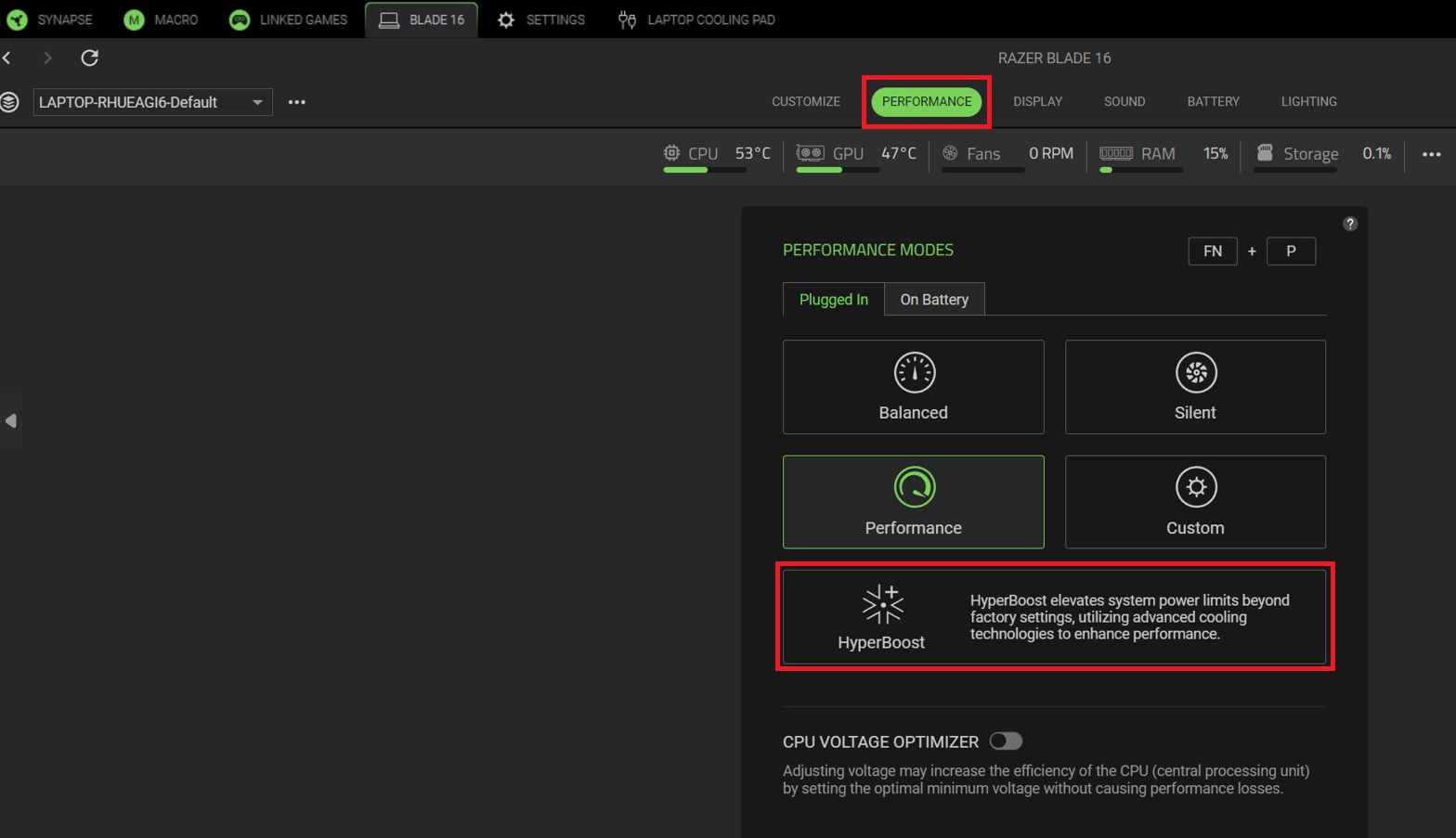
Note: The Performance Mode settings in Razer Synapse for the Laptop Cooling Pad will align with the settings selected for your Razer Blade.
What models are supported by Hyperboost?
The Razer Blade 16” (2023), Razer Blade 16” (2024), and Razer Blade 16” (2025) are the models currently supported. Support for other models will be announced at a later date.
Can I custom overclock my Razer Blade?
Yes, you can overclock your Razer Blade via Razer Synapse 3. However, ensure your Razer Blade model supports this feature and its Razer Synapse is up-to-date. If your device does not support this feature, do not overclock your CPU, GPU, or RAM. There is an associated risk of damage to crucial components if unauthorized changes are made, which will result in voiding the manufacturer’s warranty.
See the answers below for more details:
Can I use a lower-watt power adapter on my Razer Blade?
Use the power adapter that came with your Razer Blade 16” (2023) to get the highest performance while your Razer Blade is running under heavy load. The Razer Blade 16" RTX 4060 and 4070 models are shipped with a 280 W power adapter, and the RTX 4080 and 4090 models are shipped with a 330 W power adapter.
Why are the fans on my Razer Blade still running while in sleep mode?
Newer Razer Blade and Razer Book models now utilize "Modern Standby" feature. It allows some applications to continue running in the background while the system is in sleep mode. With Modern Standby, system fans will continue spinning even when the screen is turned off to ensure proper cooling. This fan operation will consume power, so do the following actions to preserve system battery:
- Close unused applications
- Keep Windows up-to-date
- Use hibernate mode than sleep mode
- Completely shut down your system when not in use
See the answer below for more details.
How do I check if my Razer Blade supports Modern Standby?
- Press the "Windows" + "R" keys.
- Type “cmd” and click "OK" to open the Command Prompt.
- Type “powercfg /a” without the quotation marks and press "Enter". Your device supports Modern Standby if you see "Standby(S0 Low Power Idle) Network Connected”.
See the answer below for more details.
Can I dual boot, partition, modify, or install other operating systems on my Razer Blade?
Yes. However, the Razer Blade is designed for compatibility with the as-shipped OS. Should you want to install or modify the OS, format the boot drive first then install your OS. Razer Warranty and Support is only available for the as-shipped OS.
How many external monitors am I able to connect to my Razer Blade?
Some Razer Blades, including this model, support up to three external monitors using the available HDMI and USB-C ports. However, results vary depending on the resources required by the external displays.
See the answer below for more details.
Will I overcharge my battery if I leave it plugged in even when it is at 100%?
No. The Razer Blade 16” (2023) has a Battery Health Optimizer feature that you can enable in Razer Synapse 3. This lets you configure the battery's charging limit from 50 to 80% in steps of 5%. When the Battery Health Optimizer is enabled, the battery will stop charging when it has reached the limit specified even though your device is still plugged in. Enabling this feature may cause your battery level to be lower than 100%, but this will protect your battery and prolong your battery life.
Note: It is highly recommended to cycle the battery every couple of weeks. For tips on how to extend the battery life of your Razer Blade battery, see the answers below:
IMPORTANT: In order for the systems to work with Razer Synapse, ensure both the BIOS and FIRMWARE updates below are performed.
| Driver Name | Version | Release Date | Release Information |
|---|---|---|---|
| EC Firmware Updater | v1.01 | July 22, 2026 | Razer Blade 16 (2023) Lamborghini Edition | RZ09-0483x EC Firmware Updater |
| Keyboard Firmware Updater | v1.06.00 | July 22, 2026 | Razer Blade 16 (2023) Lamborghini Edition | RZ09-0483x Keyboard Firmware Updater |
| BIOS Firmware Updater | v1.06 | March 5, 2026 | Razer Blade 16" (2023) Lamborghini Edition BIOS Updater | RZ09-0483x |
| GPU vBIOS Firmware Updater | v2 | January 27, 2025 | Razer Blade 16" (2023) Lamborghini Edition Customer Firmware Updater | RZ09-0483x |
| PD Firmware Updater | v00.09 | July 17, 2023 | Razer Blade 16" (2023) Lamborghini Edition PD Firmware Updater |
| Documentation | Language |
|---|---|
| User Guide (English) | English |
| User Guide (Spanish) | Español |
| User Guide (French) | Français |
| User Guide (German) | Deutsche |
| User Guide (Portuguese-Brazilian) | Português |
| User Guide (Russian) | русский |
| User Guide (Traditional Chinese) | 繁體中文 |
| User Guide (Simplified Chinese) | 简体中文 |
| User Guide (Korean) | 한국어 |
| User Guide (Japanese) | 日本語 |
Please see our warranty policy for a complete review of our warranty policy.
You are eligible for Limited Warranty support for the following periods of time commencing upon the date of retail purchase of your Product (Warranty Period).
| Product | Warranty Period | |
|---|---|---|
| Razer Laptops | ||
| 2021 and Older Models | 1 yeara | |
| 2022 and Newer Models | 1 yeara 2-year limited battery warrantya |
|
| Razer Phone and Phone Accessories | 1 year | |
| Razer Edge Gaming Handhelds | 1 yearb | |
| Razer Mice | 2 years | |
| Razer Viper Mini Signature Edition | 3 years | |
| Razer Keyboards and Keypads | 2 yearsc | |
| Razer Huntsman Signature Edition | 5 years | |
| Razer Headsets, Earphones and Earbuds | 2 yearsc | |
| Razer Wireless Mouse and Mat Bundles | 2 yearsc | |
| Razer Mouse Mats | 1 yeard | |
| Razer Speaker Systems and Broadcaster Devices | 1 year | |
| Razer Controllers and Chargers | 1 year | |
| Razer Routers (except Singtel) | 1 year | |
| Razer Routers (Singtel) | 2 years | |
| Razer Monitors | 1 year | |
| Smart Watches and Eyewear | 2 years | |
| Razer Case Fans | 2 years | |
| Razer Liquid Cooling | 2 years | |
| Razer Katana Power Supplies | 5 years | |
| Razer Fan and RGB Controllers | 2 years | |
| Razer Cases | 1 year | |
| Razer System Accessories | 1 year | |
| Razer Laptop Cooling Pad | 2 years | |
| Razer Docks | 1 year | |
| Razer USB C Dock | 2 years | |
| Wearable Air Purifiers | 1 year | |
| Razer Gaming Accessories | 1 yeard | |
| Razer Rechargeable Batteries for Wireless Devices | 1 yeare | |
| Razer Iskur | 3 years | |
| Razer Iskur V2 | 3 years | |
| Razer Enki Line | 3 years | |
| Razer Fujin Line | Mesh Backing and Seat Pan | 1 year |
| Chair Frame, Mechanisms and Armrests | 5 years | |
| Razer Fujin Pro Headrest | 5 years | |
| Razer Fujin Headrest | Frame – 3 years Mesh – 1 year |
|
| Razer Soma Line | Mechanisms & Moving Parts | 3 years |
| Electronic Parts | 2 years | |
| Razer Chair Accessories | 1 year | |
All new Products will have the Warranty Periods listed above, subject to applicable local law. Certain "end of life", sell out or discontinued Products may have a shorter Warranty Period; this will be clearly marked at the time of purchase and the given Warranty Period will be stated at that time. Refurbished Products purchased from Razer.com will have the lesser of a 1 year warranty period or the warranty period as stated above. Refurbished products not purchased from Razer.com will have a 90 day warranty period. If you are uncertain whether your Product is eligible for Limited Warranty support, please contact our support team for clarification.
Please note that third-party products may be covered by the product manufacturer's warranty and these warranty terms are exclusively provided by the product manufacturer. Razer does not offer a warranty for third-party products. If you need product or warranty support with your third-party product, please contact the product manufacturer. Please consult the product documentation provided by the product manufacturer for details.
If you are uncertain whether your Product is eligible for Limited Warranty support, please contact our support team for clarification.
Warranty Footnotes
- [a] If you are a customer outside of the U.S. and have validly purchased a Razer Extended Warranty for your product, the Warranty Period shall be extended for another one (1) year period, to be a total of two (2) years commencing upon the date of retail purchase of your Razer Product. The Razer Extended Warranty does not apply to batteries. Aside from the change to Warranty Period, the Razer Extended Warranty does not alter any other terms and conditions of the Limited Warranty.
- [b] Replacement parts and/or services are available for a minimum of 3 years after the end of production of the product; additional charges may apply.
- [c] Products purchased prior to October 1st, 2018 maintain the original 1 year warranty (keyboards with mechanical switches maintain original 2 year warranty).
- [d] Warranty period for Razer Firefly HyperFlux is 2 years.
- [e] Products purchased prior to October 1st, 2018 maintain the original 6 month warranty.
- [f] Limited Warranty: The Razer Iskur is free from defects in workmanship, materials and construction for three years from the date of purchase. In the event that a defect is found, the manufacturer will either repair or replace the defective item, at its discretion. Exclusions and Limitations: This Limited Warranty does not cover cosmetic damage, minor cosmetic abnormalities and normal wear and tear, including without limitation scratches, dents, discoloration and tears in the head pillow, seat cushion, PU leather, Armrest and stitches of the upholstery.

