

The Razer Raptor 27 QHD-165 Hz was created to perform extreme speed and clarity to help you react in a split second. It can also display deep vibrant colors and natural life-like image for a truly immersive gaming experience – a no compromise display that produces breath-taking images quality making it the ultimate esports gaming monitor.

Device Layout

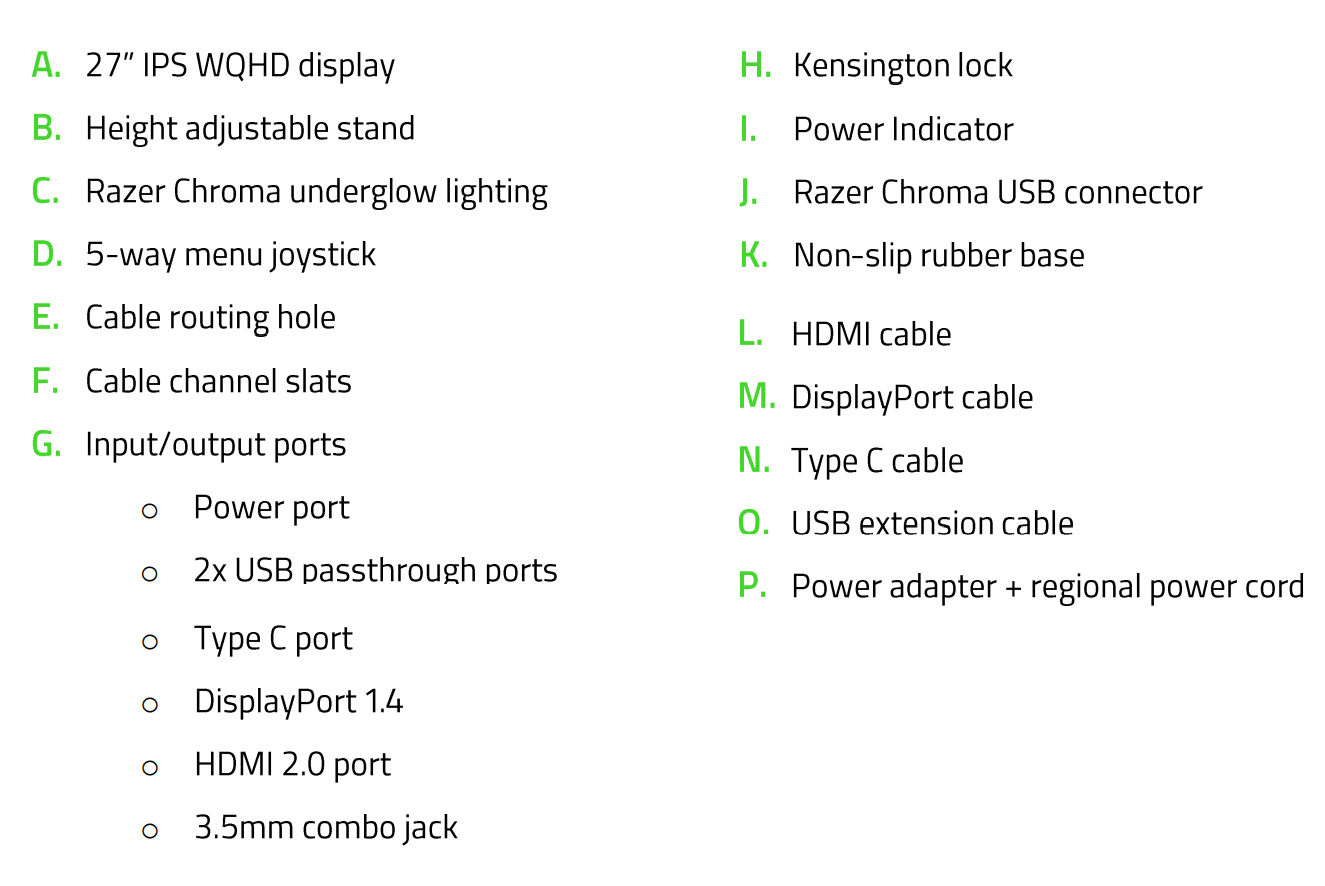
- 27" IPS WQHD display
- Height adjustable stand
- Razer Chroma underglow lighting
- 5-way menu joystick
- Cable routing hole
- Cable channel slats
- Input/output ports
- Kensington lock
- Power indicator
- Razer Chroma USB connector
- Non-slip rubber base
- HDMI cable
- DisplayPort cable
- Type C cable
- USB extension cable
- Power adapter + regional power cord
Full Technical Specifications
| Category | Specification |
|---|---|
| Variation | Razer Raptor 27 QHD-165 Hz | RZ39-0350 |
| Display Panel | 27" IPS, Flat Matte display |
| Resolution | 27" WQHD (2560 x 1440px) resolution |
| Pixel Density | 103 pixels-per-inch |
| Aspect Ratio | 0.672916666666667 |
| Panel | Non-glare IPS display with up to 178 degrees viewing angles |
| Refresh Rate | 165Hz |
| Variable Refresh Rate | Adaptive-Sync** |
| Response Time |
|
| Brightness | Up to 420 nits (VESA Display HDR 400) |
| Color Gamut | 95% DCI-P3 with THX certification |
| Contrast Ratio | 41.6673611111111 |
| Viewing angle | 178 degrees |
| Height Adjustment | 0-100 mm |
| Tilt Adjustment | 5-25 degrees for easy set up and access to ports |
| Power Adapter | 90 W |
| Other Features |
|
| I/O |
|
| Stand | Adjustable stand with a 90-degree tilt for easy port access |
| Dimensions |
|
| Weight | 20.76 lbs / 9.42 kg (with stand) |
How To
How do I set up the VESA Mount adapter to the Razer gaming monitor?
Mount your Razer gaming monitor to the wall or to an articulating arm for maximum convenience using the VESA Mount Adapter. See the answer below for detailed instructions:
How do I access the ports of the Razer gaming monitor?
To access the ports:
- Adjust the screen to its maximum height.
- Tilt it back to a maximum of 90°. You will see the ports on the bottom side of the display.
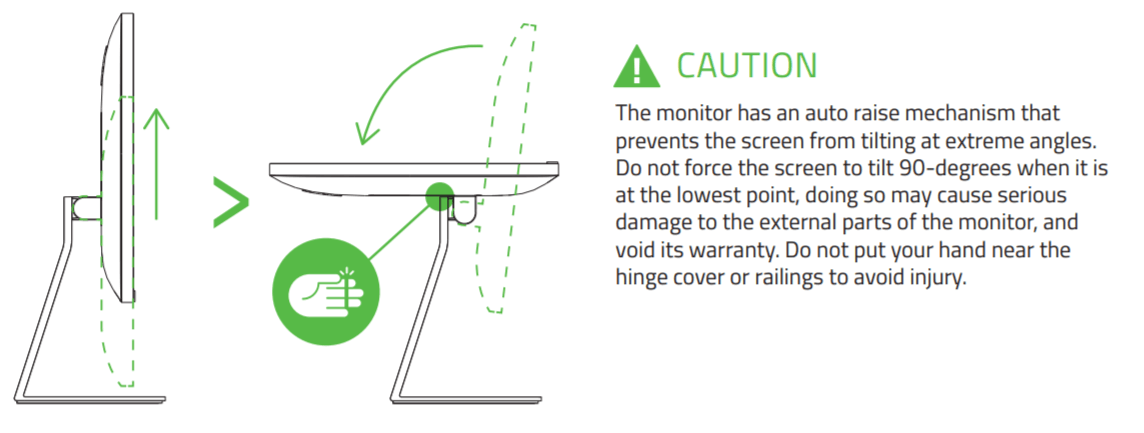 Caution: The monitor has an auto raise mechanism that prevents the screen from tilting at extreme angles. Do not force the screen to tilt 90-degrees when it is at the lowest point, doing so may cause serious damage to the external parts of the monitor, and void its warranty. Do not put your hand near the hinge cover or railings to avoid injury.
 The monitor accepts the following cable connectors: USB Extension Cable, Type-C Cable, DisplayPort Cable, HDMI Cable, and Power Adapter Cable.
Note: Be careful not to force the screen to tilt to 90° at its lowest point as this may cause serious damage and void your warranty. While tilting the screen, keep your hand away from the hinge or railings to avoid injury.
How do I adjust the height of my Razer gaming monitor?
To adjust the height of the monitor:
- Hold both sides of the screen firmly.
- Slide it upwards or downwards gently.
How do I adjust the display settings of my Razer gaming monitor?
Access and configure your display settings via the 5-way configuration joystick on the right-backside of the Razer gaming monitor. Additional customization can also be done via the GPU Dashboard, Windows Display Settings, and Razer Synapse.
How do I change the refresh rate on my Razer gaming monitor?
If you connected the Razer gaming monitor via HDMI or DisplayPort, the refresh rate settings can be changed via Display Settings > Advanced Display Settings > Display Adapter Properties for Razer Raptor > Monitor.
How do I use HDR on the Razer gaming monitor and Razer Blade 15" (Mid 2019) - Advanced?
HDR on Razer gaming monitor requires the systems (laptop that has HDR) to be on AC power. The screen will toggle between HDR on/off mode wrt to the power state.
How do I use the Nvidia GPU with an external monitor on my Razer Blade?
Use the HDMI port. See the answer below for more details.
General Information
Does the Razer gaming monitor come with the VESA Mount Adapter?
The VESA Mount Adapter for the Razer gaming monitor is sold separately.
Does the Razer gaming monitor automatically sleep when I turn off my PC?
Yes. The Razer gaming monitor will automatically go to sleep after five minutes.
What is THX Cinema Mode?
THX Cinema Mode adjusts the brightness of the Razer gaming monitor screen for a home-theatre environment. This can be accessed in the On-Screen Display Menu > Color > THX Cinema.
What is the difference between a G-Sync monitor and a G-Sync-compatible monitor?
G-Sync is a type of adaptive sync technology for desktop and laptop displays developed by Nvidia. A G-Sync monitor is a device that comes with Nvidia processors that can work with your Nvidia graphics card out of the box. See the answer below for more details.
What is the signal priority sequence of the Razer gaming monitor's ports?
Upon startup, the monitor will first detect signals from the HDMI port. Next, it will detect input from the DisplayPort and finally, from the Type-C port.
What is the best port to use for gaming?
Use the DisplayPort 1.4 to fully take advantage of the Razer gaming monitor's specifications. Do note that the USB-C port also supports the DisplayPort 1.4 protocol.
Can I control the Razer gaming monitor's settings via Razer Synapse?
Yes, you can change the settings of the Razer gaming monitor via Razer Synapse if it is connected to your computer via USB-C.
Can I connect the Razer Phone 2 to the Razer gaming monitor?
Yes, connect the Razer Phone 2 to the Razer gaming monitor via the included USB-C to USB-C cable to use it as an external monitor. You may also use a third-party USB-C to HDMI or a USB-C to DisplayPort cable, but performance may vary.
Applicable models:
Firmware Updater v1.06_r4
- https://rzr.to/dn4KPc | November 18, 2021
- Remove the “THX darkroom” option from on-screen controls
- Improve overdrive for each refresh rate
Follow the detailed instructions below to run the updater on your device.
Step-by-step Process
Before you start
-
If using a laptop, ensure it is plugged into a power outlet.
-
Save any open documents on your computer.
-
Close all other programs.
-
Download the latest updater.
Update process
-
Run the updater.
-
Click “Yes” if the User Account Control window pops up to proceed.
-
Click "NEXT" after reading the updater precautions.
 This image contains the following text: RAZER RAPTOR 27 (165HZ) FIRMWARE UPDATER. This utility will update the firmware of your Razer Raptor 27 (165HZ). Please note: This firmware updater can only update one device at a time. Running Razer applications will automatically shut down during the update process. If using a laptop, ensure that it is plugged into a power outlet. This update may take up to 15 minutes. After the update, the display may go blank for a few seconds.
 -
Turn on your Razer Raptor 27.
Note: Display must output via USB-C port (monitor input source: Type-C).
-
Connect the Razer Raptor 27 to the USB-C port of your PC.
Note: You must connect directly to the USB-C port on your PC. Do not use a USB-C adapter or hub.
-
Click "UPDATE" to initialize the update process.
 This image contains the following text: RAZER RAPTOR 27 (165HZ) FIRMWARE UPDATER. Make sure your Razer Raptor 27 is turned on. Connect the Razer Raptor 27 to the USB-C port of your PC. Connection must be made directly to a USB-C port on your PC. Do not use a USB-C adapter or hub.
 -
Wait for the update process to complete.
 This image contains the following text: RAZER RAPTOR 27 (165HZ) FIRMWARE UPDATER. Make sure your Razer Raptor 27 is turned on. Connect the Razer Raptor 27 to the USB-C port of your PC. Connection must be made directly to a USB-C port on your PC. Do not use a USB-C adapter or hub. Please don't power off your computer or unplug your device(s). Updating... 4%.
 -
Click "CLOSE" once the update is complete.
 This image contains the following text: RAZER RAPTOR 27 (165HZ) FIRMWARE UPDATER. Update Successful. Your device has been updated to the latest firmware.
The firmware on your Razer Raptor 27 QHD-165 Hz is now updated.
| Documentation | Language |
|---|---|
| User Guide (English) | English |
| User Guide (Spanish) | Español |
| User Guide (French) | Français |
| User Guide (German) | Deutsche |
| User Guide (Portuguese Brazilan) | português |
| User Guide (Russian) | русский |
| User Guide (Simplified Chinese) | 简体中文 |
Please see our warranty policy for a complete review of our warranty policy.
You are eligible for Limited Warranty support for the following periods of time commencing upon the date of retail purchase of your Product (Warranty Period).
| Product | Warranty Period | |
|---|---|---|
| Razer Laptops | ||
| 2021 and Older Models | 1 yeara | |
| 2022 and Newer Models | 1 yeara 2-year limited battery warrantya |
|
| Razer Phone and Phone Accessories | 1 year | |
| Razer Edge Gaming Handhelds | 1 yearb | |
| Razer Mice | 2 years | |
| Razer Viper Mini Signature Edition | 3 years | |
| Razer Keyboards and Keypads | 2 yearsc | |
| Razer Huntsman Signature Edition | 5 years | |
| Razer Headsets, Earphones and Earbuds | 2 yearsc | |
| Razer Wireless Mouse and Mat Bundles | 2 yearsc | |
| Razer Mouse Mats | 1 yeard | |
| Razer Speaker Systems and Broadcaster Devices | 1 year | |
| Razer Controllers and Chargers | 1 year | |
| Razer Routers (except Singtel) | 1 year | |
| Razer Routers (Singtel) | 2 years | |
| Razer Monitors | 1 year | |
| Smart Watches and Eyewear | 2 years | |
| Razer Case Fans | 2 years | |
| Razer Liquid Cooling | 2 years | |
| Razer Katana Power Supplies | 5 years | |
| Razer Fan and RGB Controllers | 2 years | |
| Razer Cases | 1 year | |
| Razer System Accessories | 1 year | |
| Razer Laptop Cooling Pad | 2 years | |
| Razer Docks | 1 year | |
| Razer USB C Dock | 2 years | |
| Wearable Air Purifiers | 1 year | |
| Razer Gaming Accessories | 1 yeard | |
| Razer Rechargeable Batteries for Wireless Devices | 1 yeare | |
| Razer Iskur | 3 years | |
| Razer Iskur V2 | 3 years | |
| Razer Enki Line | 3 years | |
| Razer Fujin Line | Mesh Backing and Seat Pan | 1 year |
| Chair Frame, Mechanisms and Armrests | 5 years | |
| Razer Fujin Pro Headrest | 5 years | |
| Razer Fujin Headrest | Frame – 3 years Mesh – 1 year |
|
| Razer Soma Line | Mechanisms & Moving Parts | 3 years |
| Electronic Parts | 2 years | |
| Razer Chair Accessories | 1 year | |
All new Products will have the Warranty Periods listed above, subject to applicable local law. Certain "end of life", sell out or discontinued Products may have a shorter Warranty Period; this will be clearly marked at the time of purchase and the given Warranty Period will be stated at that time. Refurbished Products purchased from Razer.com will have the lesser of a 1 year warranty period or the warranty period as stated above. Refurbished products not purchased from Razer.com will have a 90 day warranty period. If you are uncertain whether your Product is eligible for Limited Warranty support, please contact our support team for clarification.
Please note that third-party products may be covered by the product manufacturer's warranty and these warranty terms are exclusively provided by the product manufacturer. Razer does not offer a warranty for third-party products. If you need product or warranty support with your third-party product, please contact the product manufacturer. Please consult the product documentation provided by the product manufacturer for details.
If you are uncertain whether your Product is eligible for Limited Warranty support, please contact our support team for clarification.
Warranty Footnotes
- [a] If you are a customer outside of the U.S. and have validly purchased a Razer Extended Warranty for your product, the Warranty Period shall be extended for another one (1) year period, to be a total of two (2) years commencing upon the date of retail purchase of your Razer Product. The Razer Extended Warranty does not apply to batteries. Aside from the change to Warranty Period, the Razer Extended Warranty does not alter any other terms and conditions of the Limited Warranty.
- [b] Replacement parts and/or services are available for a minimum of 3 years after the end of production of the product; additional charges may apply.
- [c] Products purchased prior to October 1st, 2018 maintain the original 1 year warranty (keyboards with mechanical switches maintain original 2 year warranty).
- [d] Warranty period for Razer Firefly HyperFlux is 2 years.
- [e] Products purchased prior to October 1st, 2018 maintain the original 6 month warranty.
- [f] Limited Warranty: The Razer Iskur is free from defects in workmanship, materials and construction for three years from the date of purchase. In the event that a defect is found, the manufacturer will either repair or replace the defective item, at its discretion. Exclusions and Limitations: This Limited Warranty does not cover cosmetic damage, minor cosmetic abnormalities and normal wear and tear, including without limitation scratches, dents, discoloration and tears in the head pillow, seat cushion, PU leather, Armrest and stitches of the upholstery.

