

Tips to help you get started
Razer Edge is the most powerful Android gaming device ever made and is custom-built with a single purpose: take Android gaming beyond the smartphone. Extreme performance comes to life on a beautiful, gaming-optimized display. And with an incredible, full-featured controller with built-in haptics, AAA gaming is no longer exclusive to PC and console.

Device Layout
Razer Edge
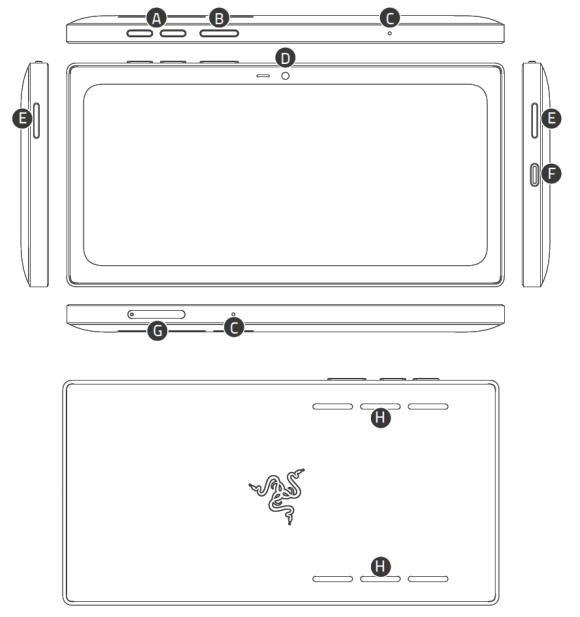
- Volume control buttons
- Power button
- Array microphone
- Front camera
- Multidirectional speakers
- USB Type C Port
- MicroSD card tray
- Air exchange chambers
Razer Kishi V2 Pro

- Clickable analog thumbsticks (L3/R3)
- Options button
- D-pad
- Share button
- 3.5 mm headphone / microphone combo port
- Extendable bridge
- USB Type C connector
- Face buttons
- Status indicator
- Razer Nexus button
- Menu button
- USB Type port
- Bumpers
- Multi-function buttons (M1 / M2)
- Triggers (L2/R2)
Full Technical Specifications
| Category | Specification | |
|---|---|---|
| Chipset | Qualcomm G3X Gen 1 | |
| Screen |
6.8” FHD+ (2400x1080) AMOLED 144 Hz |
|
| RAM |
8 GB LPDDR5 6 GB LPDDR5 |
|
| Storage | Internal: 128 GB (UFS 3.1) External Memory Support: MicroSD (Up to 2 TB) |
|
| Audio |
• 2-way speakers with BoomCloud audio • 2-way speakers with THX Spatial Audio |
|
| Camera | Front 5 MP, 1080p @ 60 fps | |
| Battery | 5000 mAh | |
| Connectivity |
• 5G with embedded eSim • Wi-Fi 6E |
|
| Antenna |
Sub 6, mmWave N/A |
|
| Dimensions | 253 mm x 87 mm x 13.88 mm | |
| Weight | 262 g | |
| Colors | Black | |
| Controller |
|
Initial Setup
Set up Razer Edge
- Press the power button to boot up the device. Tap “NEXT".
- Tap “NEXT" to accept Razer's Terms and Conditions.
- Choose your language and tap "START".
- Connect the Razer Edge to the internet to set up your device. Otherwise, tap “Set up offline".
- Log in to your Google account.
See the answer below for more details.
Set up Google account
- Tap "Settings" from your tablet menu.
- Select "Google".
- Tap “Sign in to your Google Account" to complete the setup.
See the answer below for more details.
How do I register my Razer device using the serial or part number?
Input the complete part or product number that matches the serial number. See the answer below for more details.
Connectivity
Connect or pair to a Bluetooth device
Important: Ensure your device is up-to-date by performing a system update.
- Go to “Settings" > “Connected devices".
- Tap “Pair new device".
- Select the Bluetooth device you wish to pair with.
See the answer below for more details.
Enable data saver
- Tap "Settings" > "Network & Internet".
- Select “Data Saver".
- Toggle on the switch for “Use Data Saver".
See the answer below for more details.
Power and Battery
Battery percentage
Monitor the charge status of the Razer Edge so you can avoid ending up with an empty battery by checking the battery percentage.
- Go to “Settings".
- See “Battery".
See the answer below for more details.
Battery saver
- Go to “Settings" > “Battery".
- Scroll down and look for “Battery Saver".
- Locate the Battery Saver option.
- Make the necessary changes.
See the answer below for more details.
Razer Edge charger
Only the Razer Edge 5G is shipped with the 45 W charger.
Apps and Data
Transfer data or files
If you have an existing device such as an iPhone, another Android phone, computer, or even cloud storage, you can transfer your files to your Razer Edge.
See the answer below for more details.
Back up data
- Go to “Settings" > "System".
- Select “Backup".
- Enable "Back up to Google Drive".
- Tap "Account", then "Add account".
- Sign in to your Google Account.
See the answer below for more details.
Clear cache on apps
- Go to "Settings" > "Apps".
- Select the application you want to clear the cache of.
- Tap “Storage & cache" under “App info".
- Tap "CLEAR CACHE".
See the answer below for more details.
Set external SD card as internal storage
Razer Edge does not officially support setting an external SD card as internal storage.
Move apps to external SD card
Razer Edge does not officially support moving applications to an external SD card.
Display and Camera
Adjust refresh rate
- Go to “Settings" > “Display".
- Tap on “Display" and select “Screen refresh rate".
- Choose your preferred refresh rate.
See the answer below for more details.
Capture screenshot
- Go to the screen you wish to take a screenshot of.
- Press the "Power" and the "Volume down" buttons simultaneously.
See the answer below for more details.
Adjust screen time-out
- Go to “Settings" > “Display".
- Tap “Screen timeout".
- Tap the time you wish to set.
See the answer below for more details.
Adjust font or display size
- Go to “Settings" > “Display".
- Select the setting you want to change.
- Drag the slider button to adjust the font or display resolution.
See the answer below for more details.
System
Software update
Regularly check for updates and install them to get the best experience from your Razer Edge.
See the answer below for more details.
Adjust date and time
- Go to "Settings" > "System".
- Select "Date & time" to adjust the date and time settings.
See the answer below for more details.
Adjust accessibility
- Go to “Settings".
- Tap “Accessibility".
- Adjust the Accessibility settings as desired.
See the answer below for more details.
Change language
- Go to "Settings" > "System".
- Go to "Languages & input".
- Select "Languages".
- Select "Add a language".
- Select the language of your choice.
See the answer below for more details.
Factory reset
Back up all your data before performing a factory reset since this process will delete all data and settings on the Razer Edge.
See the answer below for more details.
Reboot in Safe Mode
- Press the Volume up and power buttons simultaneously.
- Press and hold the “Power off" option.
- Tap “OK" to reboot to safe mode.
See the answer below for more details.
Locked out
If the Razer Edge is not accessible because of a security lock on your password, numeric password, lock pattern, and so on, select one of the two methods below to recover your device.
- Erase data via Android Find
- Reset via Secure Setup
See the answer below for more details.
Enable Developer Options
- Go to "Settings" > "System".
- Tap “About tablet".
- Tap “Build number" repeatedly until the "You are now a Developer" message shows up.
See the answer below for more details.
General Information
Razer Kishi V2 Pro compatibility
The Razer Kishi V2 Pro from the Razer Edge bundle is not compatible with other Android devices. It is designed specifically for the Razer Edge.
Wireless display or screen mirroring suport
The Razer Edge supports Chromecast and allows you to share or mirror the contents to your TV. Visit Chromecast to learn more about its requirements and how to set it up.
Audio Codec
Razer Edge supports AAC, AIFF, CAF, MP3, MP4, WAV, APTX.
Build number
- Go to “Settings” > “About tablet”.
- Scroll down to see the "Build number".
See the answer below for more details.
IMEI number
- Go to “Settings” > “About tablet”.
- Scroll down to see the "IMEI".
See the answer below for more details.
Serial number
- Go to “Settings” > “About tablet”.
- Scroll down and tap “Model”.
Under “Serial number”, the serial number should be visible.
See the answer below for more details.
Android version
- Go to “Settings” > “About tablet”.
- Scroll down to see the "Android version".
See the answer below for more details.
Liquid damage indicator
The Razer Edge is equipped with Liquid Damage Indicators (LCIs) that show if the device has been in contact with water or other liquids. Once the LCI has been exposed to water or other liquids, it will quickly change from white to red. The LCI will only change color if exposed to a liquid and will not be affected by high humidity or other environmental factors.
The Razer Edge’s LCI is checked by opening the SD card tray, while the internal LCIs are only checked by a qualified repair center technician.
See the answer below for more details.
| Documentation | Language |
|---|---|
| User Guide - 5G (English) | English |
| User Guide - Wifi (English) | English |
| User Guide (Spanish) | español |
Please see our warranty policy for a complete review of our warranty policy.
You are eligible for Limited Warranty support for the following periods of time commencing upon the date of retail purchase of your Product (Warranty Period).
| Product | Warranty Period |
|---|---|
| 2021 and Older Model Laptops | 1 yeara |
| 2022 and Newer Model Laptops | 1 yeara 2-year limited battery warrantya |
| Razer Viper Mini Signature Edition | 3 year |
| Razer Phone and Phone Accessories | 1 year |
| Razer Edge Gaming Handhelds | 1 year |
| Razer Mice | 2 years |
| Razer Keyboards and Keypads | 2 yearsb |
| Razer Huntsman Signature Edition | 5 years |
| Razer Headsets, Earphones and Earbuds | 2 yearsb |
| Razer Wireless Mouse and Mat Bundles | 2 yearsb |
| Razer Mouse Mats | 1 yearc |
| Razer Speaker Systems and Broadcaster Devices | 1 year |
| Razer Controllers and Chargers | 1 year |
| Razer Routers (except Singtel) | 1 year |
| Razer Routers (Singtel) | 2 years |
| Razer Monitors | 1 year |
| Smart Watches and Eyewear | 2 years |
| Razer Case Fans | 2 years |
| Razer Liquid Cooling | 2 years |
| Razer Power Supplies | 5 years |
| Razer Fan and RGB Controllers | 2 years |
| Razer Cases | 1 year |
| Razer System Accessories | 1 year |
| Razer Docks | 1 year |
| Wearable Air Purifiers | 1 year |
| Razer Gaming Accessories | 1 yearc |
| Razer Rechargeable Batteries for Wireless Devices | 1 yeard |
| Razer Gaming Chairs | 3 yearse |
| Chair Frame, mechanisms and armrests | Up to 5 years |
| Mesh backing and seat pan | Up to 1 year |
All new Products will have the Warranty Periods listed above, subject to applicable local law. Certain "end of life", sell out or discontinued Products may have a shorter Warranty Period; this will be clearly marked at the time of purchase and the given Warranty Period will be stated at that time. Refurbished Products purchased from Razer.com will have the lesser of a 1 year warranty period or the warranty period as stated above. Refurbished products not purchased from Razer.com will have a 90 day warranty period. If you are uncertain whether your Product is eligible for Limited Warranty support, please contact our support team for clarification.
Please note that third-party products may be covered by the product manufacturer's warranty and these warranty terms are exclusively provided by the product manufacturer. Razer does not offer a warranty for third-party products. If you need product or warranty support with your third-party product, please contact the product manufacturer. Please consult the product documentation provided by the product manufacturer for details.
If you are uncertain whether your Product is eligible for Limited Warranty support, please contact our support team for clarification.
Warranty Footnotes
- [a] If you are a customer outside of the U.S. and have validly purchased a Razer Extended Warranty for your product, the Warranty Period shall be extended for another one (1) year period, to be a total of two (2) years commencing upon the date of retail purchase of your Razer Product. The Razer Extended Warranty does not apply to batteries. Aside from the change to Warranty Period, the Razer Extended Warranty does not alter any other terms and conditions of the Limited Warranty.
- [b] Products purchased prior to October 1st, 2018 maintain the original 1 year warranty (keyboards with mechanical switches maintain original 2 year warranty).
- [c] Warranty period for Razer Firefly HyperFlux is 2 years.
- [d] Products purchased prior to October 1st, 2018 maintain the original 6 month warranty.
- [e] Limited Warranty: The Razer Iskur is free from defects in workmanship, materials and construction for three years from the date of purchase. In the event that a defect is found, the manufacturer will either repair or replace the defective item, at its discretion. Exclusions and Limitations: This Limited Warranty does not cover cosmetic damage, minor cosmetic abnormalities and normal wear and tear, including without limitation scratches, dents, discoloration and tears in the head pillow, seat cushion, PU leather, Armrest and stitches of the upholstery.

